EasyManua.ls Logo

Polycom CX700 - User Manual

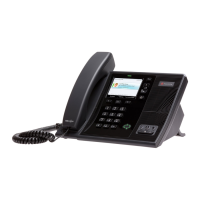
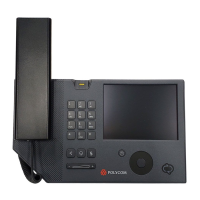
Polycom CX700
62 pages
Print Icon
To Next Page IconTo Next Page
Loading...
| September 2011 | 1725-31402-001 Rev. C1
User Guide for the Polycom®
CX700 IP Phone
Microsoft
®
Lync™ 2010 Edition

Table of Contents

Other manuals for Polycom CX700

Questions and Answers

  • D
    dixonashleySep 13, 2025
    Why is the display flickering on my Polycom CX700?
    • J
      Jennifer DavidsonSep 13, 2025
      If the display on your Polycom IP Phone is flickering, it might be due to certain types of older fluorescent lighting. Try these solutions: * Move the Polycom CX700 IP phone away from the lights. * Replace the lights.
  • G
    Gregory RosarioSep 15, 2025
    What happens if I mistype my PIN during the first configuration of Polycom IP Phone?
    • C
      Christopher DanielSep 15, 2025
      If you mistype your PIN during the initial configuration, double tap on the edit text box for the PIN and start typing the new digits.
  • H
    hubergavinNov 17, 2025
    How to troubleshoot a Polycom IP Phone CX700 with no power?
    • B
      Brian BrownNov 17, 2025
      If your Polycom CX700 IP phone has no power, try the following: * Verify that no lights appear on the unit when it is powered up. * If using PoE, verify that PoE is present on that port. Ask your system administrator to check the appropriate LED or readout or port at the hub. * If using PoE, verify that the network cable is plugged into the correct port on the Polycom CX700 IP phone. * If using AC power, check if the phone is properly plugged into a functional AC outlet. * If using AC power, make sure that the phone isn't plugged into a plug controlled by a light switch that is off. * If plugged into a power strip, try plugging directly into a wall outlet instead. * If using AC power, try the phone in another room where the electricity is known to be working on a particular...

Summary

Getting Started with Your Phone

Parts List

Lists all components included in the Polycom CX700 IP phone package.

Assembling Your Phone

Provides step-by-step instructions for physically setting up the phone.

Connecting the Phone to the Network

Details how to connect the phone to the network using Ethernet.

Connecting to Your Computer Using a USB Cable

Explains how to connect the phone to a computer via USB for enhanced functionality.

Features of Your Phone

Outlines the advanced functionalities and features of the Polycom CX700 IP phone.

Logging in on Your Phone

Step-by-step guide on how to log in to the phone to place calls.

Customizing Your Phone

Configuring Basic Settings

Overview of how to adjust fundamental phone settings like date, time, and language.

Locking and Unlocking Your Phone

Instructions on how to lock and unlock the phone for security.

Changing Your PIN

Guide to changing the phone's personal identification number.

Using the Basic Features of Your Phone

Placing Calls

How to initiate outgoing calls using various methods.

Answering Calls

Steps to answer incoming calls using handset, speakerphone, or headset.

Troubleshooting Your Phone

Power and Startup

Common issues and solutions related to powering on and starting the phone.

Making and Receiving Calls

Solutions for problems encountered when making or receiving calls.

Audio

Solutions for problems with audio output on the handset or headset.

Microsoft Lync 2010

Troubleshooting issues related to the Microsoft Lync 2010 client integration.

Polycom CX700 Specifications

Power IconPower
power over EthernetIEEE 802.3af Class 2
maximum power consumption13 Watts
LCD Display IconLCD Display
display size5.7 inches
display typeamorphous-TFT Active-Matrix Transmissive
display resolution320x240
Audio IconAudio
frequency response30 – 20kHz
signal-to-noise ratio78 dB (@ 1kHz)
dynamic range>80 dB (@ 1kHz)
total harmonic distortion + noise<0.08% (@ 1 kHz)
Operating Environment IconOperating Environment
operating temperature range-10°C to 40°C
relative humidity80% max (non-condensing)
operating altitude range-304.8 meter to 3962.4 meter
Weight and Dimensions IconWeight and Dimensions
dimensions when not tilted252.7 x 268.6 x 91.3 mm
dimensions when tilted up193.2 x 268.6 x 192.1 mm
unit weight2.1 kg
handset weight200 g
shipping weight2 kgs

Related product manuals