Chapter 1 Getting Started
© Polycom, Inc. 37 ViewStation FX/VS 4000 User’s Guide
Placing a Video Call Manually
Using One Number
You can manually place a video call as follows:
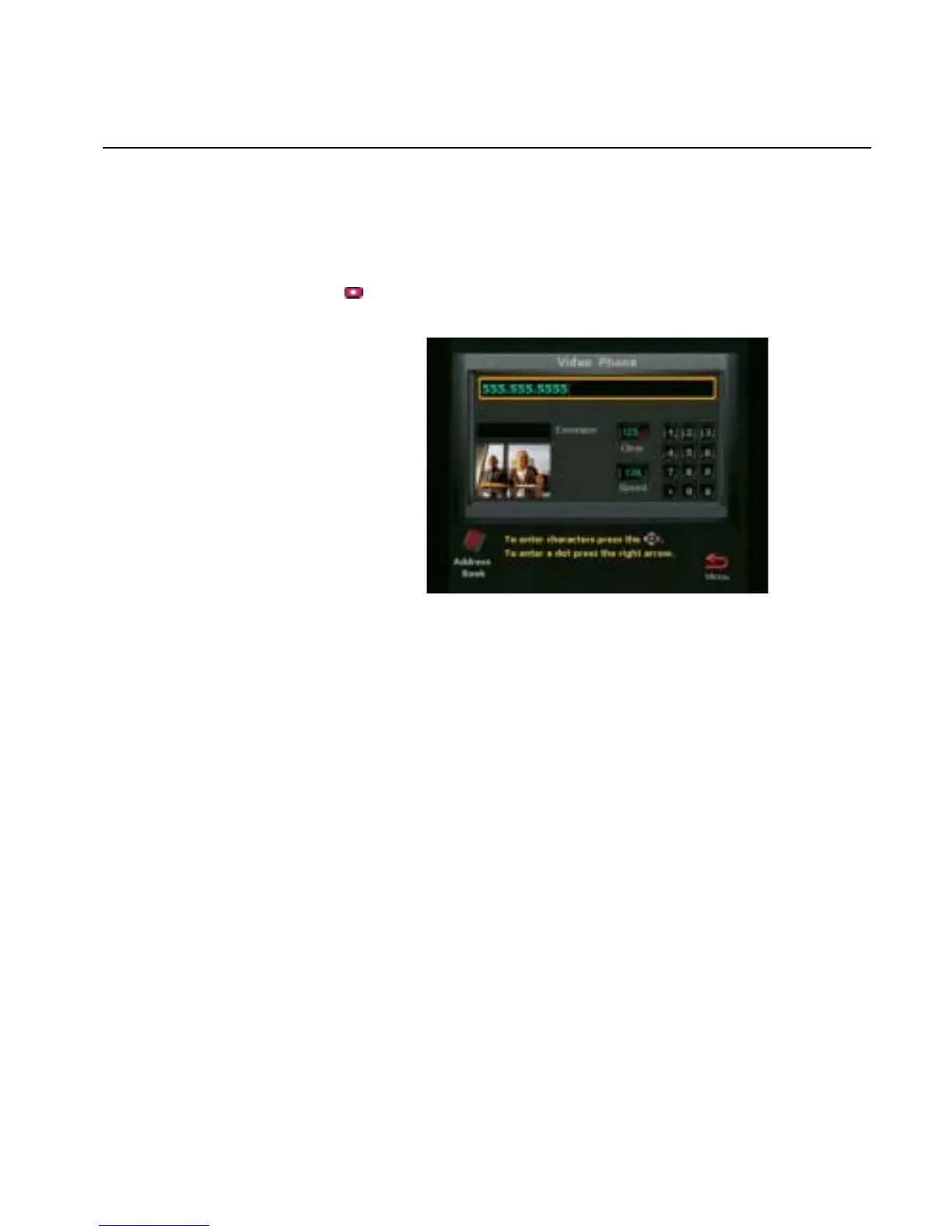
1. On the main screen, highlight the Video Call icon and press the
button. The following screen appears.
Figure 1-26. Video Phone Number entry screen.
2. Use the numeric keypad on the remote control to enter the
number you want to dial.
If you need to enter alpha characters, press the AUTO button on
the remote control to bring up the keyboard.
3. Use the arrow buttons on the remote control to highlight the
Speed icon on the screen and select the speed of your call from
the list that appears.
4. Press the green CALL•HANG-UP button on the remote control
to place your call. The number and the speed that you are
dialing appear at the top of the screen. The call progress
indicators on the lower left side of the screen indicate that the
call is going through. They change progressively to blue, yellow,
orange, and green as your call completes.



 To Next Page