29
5. Referring to the example above for reference: Reboot the WIFI SSID of Dreamer to establish connection,
then connect the Dreamer-TV1 to the Internet under the AP mode of the computer, make sure that Dreamer and
the computer access the same WIFI, then open the FlashPrint and click on Menu—Print—Connect successfully.
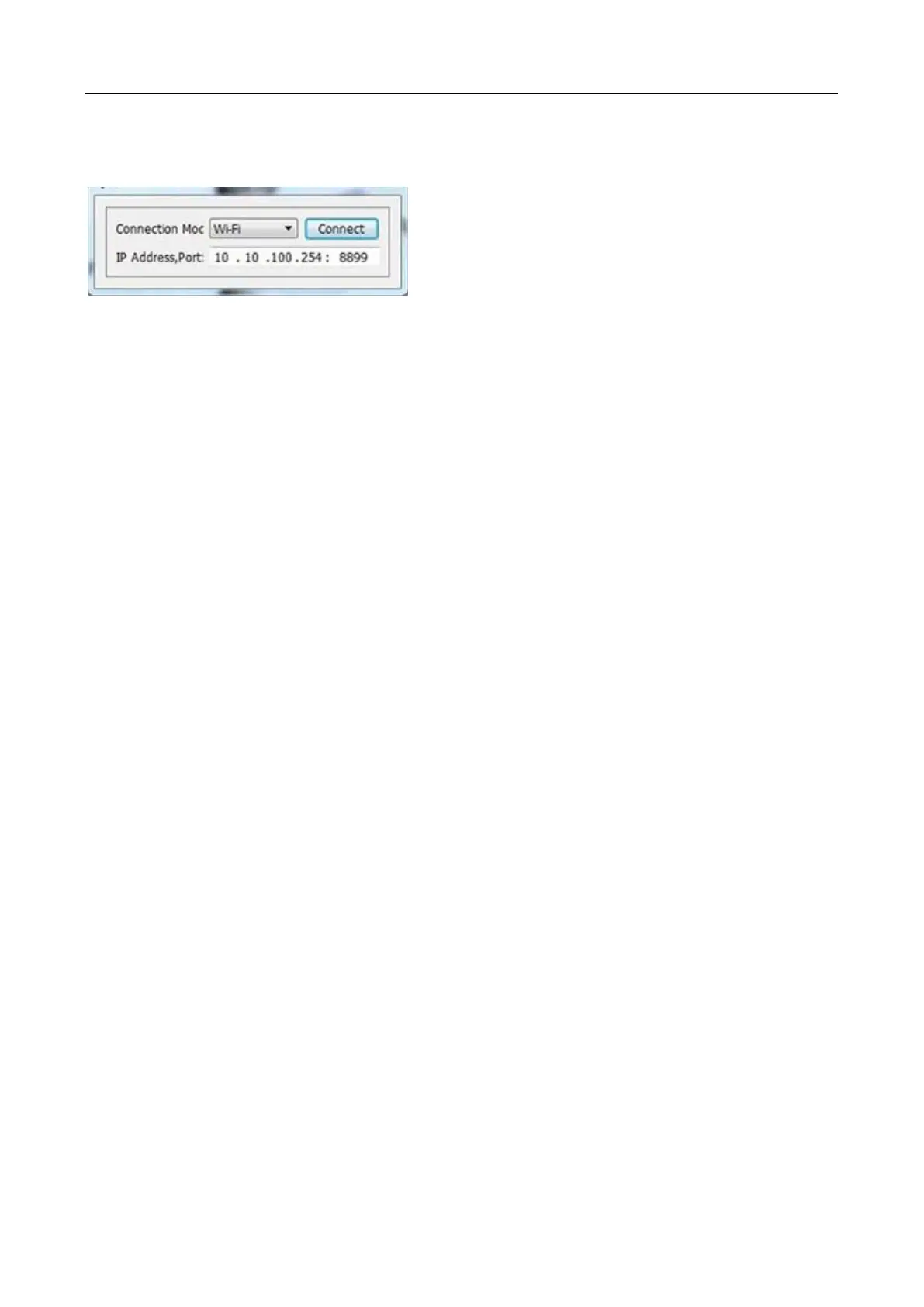
Choose WIFI as the link mode, input the IP address of user Internet (The IP address will be shown on the screen
of the 3D printer) to the IP port below, and then click ON to connect.
7. The 3D printer should be connected with Powerprint. A status box at the lower right corner will show the
temperature of both extruders and the Platform.
8. In Powerprint, click [ Print ]. A printing options screen will appear Make sure that “ABS” is selected under
“Material Left.” Advanced settings can be set by clicking on [ More Options ].
9. Check the box of “Print When Slice Done,” and select [ OK ].
10. Save the file at any location, and the object will start slicing.
11. After the object is done slicing, it will automatically upload the gcode to the 3D printer.
12. After the gcode is done uploading, the printer will go into a preheat phase. The 3D printer will start printing
once preheating is finished.
NOTE: Printing from SD card is unavailable when WIFI is ON.


 To Previous Page