EasyManua.ls Logo

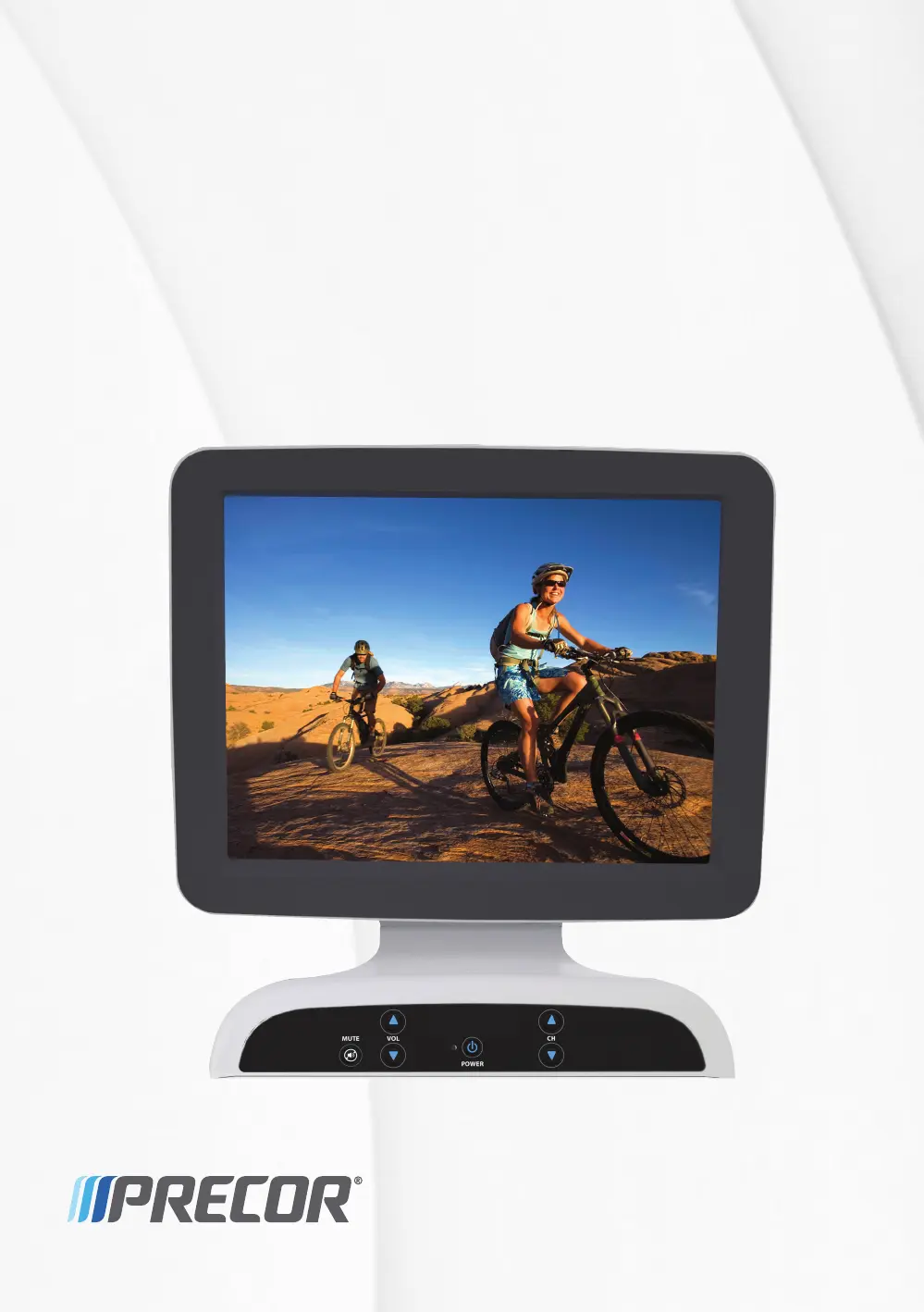
Precor PVS - User Manual

Precor PVS
80 pages
Print Icon
To Next Page IconTo Next Page
Loading...
Installing and Operating the
Personal Viewing System
(PVS) for Display C
Including Model with Personal
Entertainment Player (PEP)
Precor Incorporated
20031 142nd Avenue NE
P.O. Box 7202
Woodinville, WA USA 98072-4002
PVS for Display C OM CX30632-241 rev D, en
Warranty P/N 301650-101
June 2013

Other manuals for Precor PVS

Questions and Answers

  • Y
    yliAug 14, 2025
    What to do if my Precor PVS Digital Photo Frame has no power?
    • S
      sandersjesseAug 14, 2025
      If your Precor Digital Photo Frame has no power, ensure the power light is lit on the console cap. Also, check the power adapter to see if the green power light is lit. If the Automatic Power On/Off feature is enabled, try connecting headphones to the jack.
  • S
    Sean CollierAug 17, 2025
    What to do if Precor Digital Photo Frame has no picture?
    • P
      Paige Kent MDAug 18, 2025
      If your Precor Digital Photo Frame shows no picture, ensure the PVS screen is fully plugged into a power outlet and push the Power On/Off button. Try a different channel to rule out problems with the channel provider. You can also turn the PVS screen off, and then turn it back on after one minute.
  • C
    Carlos CobbAug 21, 2025
    Why is there no audio on my Precor PVS Digital Photo Frame?
    • N
      nathanielharmonAug 21, 2025
      If there is no audio on your Precor Digital Photo Frame, first increase the audio level with the Volume Up key. Then, test the headphone jack and replace it if necessary. Also, ensure that you are not in programming mode.
  • A
    Angela DavisAug 25, 2025
    How to fix poor TV reception on Precor Digital Photo Frame?
    • B
      Belinda BrightAug 25, 2025
      To improve poor TV reception on your Precor Digital Photo Frame, adjust Sharpness under the Picture settings. Try a different channel to rule out problems with the channel provider. Make sure the thin coaxial cable is securely connected to the connector on the back of the PVS and that the main television cable is securely connected to the thin coaxial cable. Check for sources of local electromagnetic interference.
  • D
    Daniel JamesAug 27, 2025
    How to resolve poor audio on Precor Digital Photo Frame?
    • J
      James JimenezAug 27, 2025
      To resolve poor audio on your Precor Digital Photo Frame, re-insert the plug into the headphone jack. Try moving the plug in the jack to see if the sound improves. If needed, replace the headphone jack.
  • C
    Carrie HortonAug 30, 2025
    How to fix ghost images on Precor PVS?
    • A
      Allison YoungAug 30, 2025
      To fix ghost images on your Precor Digital Photo Frame, try a different channel to rule out problems with the channel provider. Ensure the thin coaxial cable is securely connected to the connector on the back of the PVS, and that the main television cable is securely connected to the thin coaxial cable. Check for sources of local electromagnetic interference.
  • J
    jonesjoseSep 3, 2025
    How to improve poor picture quality on Precor PVS?
    • T
      Travis SmithSep 3, 2025
      To improve poor picture quality on your Precor Digital Photo Frame across all channels, adjust controls such as Brightness, Color, and Sharpness under the Picture settings.
  • M
    melissa35Sep 6, 2025
    What to do if Precor PVS Digital Photo Frame has no closed captioning?
    • H
      Heather FranklinSep 7, 2025
      If your Precor Digital Photo Frame has no closed captioning, make sure Caption is On under the Caption feature in the System settings. Closed Captioning may not be available on the current channel, so check a different channel to see whether Closed Captioning works properly there.
  • F
    franklukeSep 10, 2025
    Why is closed captioning delayed or garbled on my Precor PVS Digital Photo Frame?
    • M
      Madison HuffSep 10, 2025
      A short delay between audible dialogue and closed captioning is common in live broadcasts. If reception or signal strength is poor, it can cause caption text to appear incorrectly. Check a different channel to see whether Closed Captioning works properly there.

Summary

Preliminary Information

Edition and Legal Information

Details on document edition, copyright, trademarks, and IP notices.

Important Safety Instructions

Essential guidelines and precautions for safe product use.

Electrical Recommendations and Service

Power connection guidelines and service information.

Chapter 1: Beginning the Assembly

Installation Requirements and Hardware Kit

Lists tools, hardware, and components needed for assembly.

EFX Equipment Rewiring and Cable Routing

Steps for rewiring EFX equipment and routing PVS cables.

Treadmill Equipment Rewiring and Cable Routing

Steps for rewiring treadmill equipment and routing PVS cables.

Attaching PVS and Entertainment Options

Instructions for attaching the PVS and optional entertainment features.

Installing Headphone Jack and Related Components

Steps for installing the headphone jack and ensuring proper connections.

Chapter 2: Setting Up the PVS

System Settings Overview and Master Reset

Overview of system settings, categories, and master reset procedures.

Viewing and Configuring System Settings (US Models)

Accessing and adjusting channel, picture, and audio settings for US models.

Configuring PVS Setup Menu Options

Configuring detailed subcategories like Caption, Auto Power, and Lock.

Viewing and Configuring System Settings (EU Model)

Accessing and adjusting settings for EU models.

Chapter 3: Personal Entertainment Player (PEP) Guide

Using the PVS with iPod Integration

Procedures for using the PVS and PEP for TV and iPod integration.

Replacing the iPod Cable

Steps to replace the iPod cable if the connection becomes unreliable.

Chapter 4: Troubleshooting the PVS

Power, Captioning, and Audio Issues

Solutions for power, closed captioning, and audio problems.

Video Display and TV Reception Issues

Diagnosing and resolving issues with picture quality, bars, and TV reception.

iPod Content Playback Issues

Resolving issues with iPod content not playing or displaying on the PVS.

Chapter 5: Product Maintenance

Cleaning the PVS Screen

Recommended procedures for cleaning the PVS screen to maintain functionality.

Chapter 6: Limited Warranty Information

Warranty Coverage and Periods

Details the warranty duration and coverage for product components.

Warranty Conditions and Exclusions

Outlines the conditions, restrictions, and exclusions for the product warranty.

Precor PVS Specifications

General IconGeneral
BrandPrecor
ModelPVS
CategoryDigital Photo Frame
LanguageEnglish