Studio One Profesional Quick Start
Creating a New Song
Quantum 4848
Owner’sManual
现在你可以开始录音了。如需完整的说明,请查阅位于
”Help”
中的
”Studio
One Reference manual”|”Studio One ”
参考手册。
6.3.4
Adding Virtual Instruments and Effects 添加虚拟音乐与效果器
You can add plug-ins and instruments to your Song by dragging-and-dropping
them from the browser. You can also drag an effect or group of effects from
one channel to another, drag in customized effects chains, and instantly load
your favorite virtual-instrument preset without ever scrolling through a menu.
从浏览器中你可以通过拖放插件和乐器,为你的歌曲添加插件和乐器。你
还可以把一个或一组效果器从一个通道拖到另一个通道,拖入定制的效果
器链,并立即加载你最喜欢的虚拟乐器预设,而无需滚动菜单。
Opening the browser.
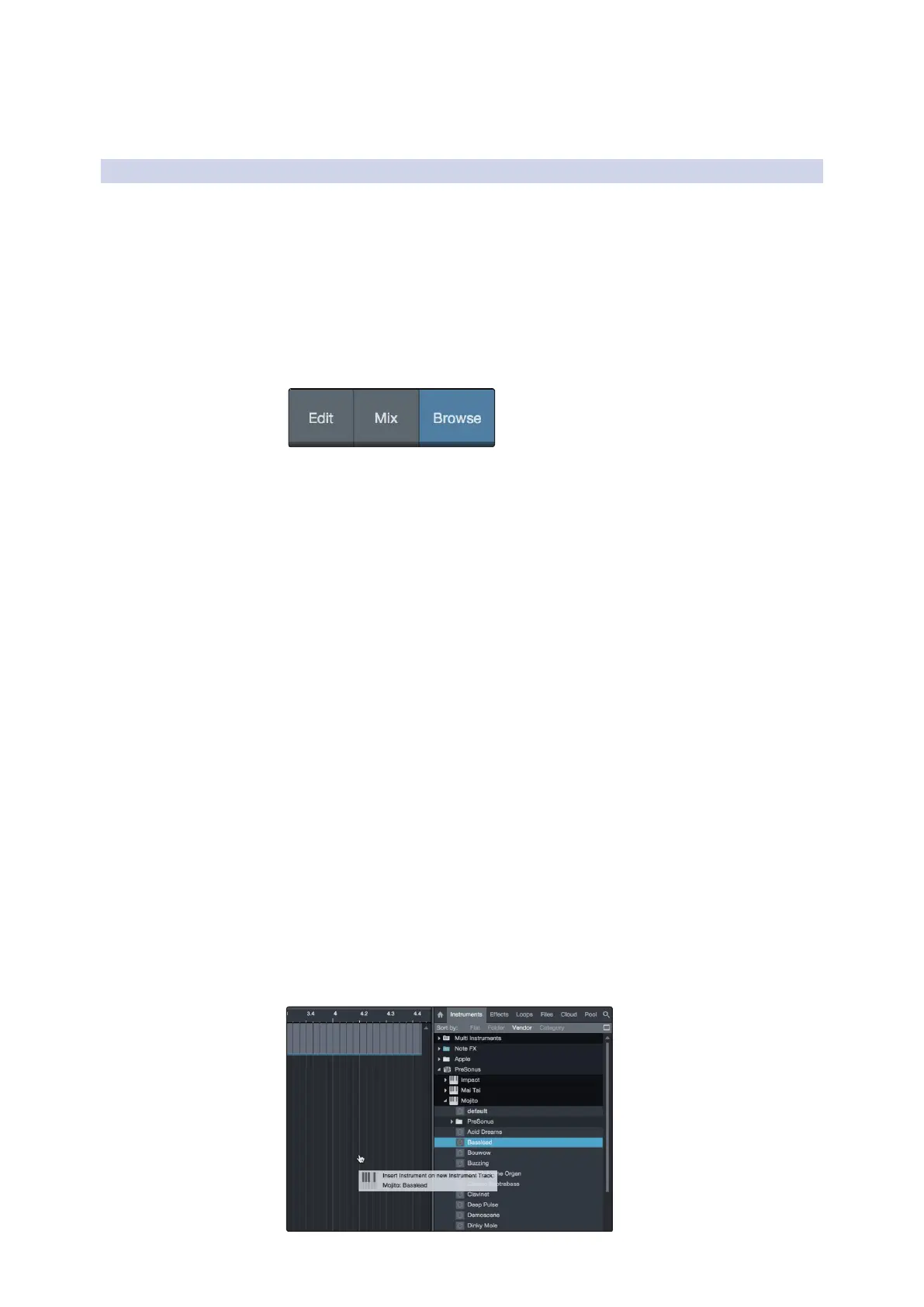
In the lower right corner of the Arrange window are three buttons:
在
"Arrange"
窗口的右下角有三个按钮:
•
The Edit button opens and closes the audio and MIDI editors.
•
TheMix button opens and closes the Mixer window.
•
The Browse button opens the browser, which displays all of the
available virtual instruments, plug-in effects, audio files, and MIDI
files, as well as the pool of audio files loaded into the current session.
•
“Edit”
按钮可以打开和关闭音频和
MIDI
编辑器。
•
“Mix” 按钮打开和关闭混合器窗口。
•
“Browse”
浏览按钮打开浏览器,显示所有可用的虚拟乐器、插件
效果、音频文件和
MIDI
文件,以及加载到当前会话的音频文件
库。
Drag-and-drop virtual instruments.
To add a virtual instrument to you session, open the browser and click on
the Instrument button. Select the instrument or one of its patches from
the instrument browser and drag it into the Arrange view. Studio One
will automatically create a new track and load the instrument as the
input.
要添加一个虚拟乐器到你的会话中,打开浏览器并点击乐器按钮。
从乐器浏览器中选择乐器或它的一个补丁,然后把它拖到”Arrange”
视图中。Studio One会自动创建一个新的音轨,并将该乐器作为输入
载入。


 To Next Page