Studio One Profesional Quick Start
Monitor Mixing in Studio One
Quantum 4848
Owner’sManual
6.4.2
Audio Dropout Protection
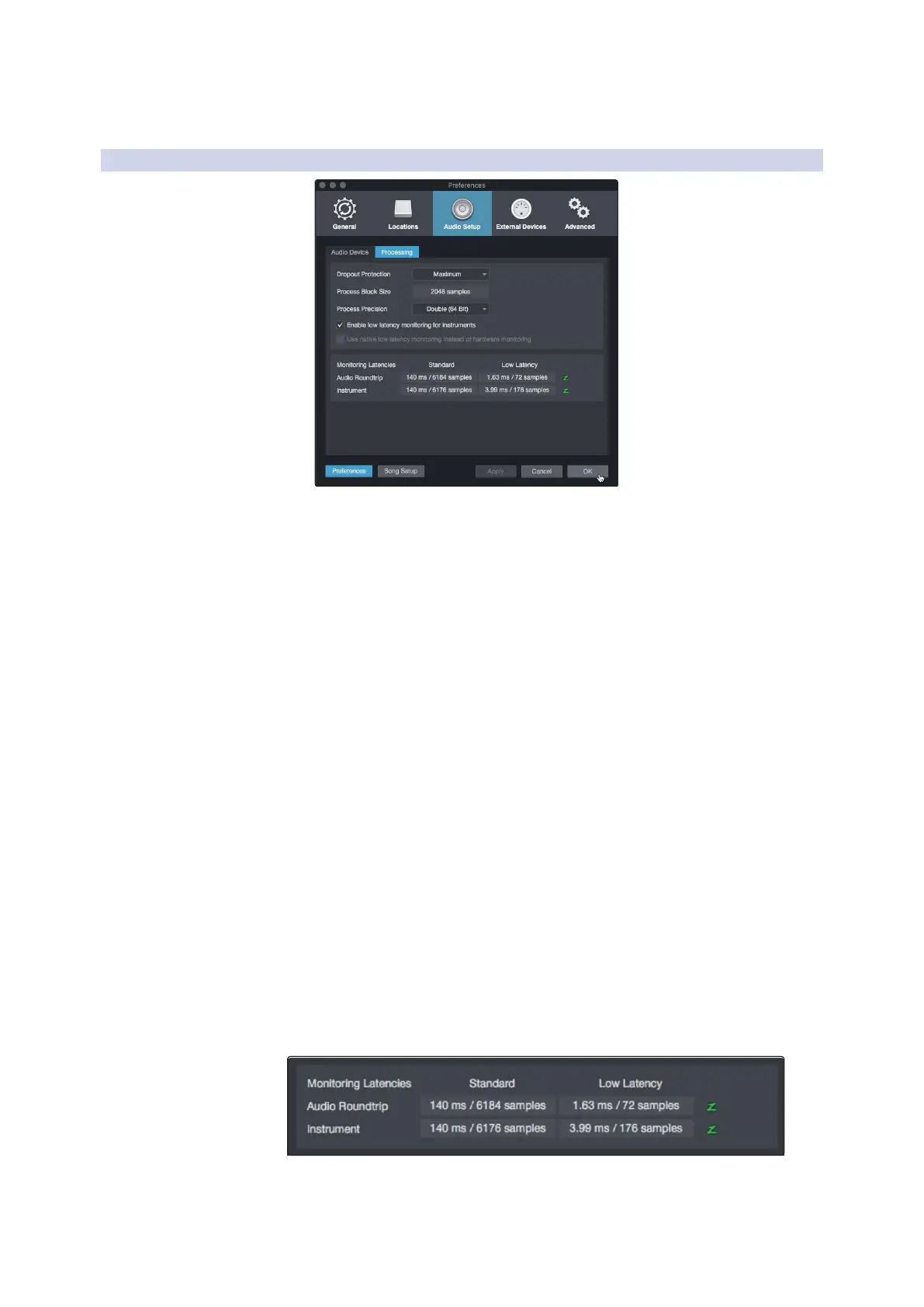
Clicking on the Processing tab in the Audio Setup Preferences window,
will allow you to set the amount of Audio Dropout Protection you would
like to employ. This will automatically set a buffer size for playback and
processing of audio tracks, distinct from the Device Block Size setting.
点击 "Audio Setup Preferences" 窗口中的 "Processing"标签,你可以设
置你想使用的
”Audio Dropout Protection”
数量。这将自动设置一个
用于播放和处理音轨的缓冲区大小,与设备块大小设置不同。
If you use Native or Hardware Low-Latency Monitoring, the Dropout
Protection level has no effect on audible latency, though higher levels
can affect the responsiveness of onscreen meters and displays.
如果你使用 ” Native” 或者 ”Hardware Low-Latency Monitoring” 本地或
硬件低延迟监听,”Dropout Protection”掉电保护级别对听觉延迟没有
影响,尽管更高的电平会影响到屏幕上的仪表和显示器的反应能力。
Setting the process Block Size to an amount greater than the Device
Block Size will automatically let you have the option to use Native Low-
Latency Monitoring.
The Monitoring Latencies display shows you the latency values for audio
inputs (round-trip, from input to output) and virtual instruments, based
on the current Device Block Size and Dropout Protection settings. The
“Standard” column shows the latency for the current settings if you
choose not to use Low-Latency Monitoring, while the “Low Latency”
column shows values for the Native Low-Latency Monitoring system.


 To Next Page