Studio One Profesional Quick Start
Monitor Mixing in Studio One
Quantum 4848
Owner’sManual
6.4 Optimizing Latency and Performance
优化延时和性能
6.4 OptimizingLatencyandPerformance
Owner’sManual
When you are working with a large amount of audio tracks and virtual
instruments, computer performance can limit your capabilities.
Increasing the buffer size will free up computer resources, but this
comes at the cost of greater latency (or delay) when monitoring audio
inputs or playing virtual instruments. Setting the buffer too low can
cause audio dropouts and glitches.
当你在处理大量的音轨和虚拟乐器时,计算机性能会限制你的发
挥。增加缓冲区的大小可以释放计算机资源,但这是以监听音频输
入或播放虚拟乐器时。出现更大的延迟(或延误)为代价的。缓冲
区设置得太低会导致音频掉线和故障。
To solve this paradox, Studio One lets you set two processing buffers:
one for playback and effects processing separately and another for audio
input and virtual instrument monitoring.
为了解决这个矛盾,
Studio One
让你设置两个处理缓冲区:一个用于
播放和效果处理,另一个用于音频输入和虚拟乐器监听。
6.4.1
DeviceBlockSize 块设备大小
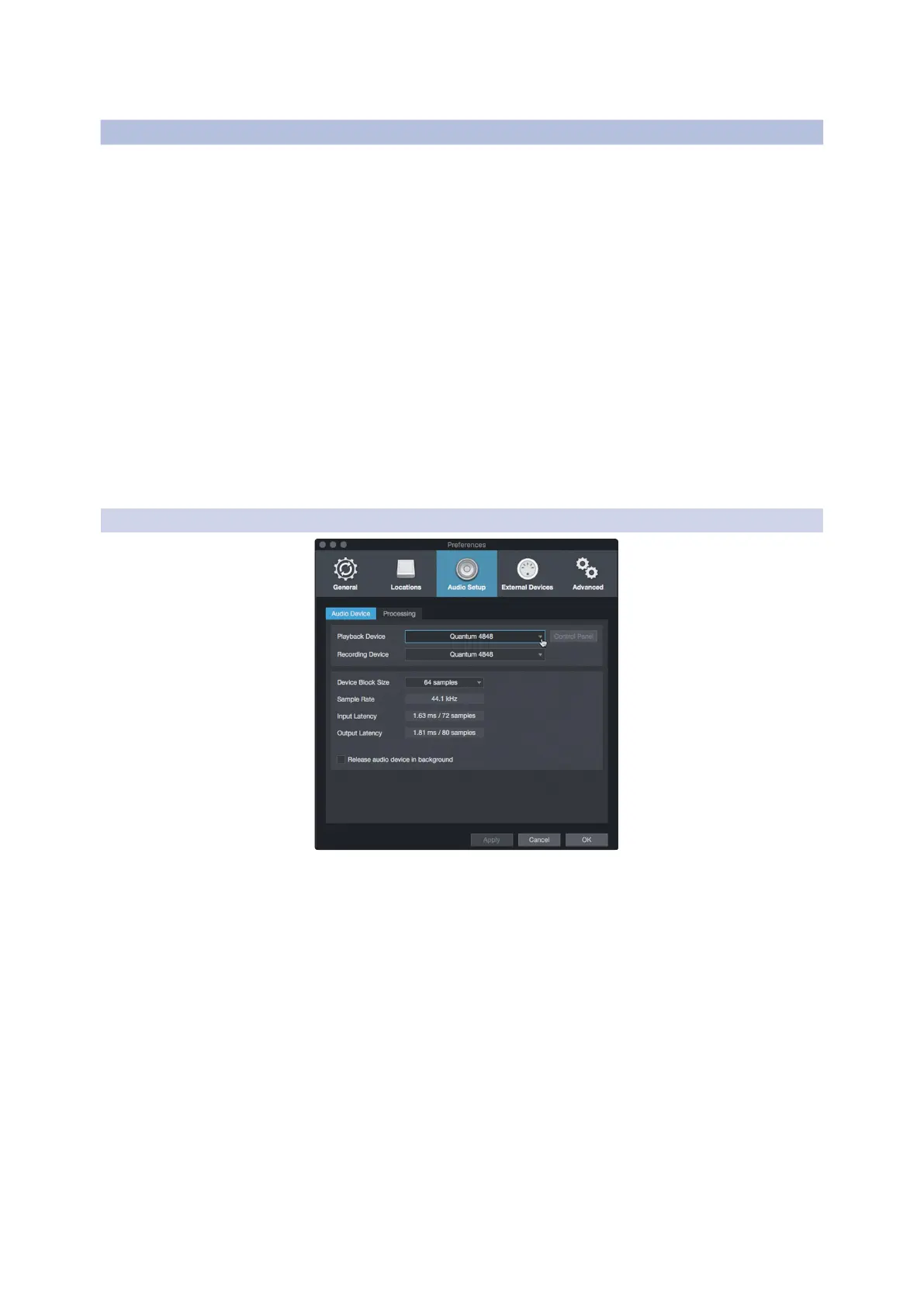
From the Audio Setup Preferences menu we used to select the audio
driver in Section 6.2.1, you can also set the Device Block Size. This
determines the amount latency that you hear when monitoring audio
inputs or playing virtual instruments. For the lowest latency, Device
Block Size should be set to the lowest setting that provides the
performance you need.
从我们在第6.2.1节中, 用来选择音频驱动程序的 ”Audio Setup
Preferences” 菜单中,你也可以设置设备块大小。这决定了你在监听
音频输入或播放虚拟乐器时,听到的延迟量。为了获得最低的延
迟,设备块大小应该被设置为能提供你所需性能的最低设置。


 To Next Page