9292
PreSonus StudioLive
™
24.4.2
Quick Start:
Level
Setting
Overview Hookup Controls Connecting
to a
Computer
Tutorials Technical
Information
Trouble-
shooting
and Warranty
Scenes, Presets, System Menu,
and MIDI Control
7 Software: Universal Control, SL Remote, Capture, and Studio One Artist
Software: Universal Control,
SL Remote, Capture,
and Studio One Artist
7.3 Using StudioLive Remote for iPad
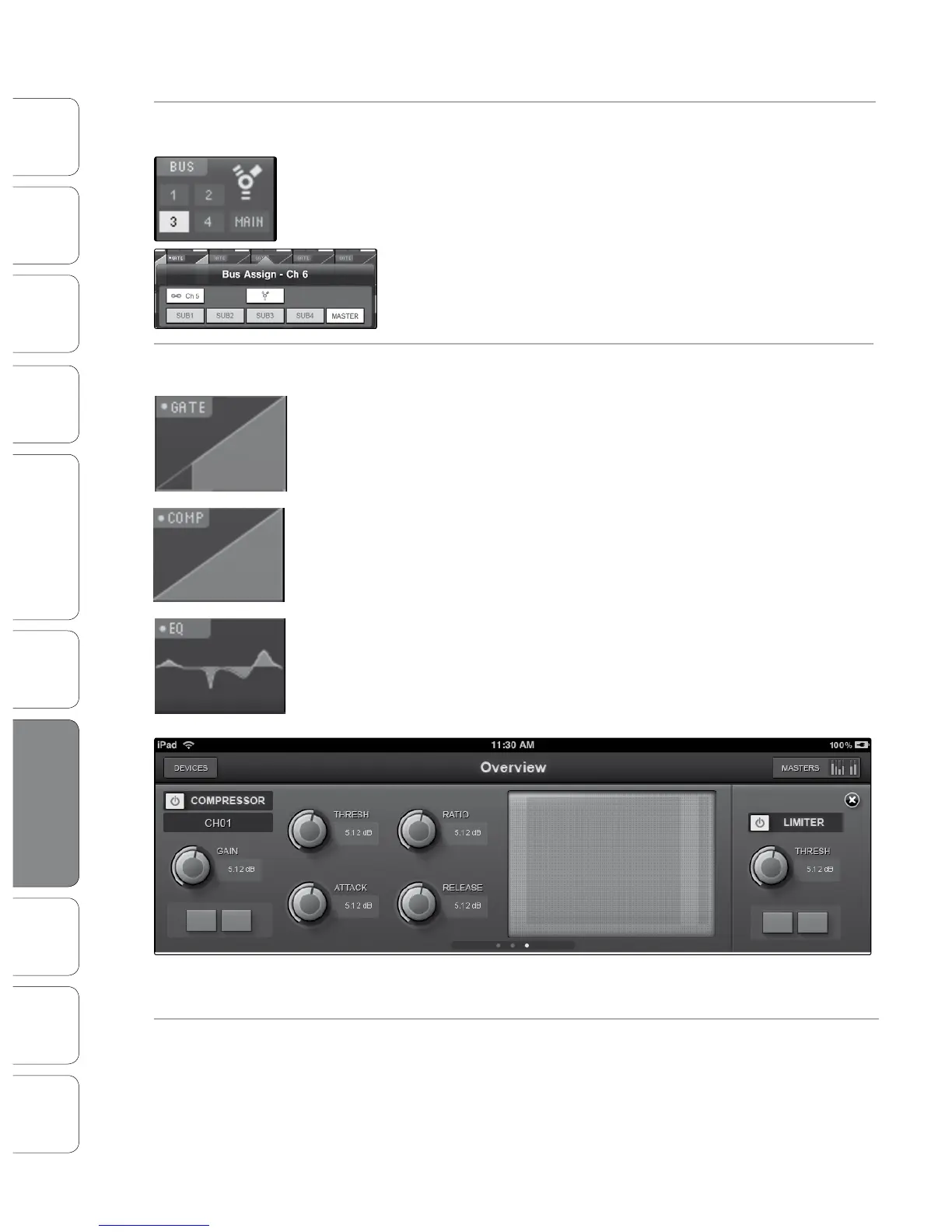
Bus Assignments Query Displays the bus assignments for a channel or bus.
Tap to open Bus Assignments Query page and make changes.
Above each channel, you will nd the Bus Assignments view. This displays
the current FireWire return and stereo linking for each channel.
To change a particular channel’s FireWire return assignments, tap on the
display. This will open the Bus Assignments Query page for that channel.
Pressing on the FireWire icon to activate the FireWire return. Any selection
made on this page is immediately displayed in its Bus Assignment Query.
To close the page, press anywhere on the screen.
Fat Channel Microviews and
Fat Channel Zooms
Displays a Microview of the Gate, Compressor, and EQ.
Tap to open the zoomed view and make changes.
Each Channel and Bus features a Microview of the Fat
Channel components. These Microviews allow you to see
whether a particular channel or bus has dynamics processing
enabled. If any of the dynamics processors in the Fat Channel
are turned o, its Microview will be grayed out.
To make changes to the Fat Channel dynamics processing, tap on
any of the Microviews. This will launch the Fat Channel zoomed view
with that component in focus; that is, if you tap on the EQ Microview,
the Fat Channel zoom will open with the EQ in focus. The zoomed
Fat Channel view corresponds directly to the Channel tab in VSL.
You can switch between the dynamics components in the
zoomed Fat Channel view by swiping your nger to the left
or right. For example, if you launch the Gate Zoom and swipe
your nger to the left, the Fat Channel Zoom will focus on the
Compressor; swiping to the left again focuses the EQ.
To close the Fat Channel Zoom, tap on the “x” in the upper right-
hand corner. This will display the normal Overview page.
Channel Controls: Select Selects Channel for Fat Channel Zoom and Portrait View.











 To Next Page