9393
Owner’s Manual
Quick Start:
Level
Setting
OverviewHookupControlsConnecting
to a
Computer
TutorialsTechnical
Information
Trouble-
shooting
and Warranty
Scenes, Presets, System Menu,
and MIDI Control
Software: Universal Control, SL Remote, Capture, and Studio One Artist 7
Software: Universal Control,
SL Remote, Capture,
and Studio One Artist
Using StudioLive Remote for iPad 7.3
When no Microview has been selected for Fat Channel Zoom, the channel
Select buttons merely display the channel number or name, if one has
been entered into the Scribble Strip in VSL. See Section 7.2.4.
Once Fat Channel Zoom is launched, the channel Select buttons
become active, and you can use them to select another channel
so that you can view its zoomed Fat Channel settings.
Channel Controls: Pan Controls the Panning for Each Channel.
To pan a channel, tap and hold anywhere on the Pan control and then
slide your nger right or left, while maintaining constant contact with the
iPad screen. These controls correspond directly to those in VSL and on the
StudioLive.
POWER USER TIP: The Pan control supports o-axis movement. Once you
have pressed a Pan eld to select it, you can slide your nger anywhere in the
screen and make a side-to-side movement to control the pan position.
The pan position is displayed numerically in the Channel Select eld.
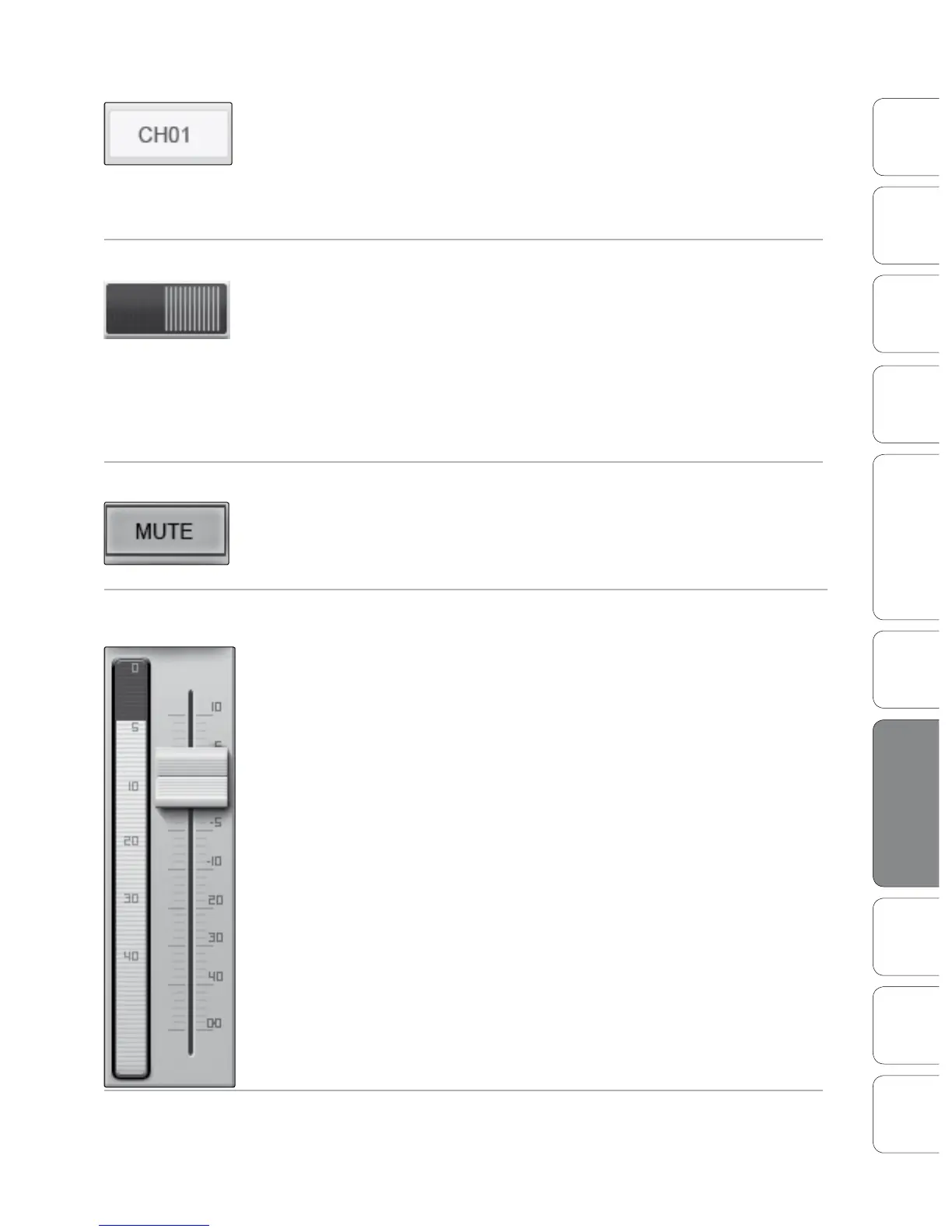
Channel Controls: Mute Controls the Mute for Each Channel.
To mute a channel, tap its Mute button. The Mute button will turn red,
indicating that the channel has been muted.
Channel Controls:
Fader and Metering
Controls the Level for Each Channel and Displays Each Channel’s Metering.
To control the volume of a channel, tap the fader and move your nger up
or down, while maintaining constant contact with the iPad screen.
POWER USER TIP: The fader supports o-axis movement. Once you have
touched a fader to select it, you can slide your nger anywhere in the
screen and make an up/down movement to control the fader.
The fader position is displayed numerically in the Channel Select eld.
As with VSL, the fader position set in StudioLive Remote is the level
that you will hear. To sync the physical faders on your StudioLive
with StudioLive Remote, press the Locate button on your mixer.
While in Locate mode, the physical faders on your StudioLive will not
be active, so you can adjust them without any changes in level.
To the left of the fader, you will see the meter for the channel. The meter
will follow the meter mode selected on the StudioLive or from VSL. The
meter mode cannot be changed from SL Remote.
Masters Overview
Masters Section Page
Displays the metering for the Main bus, Auxes (16.0.2) and Subgroups (16.4.2 and 24.4.2).
Tap to open the Masters Section page.


 To Next Page
 Loading...