Printing Using a PC 33
Launch Status Monitor
Click here to open the LX500e Status Monitor. See section 3 for
more details.
Details/Print Counter
Clicking on the Details button will allow you to view information
about printer settings stored on the printer. There is also a print
counter in the details window to help you count the number of
labels printed since the last time it was reset. Click Reset Counter
to set the counter to zero.
E. PRINTING FROM OTHER PROGRAMS
Since this printer uses a standard Windows printer driver you can
print from any application you would like. There are just a few
things to remember that will make it much easier.
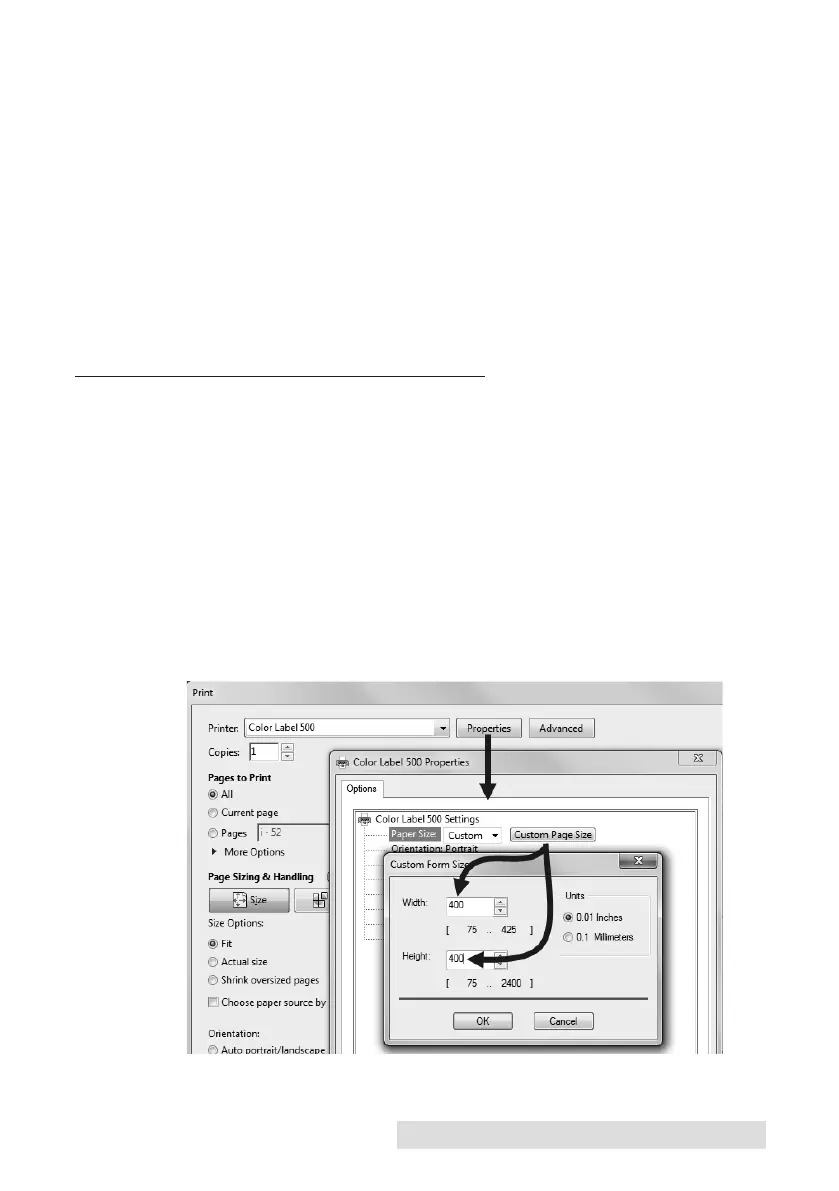
1. Set the Page/Label Size in the Driver. BarTender automatically
prompts you for the size of the label that you are using. When
printing from any other program you must do this manually.
Before you print, simply set the Paper Size just as you would set
print quality in the printing preferences. In the example below
the label size is 101.6mm x 101.6mm (4" x 4") so the custom page
size is set to 400 x 400 (displayed in .01 inch units).


 To Next Page