SURETHING CD LABELER
User’s Guide
13
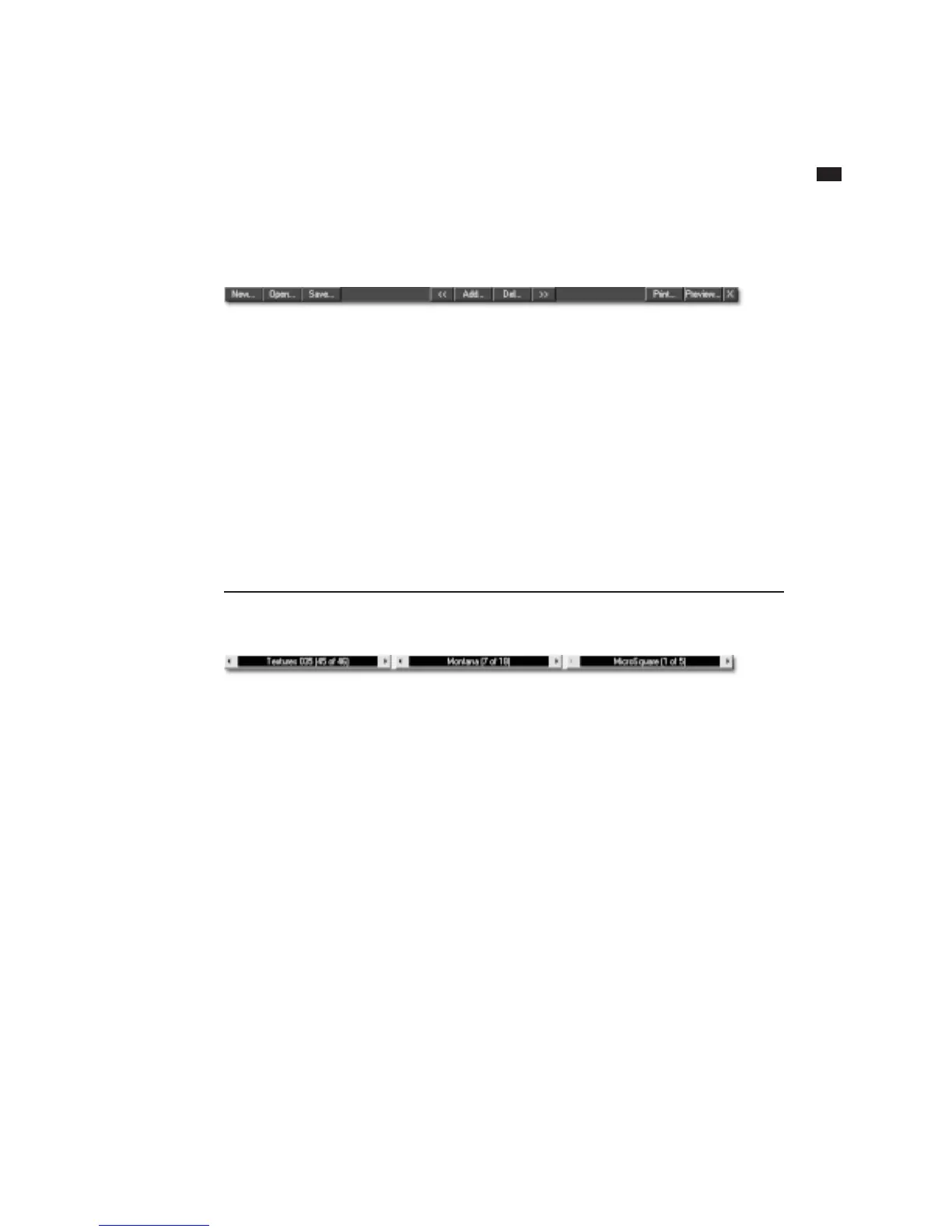
Command Bar
The buttons along the top of the design
area (New, Open, Save, etc.) perform the
same function as some commonly used
menu commands. They’re located here for
your convenience.
The Add button makes a copy of the
current design. You can then edit the copy,
changing background, text, and layout, for
example, leaving the original intact. The
Add button provides an easy way to
produce a series of labels with different
layouts and data. The Del button deletes
the current label. The << (previous) and
>> (next) buttons let you navigate be-
tween labels. All four buttons correspond
to the Designs commands under the Tools
menu.
(Note: The Add command is not the
method you use to print multiple copies of
a label – use the Print command and enter
the number of copies you want to print for
that – but rather a means to create differ-
ent layouts, backgrounds, text, etc., within
the same file.)
Variation Bar
The Variation Bar lets you cycle through
the various SmartDesigns available to a
particular label stock. The first button,
Background, lets you choose from various
backgrounds for your label design. The
second button controls the overall layout
of your label. The third button contains
font variations appropriate for each layout.
Click the arrows to the left or right of a
button to move back and forth between
the variations, or click in the center of the
button for a pop-up menu.



 To Next Page