26 CHAPTER 3
Working with the Software
Click the button to see the available
categories of text effects. If this button is
grayed, you are already viewing categories.
Click the button to view variations on
the selected category. Double-click on a
variation to select it.
a
If you select another layout from
the Variation Bar after you’ve
formatted text in any of the sample Text
Effects or Text Frames, SureThing warns
you that your edits will not be included in
the next variation. This only applies to the
sample text frames & effects, however. New
frames and effects are not affected.
Adding a New Text Effect
In a preceding section you learned how to
change the sample text that appears in a
text effect object. Here you’ll learn how to
create a new text effect object from
scratch.
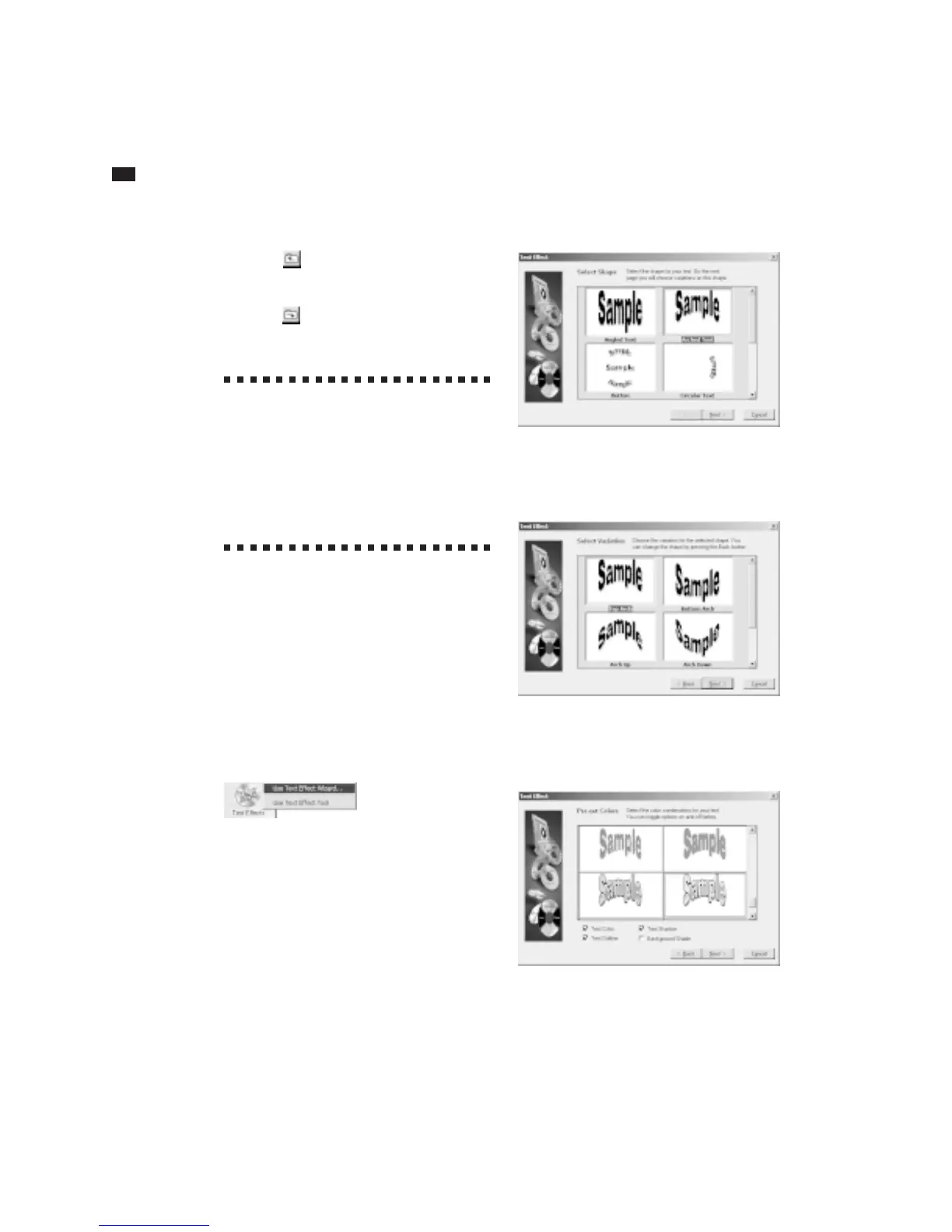
1 Click the “Text Effects” icon on the
Design Bar located on the left of the
window. Doing so displays a menu.
2 Choose Use Text Effect Wizard from the
menu. The wizard guides you through the
process of creating a text effect.
3 Select the type of effect you want to
create, then click the Next button.
4 Select a variation on the type you chose
in step 3, then click Next.



 To Next Page