SURETHING CD LABELER
User’s Guide
43
. Data fields are related to filename,
filesize, and so on.
. General Purpose designs do not use
playlist fields.
Importing a Playlist to an Existing
Design
If you didn’t import the playlist informa-
tion when you created your design, you
can still add it to an existing design. You
can import either audio or data informa-
tion.
To add an audio playlist to an existing design:
1 Insert the CD you wish to read into the
CD ROM drive.
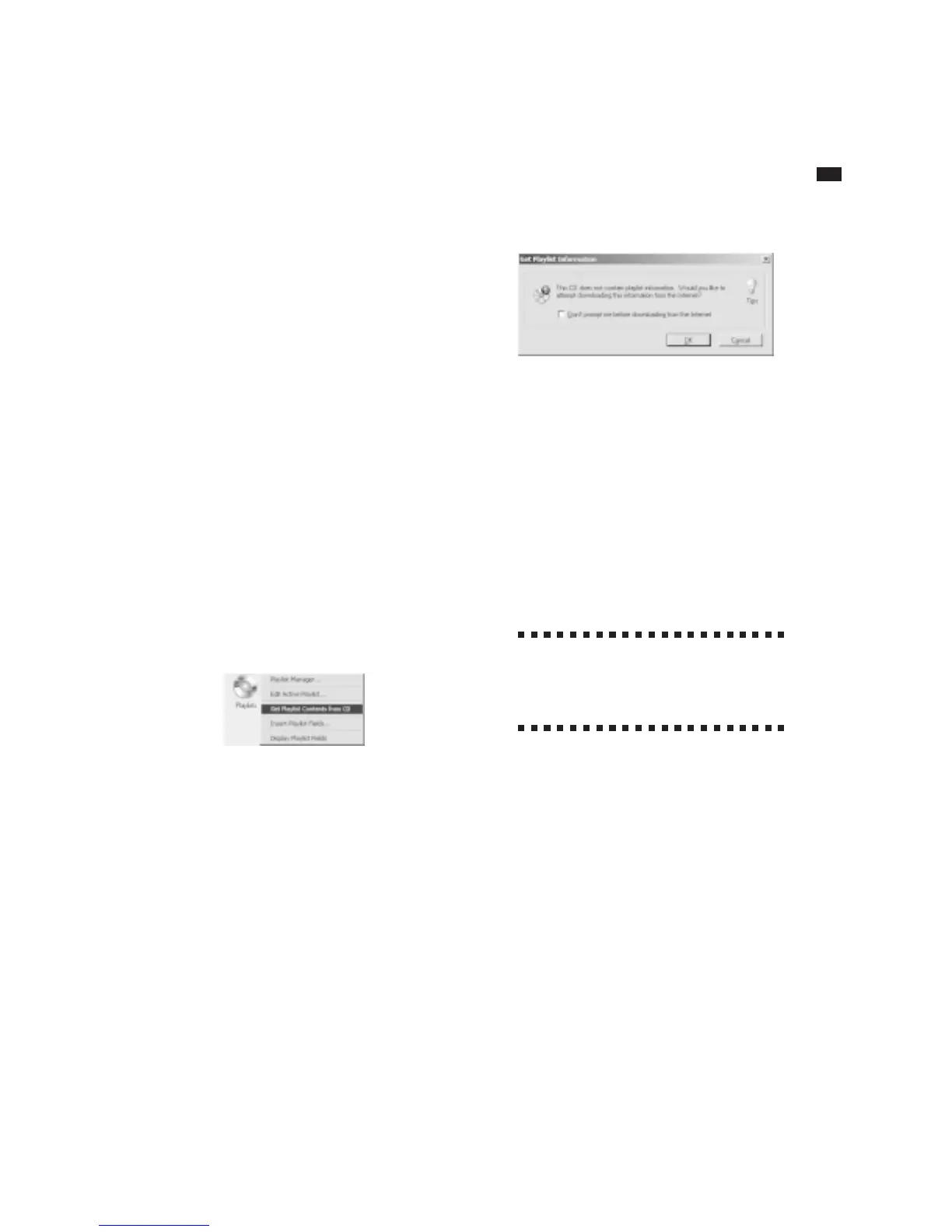
2 From the Design Bar, click the Playlist
icon and choose Get Playlist Contents from
CD.
If you already have a playlist in your
design, you’ll be asked if you wish to
replace the current one. If you do, click
Yes.
3 When Audio CD information cannot be
found on the CD, you’ll have the option of
searching for it online. You must be
connected to the Internet to do this. If you
see this message, click OK.
In cases where you want SureThing to
always check online (especially if you’re
always connected to the Internet), you can
check the “Don’t prompt me ” checkbox.
4 If CD information is found, it is added
to your design. It is also automatically
added to your playlist database.
To add a data playlist to an existing design:
1 From the Design Bar, click the Playlist
icon and choose Get Playlist Contents from
CD.
a
If you already have a playlist in
your design, you’ll be asked if you
wish to replace the current one. If you do,
click Yes.
2 Use the General, File List and Files tabs
to select data from the CD. You can edit
this information if you wish on the General
and File List tabs.
3 Click OK.



 To Next Page