22 CHAPTER 3
Working with the Software
Adding a New Text Frame
In the preceding section you learned how
to change the default text that appears in a
SmartDesign template, but you can also
add your own text frames. SureThing
provides a couple of ways to do this.
To create a new text frame:
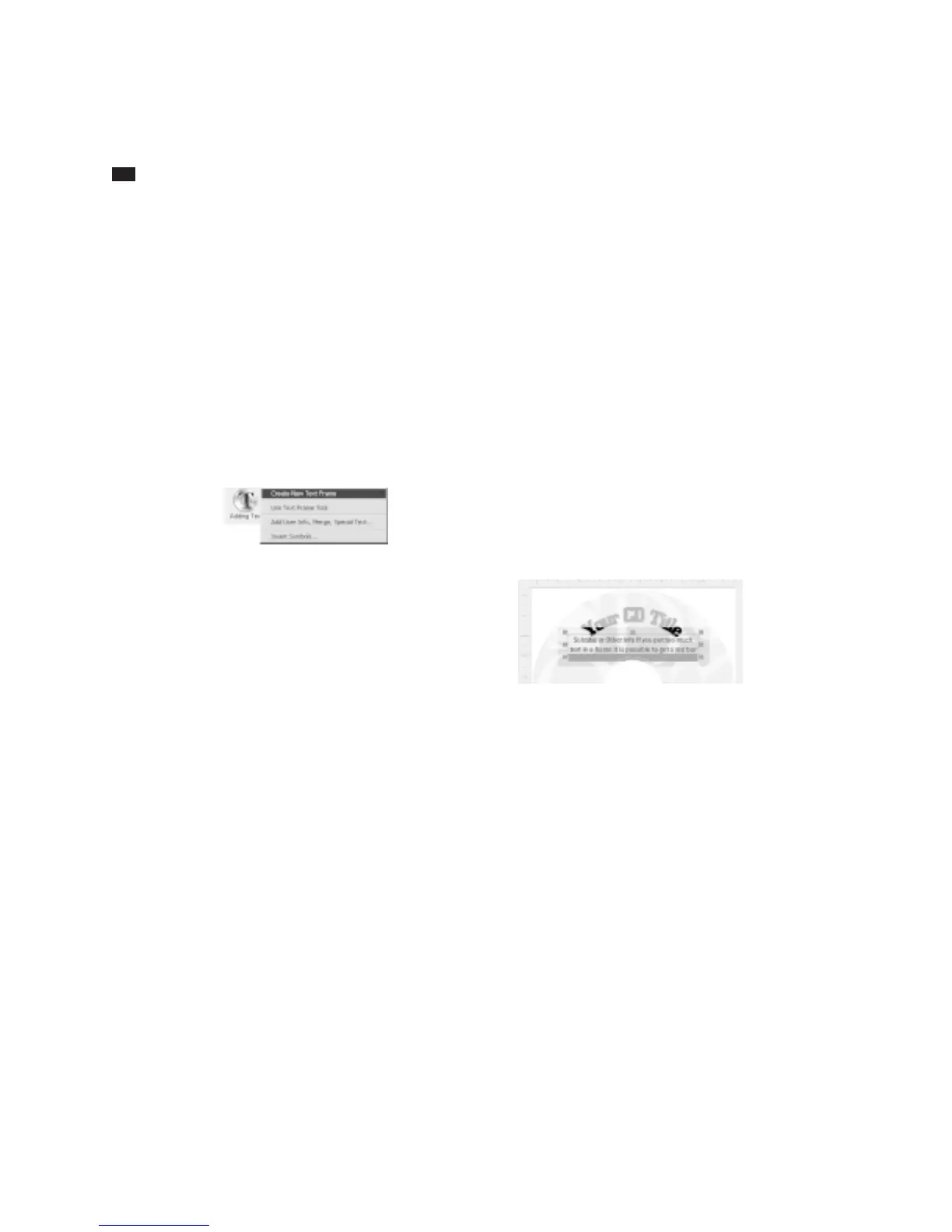
1 Click the “Adding Text” icon on the
Design Bar located on the left of the
window. Doing so displays a menu.
2 Choose Create New Text Frame from the
menu. A text frame is drawn near the top
of the CD label containing the default text
“Your Text Here.”
3 Enter the text you want to appear in the
frame. You can enter as little or as much
text as you want. Notice how the text
frame expands (or shrinks) to accommo-
date the text you type. You can use the Tab
and Return keys to insert tabs and line
breaks. If you don’t press the Return key,
line breaks will occur automatically as they
would in a word processor.
To create a new text frame (Method #2):
This method of creating a text frame is
similar to the one above, but with a couple
of subtle differences that highlight some
important SureThing features.
1 Click the “Adding Text” icon on the
Design Bar.
2 Choose Use Text Frame Tool from the
menu. The text frame tool appears.
3 Click and drag to create the frame.
When you release the mouse, the frame is
drawn and the text cursor blinks inside it
waiting for you to enter your text.
4 Enter the text you want to appear in the
frame. Unlike the first method, the text
frame does not expand to accommodate
the text you type. If you type more text
than can be displayed in the frame, you’ll
see a red bar in the bottom of the frame,
letting you know you’ll need to either
make the frame larger, or decrease the
font size of the text.
Under certain circumstances, the red bar
can occur in the default text fields created
by a SmartDesign. The default text frames
can grow to a point, but it is possible to
receive a red bar in a frame if you enter
too much text or set the font size too large.
Re-size the frame, delete some text, and/or
change the font size until you can see all
the text in the frame.
Changing the Size and Position of a
Text Frame
First select the object (pointer) tool from
the Control Strip, or right-click the mouse
and select Object Mode, then click the text



 To Next Page