SURETHING CD LABELER
User’s Guide
31
Background color options also affect
SmartDesign layouts. Many SmartDesigns
include solid areas of black or white, either
alone or superimposed on background
images. Background color options change
the way these items appear.
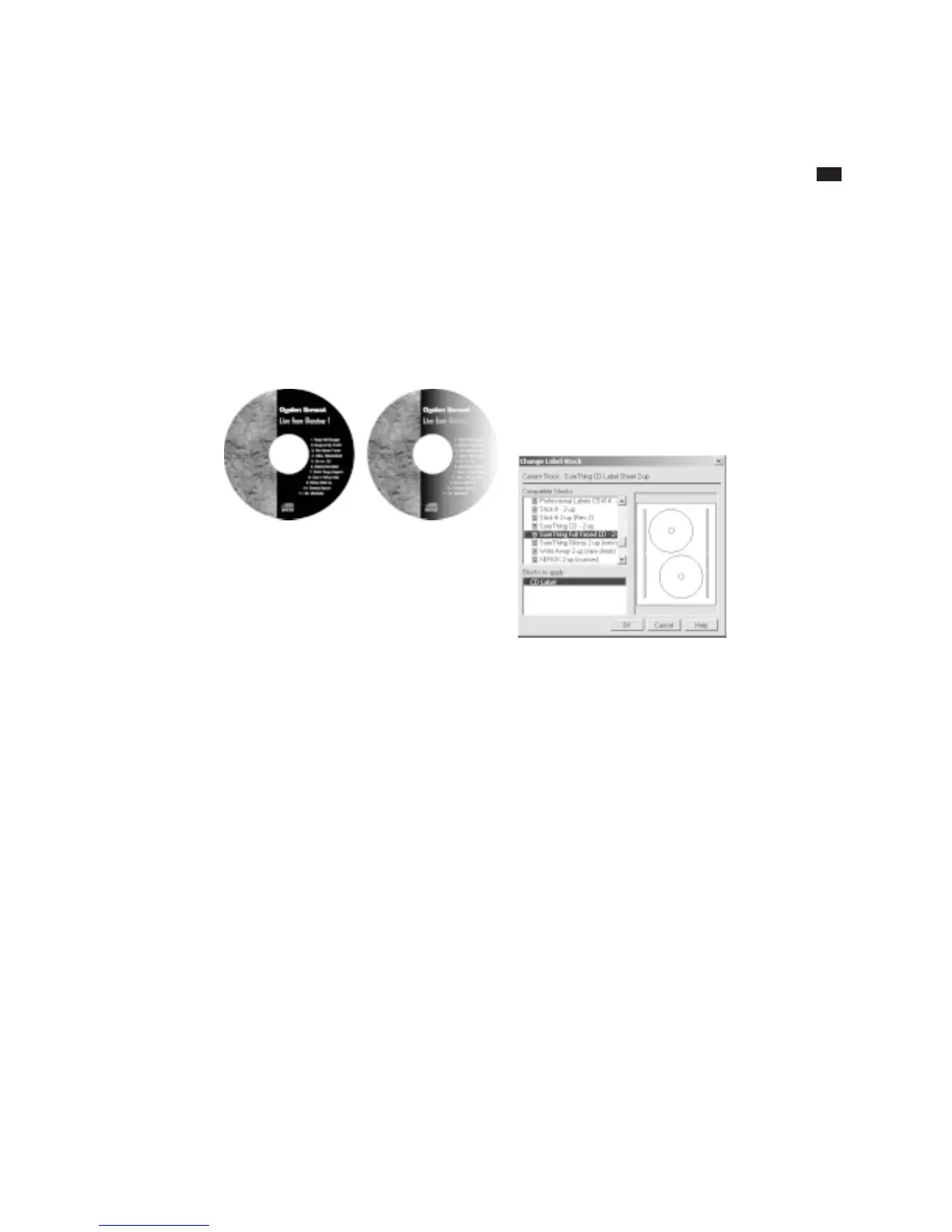
The SmartDesign on the left has a solid black
area superimposed on a background image. The
same design on the right after changing the
background color to a black-to-white gradient..
Acquiring Images
SureThing supports TWAIN, an interface
that lets you create images using a device
such as a scanner or digital camera
attached to your computer and import the
images without leaving SureThing. Your
device must support TWAIN in order for
you to take advantage of this feature.
You can acquire images for use as regular
graphics or as backgrounds.
Changing the Label Stock
The Deluxe version of SureThing lets you
change the label stock at any time. Say, for
instance, you’ve created some label designs
for Memorex CD labels, but you later
purchase a box of Avery CD labels. You
don’t have to re-create your designs to
work with the Avery labels, but rather
change the stock. SureThing adjusts your
design to print properly on the new labels.
To change the label stock:
1 Choose the Change Label Stock com-
mand from the Edit menu. A dialog box
appears.
2 Select the stock you want to use from
the New Stock list.
3 Click OK.
You have the option to apply the stock
only to selected blocks. For example, you
could apply the Avery stock to the CD
label face, but keep the spine and jewel
case blocks set to a stock from a different
label manufacturer. In the Blocks to apply
list, click a block to deselect it; click it
again to re-select it.
Duplicating a Label Design
The Add button on the Command Bar can
be used to make copies of the current
label design. You can then edit the copies,



 To Next Page