SURETHING CD LABELER
User’s Guide
15
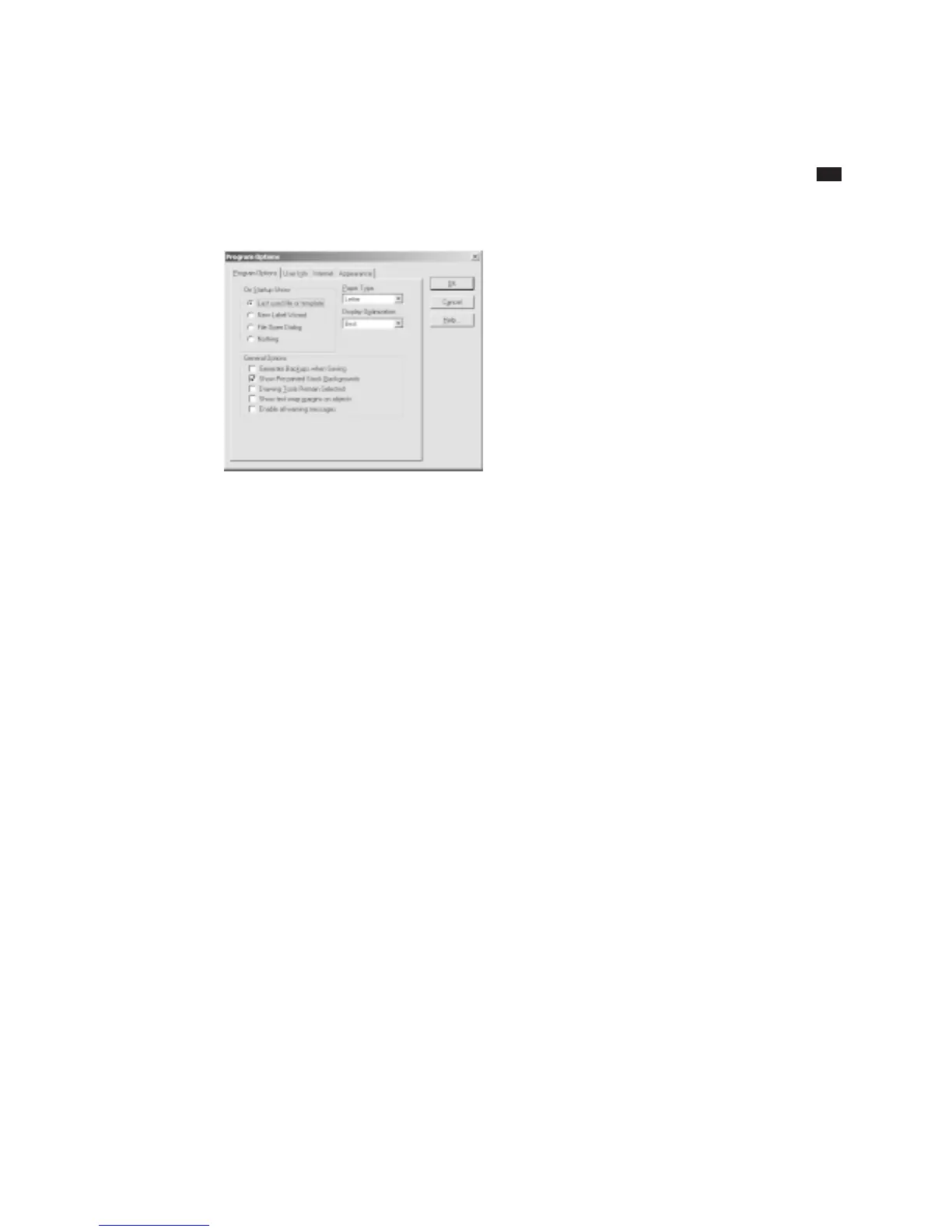
Program Options dialog box
2 Make any changes you see fit. Press
Help for more information about a specific
option.
3 Click OK to save your settings and close
the Program Options dialog box.
You can also turn on or off the display of
certain items by choosing View Options
under the View menu.
User Info Tab
SureThing labels can be designed to use
merge fields from databases or from the
User Info tab of the Program Options dialog
box. We encourage you to take a moment
to fill this information out.
Fill in information in any of the fields that
are appropriate for you. Leave any
unnecessary fields blank (you should
delete the sample text).
Internet Tab
The Internet tab of the Program Options
dialog box lets you select an Internet
Playlist Server, enable reading of CD Text,
and configure a proxy server.
Internet Playlist Server
SureThing defaults to the server
www2.freedb.org/cgi-bin/cddb.cgi, but you
can change this to another server that
provides playlist information. To change
the program back to the default server,
click the Use Default Server option.
The Connect to server without prompting
option is primarily intended for users who
are online all the time, such as those who
use cable modem systems or LAN con-
nections for example. If you connect to the
Internet via a dial-up service, you may
wish to be prompted.
Enable CD Text
CD Text is a recent addition to the CD
audio specification allowing disc and track
related information to be added to stan-
dard audio CDs for playback on suitably
equipped CD audio players.
If the Enable Reading CD Text option is
turned on, SureThing will first attempt to
read CD Text when gathering playlist in-
formation. If no CD Text is detected, Sure-
Thing will then search the Internet Playlist
Server for information about the CD.
Proxy Server
Enter the address and port number of the
proxy server you wish to connect to. If
you’re unsure about proxy server settings,
chance are you are not using one.



 To Next Page