34 CHAPTER 3
Working with the Software
Calibrating Your Printer
Because each printer is full of working
parts, the precision in each is slightly
different. Sometimes this may cause
SureThing to slightly miss the mark when
printing. If this happens, you need to
calibrate your printer.
To calibrate the printer:
1 Choose the Calibrate Printer command
from the File menu. The Calibrate Printer
dialog box appears.
2 Confirm that the correct printer is listed
in the Printer field.
3 Press the Print Calibration Sheet button.
4 Fold the Calibration Sheet according to
the printed instructions and enter the
values in the Offset fields.
Your printer will now be offset by these
values to accommodate for any errors in
precision.
Before calibrating, be sure that you are
printing the correct template for the paper
you are using. Select About Template from
the Help menu if you’re not sure.
Printing
Printing your label designs is simple.
SureThing manages the actual layout of
the designs on the page, and sequences
them as they print. All you need to do is
tell it how many copies to print, and on
which label to start.
To print a label design:
1 Put the correct paper in the paper tray
of your printer. Use plain paper if you are
doing a test-print; use your label stock if
you are printing final output.
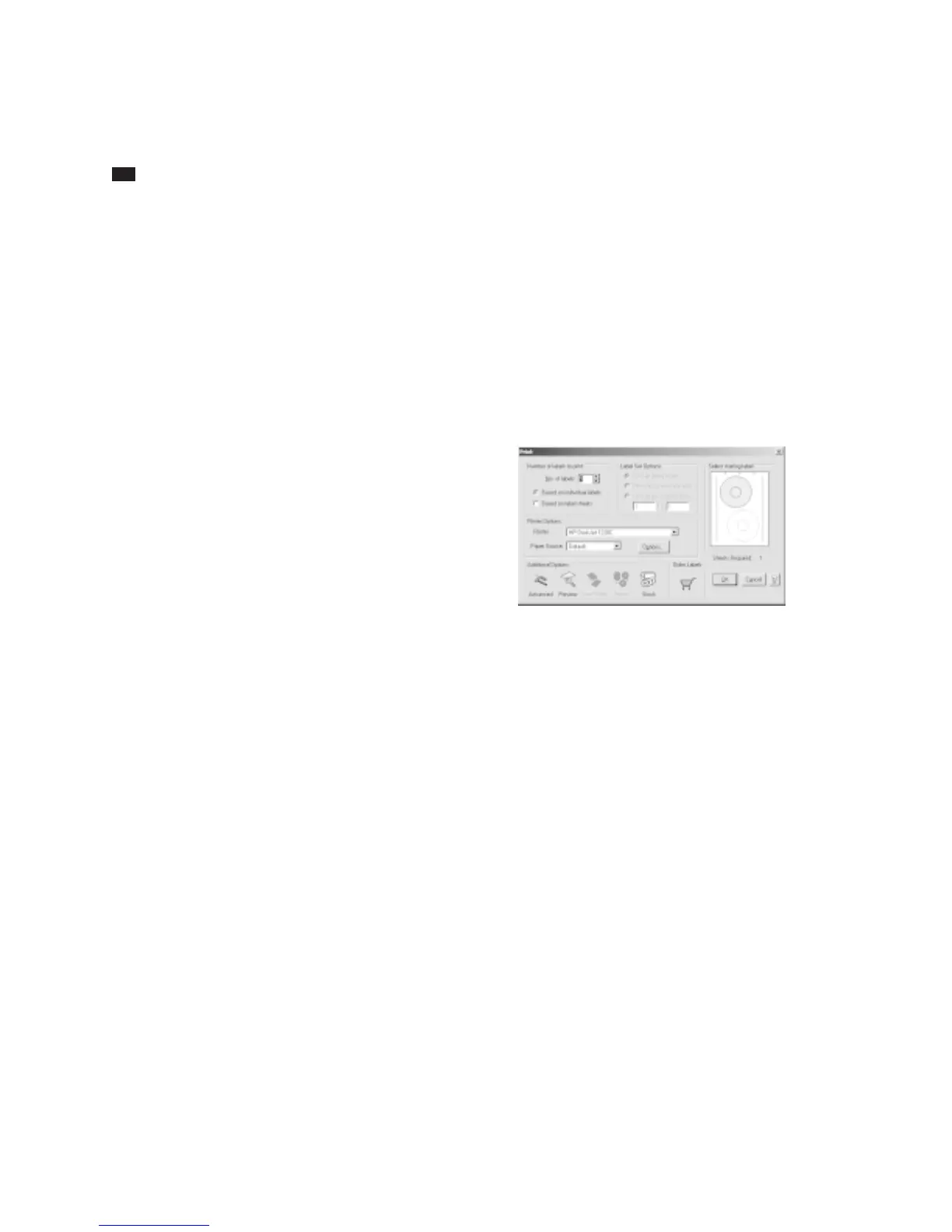
2 Choose Print from the File menu, or
click the Print button on the Command
bar. The Print dialog box appears.
3 Make sure that the correct printer is
selected, and that the printer is setup
properly.
4 Enter the number of copies you want to
print in the No. of Labels field. You can
specify the number of designs to print
based on either individual labels or label
sheets. Whether you choose Labels or
Sheets, SureThing tells you how many
sheets of label stock you will need (listed
below the Sample window).
5 Under Label Set Options, choose Print All
Labels in Set to print all of the designs (i.e.,
any designs you’ve created using the Add
command); choose Print the current label
only to print only the current design;
choose Print range of labels and identify the
beginning and ending design to be printed
if you want to print more than one, but not



 To Next Page