SURETHING CD LABELER
User’s Guide
19
©
Tip: SureThing remembers all
selections you’ve made in the
wizard. If nothing changes for the next
label you want to create, click Finish on the
first screen of the wizard.
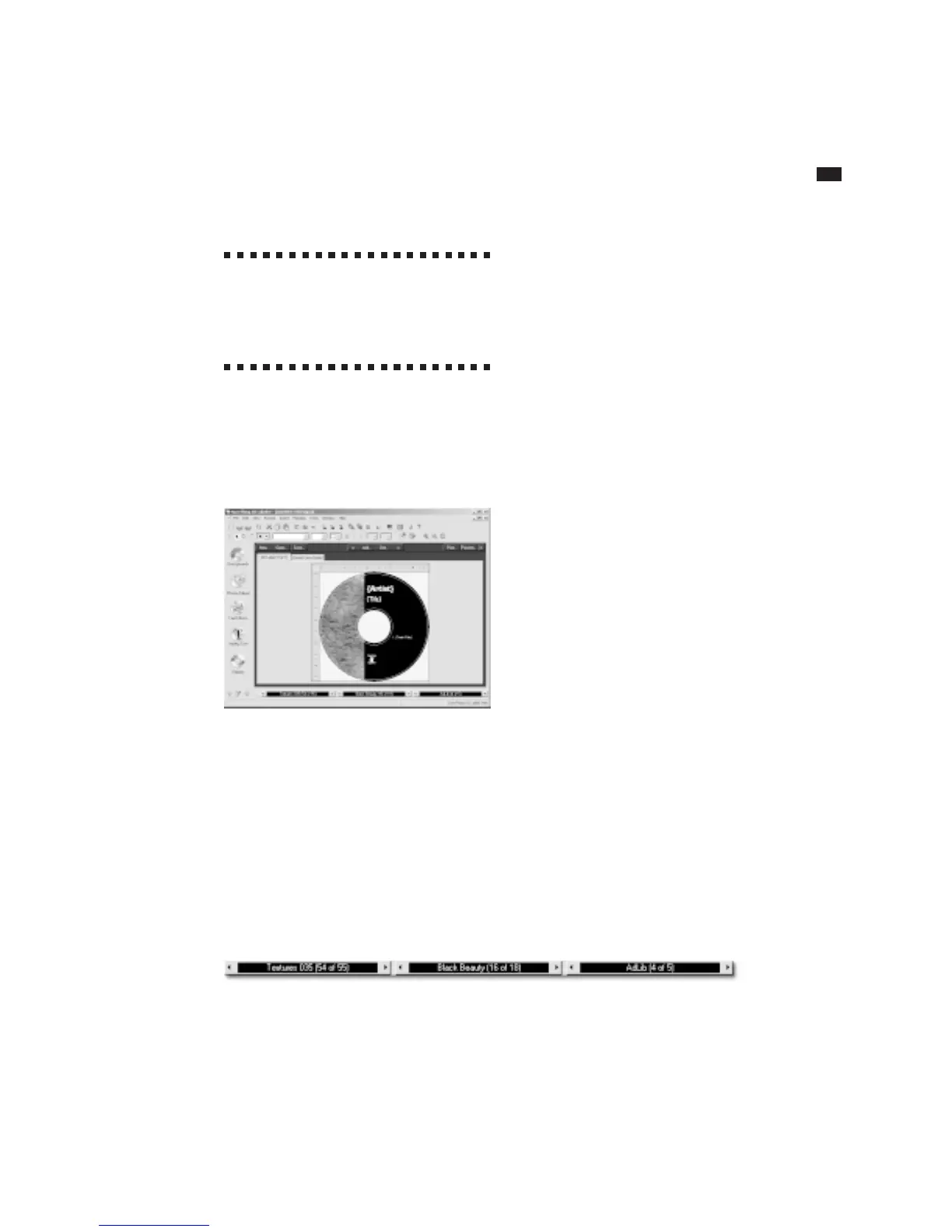
The Design window appears with the label
you just created using the wizard, and is
now ready for editing. The text you see is
the initial sample text, and the background
is the same one you selected in the wizard.
The Design Window
By default, all new labels start out with a
SmartDesign for the product type and label
stock you chose in the New Label wizard.
SmartDesigns are templates that act like a
design assistant. They provide a variety of
layout choices, sample text, and font and
point size suggestions.
The sample text included in a SmartDesign
is intended to give you ideas about the
type of information you might use in your
design. You can, of course, enter anything
you like in each field. Several of the
SmartDesign layouts also include sample
images to use as placeholders until you
insert your own graphics, logos, etc.
If you chose Audio or Data CD in the
Wizard, please refer to the section titled
“Working with Playlists” later in this
chapter.
SmartDesign Basics
SmartDesigns are interactive design
templates built into SureThing. Unlike
traditional templates that simply place a
few objects on a page and leave the rest up
to you, SmartDesigns allow you to modify
many aspects of the design with a few
mouse clicks. We call them ‘smart’ because
they’re designed for specific label stocks
by people with a good eye for graphic
design. SmartDesigns let you put together
attractive label designs without actually
having to do anything more than click the
mouse.
SmartDesigns display sample text, a variety
of layouts, and a series of font selections
for each layout. SmartDesigns don’t re-
quire you to draw and align objects (lines,
rectangles, gradient fills, etc.) or format
The Variation Bar



 To Next Page