SURETHING CD LABELER
User’s Guide
45
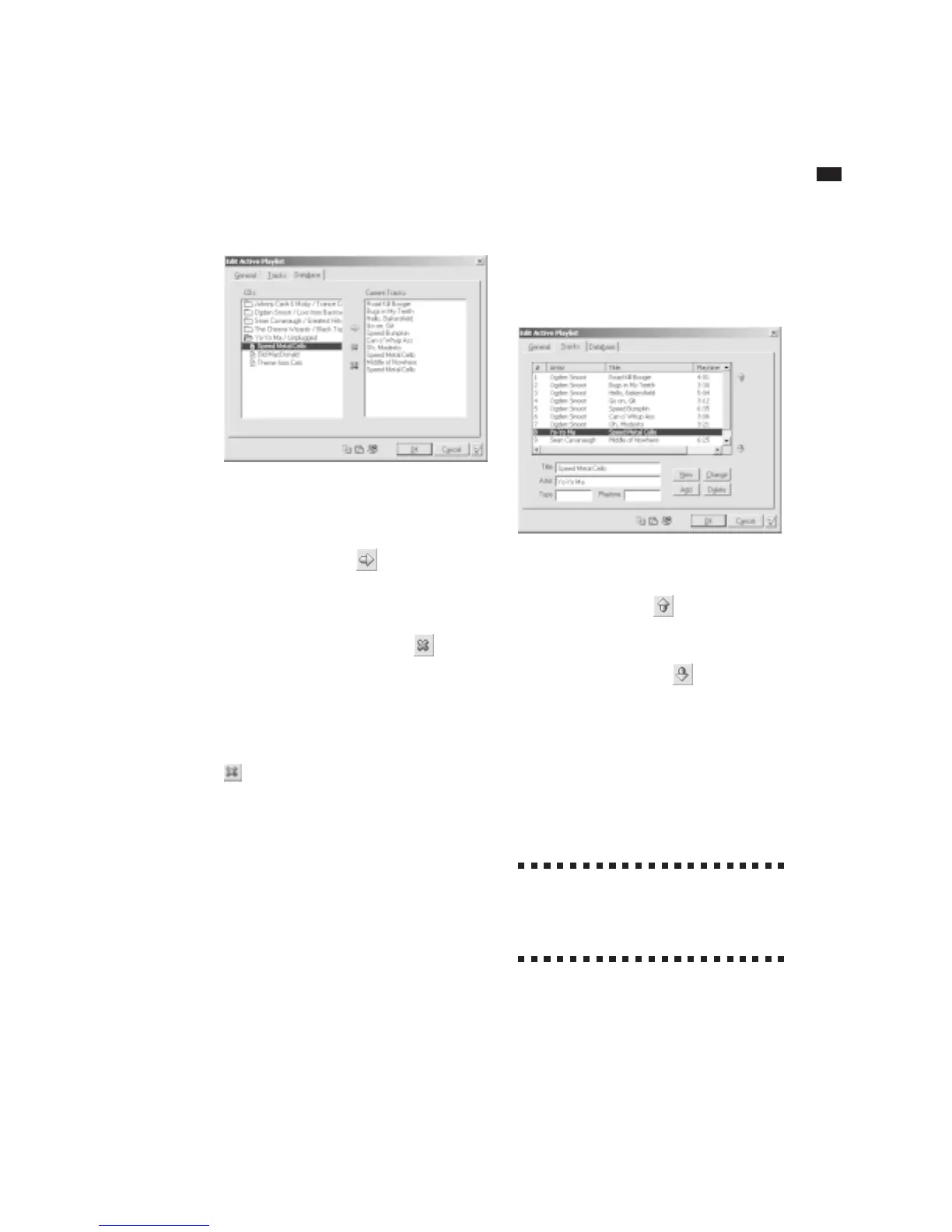
4 Double-click an album title in the CDs
column to see its songs. Click on the song
you wish to add to the Current Tracks
column and click the button, or simply
double-click the song to add it.
If you wish to remove a song from the
playlist, click it in the Current Tracks
column, and click the Remove button.
This just removes the track from the active
playlist; it does not delete it from the
database.
If you wish to clear the Current Tracks
column of all songs, click the Remove All
button. This removes all the tracks
from the active playlists in document; it
does not delete them from your database.
5 Repeat step 4 to add additional songs.
6 When you’re finished, click OK.
To change the track order in your playlist:
1 Click the Tracks tab.
2 Do one of the following:
. Click the Move Up button to move
the highlighted track up once each time
you click this button.
. Click the Move Down button to
move the highlighted track down once
each time you click this button.
Creating Your Own Playlist Data
You can create new playlists or edit
existing ones for either audio or data CDs.
The steps below describe how to create an
audio playlist.
?
Creating a data playlist is done the
same way but has a few different
options. See Data Playlist Options for the
options that apply to a data playlist.



 To Next Page