SURETHING CD LABELER
User’s Guide
29
a
SureThing does not support the GIF
image format. If you have GIF
images you would like to include in your
label designs, we suggest converting them
to another popular image format such as
BMP or TIF.
Working with Backgrounds
Backgrounds are images SureThing places
in the background of a label design. All
other objects – text frames, text effects
and clipart – appear on top of the back-
ground image.
You can select a background from the
New Label Wizard, but you can always
change your mind later. A number of
background images are included with
SureThing that have been specially
designed for CD labels. You can choose
your own images to use as backgrounds as
well. Or you can decide to use no back-
ground at all.
To change the background image:
1 Click the “Backgrounds” icon on the
Design Bar:
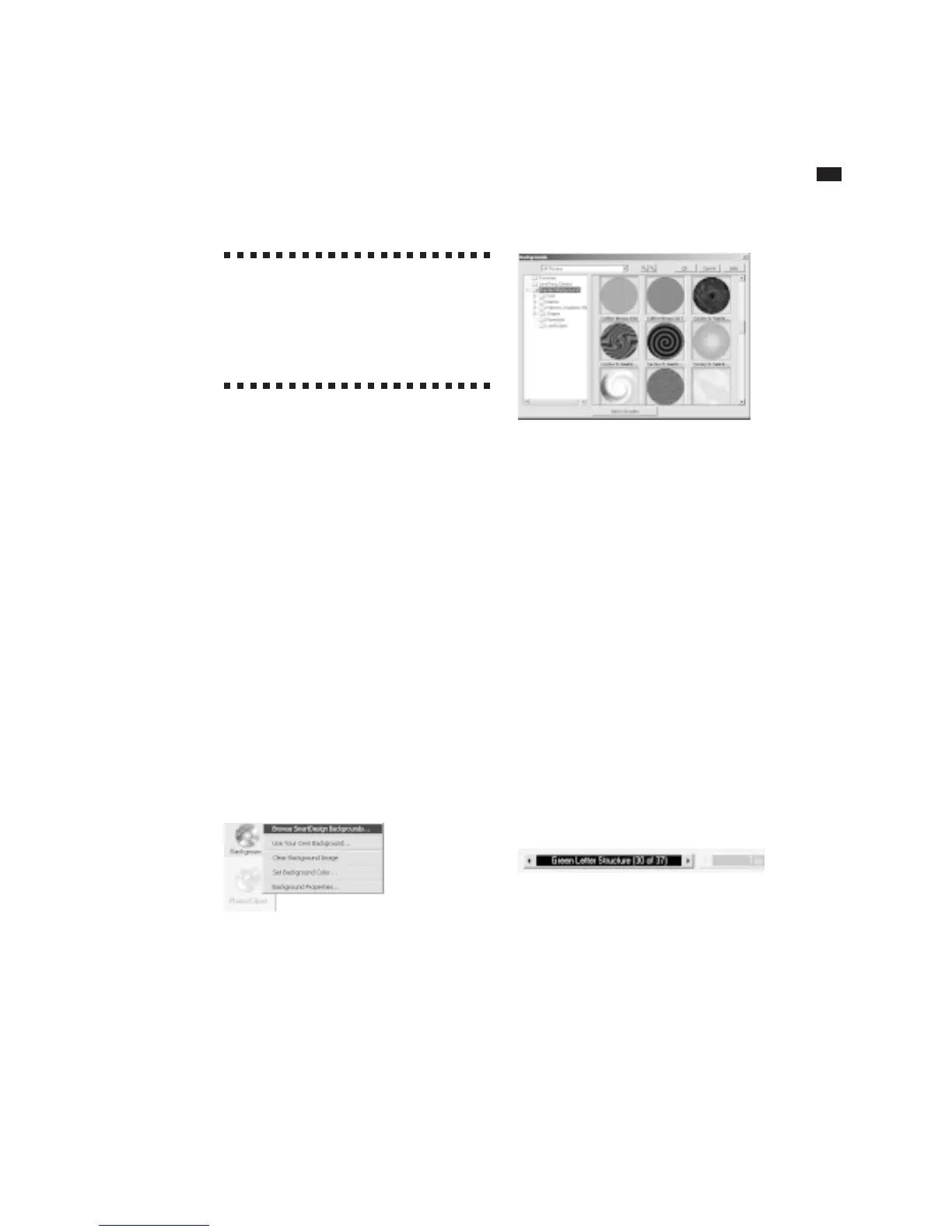
2 Choose Browse SmartDesign Back-
grounds from the menu. The following
dialog box appears:
3 Select a category in the left pane, which
displays the folders where backgrounds
are stored. Expand or collapse the tree
structure as needed.
4 Select a background image from the
dialog box by clicking it, then click OK.
To help sort through the many back-
grounds that come with SureThing, the
Background Browser includes a Favorites
Folder. When you see an image you like
and might want to use again, click the Add
to Favorites button.
Here’s another way to change backgrounds:
The Variation Bar at the bottom of the
window provides a quick way to change
backgrounds, layouts and font choices.
The left-most variation bar lets you select
backgrounds.
• Click the mouse in the middle of the
Variation Bar on the left. A list of back-
grounds appears.
• You can also click the left- and right-
pointing arrows on either side of the
variation bar to cycle through the images.



 To Next Page