SURETHING CD LABELER
User’s Guide
33
Saving Your Label
Saving a design in SureThing is a very
simple process, and one you should do
with regularity. Every few minutes is
recommended. That way, if anything
unexpected happens (e.g., power outage,
meteor impact, etc.), you’ll always have a
recent version of your label.
To save a label choose the File > Save (or
Save As) command. Select the drive and
directory where you want the file to be
saved, give it a name and click the Save
button. You don’t have to enter a filename
extension; one will be added automatically
if you don’t. Following are the specific
steps.
To save a new document:
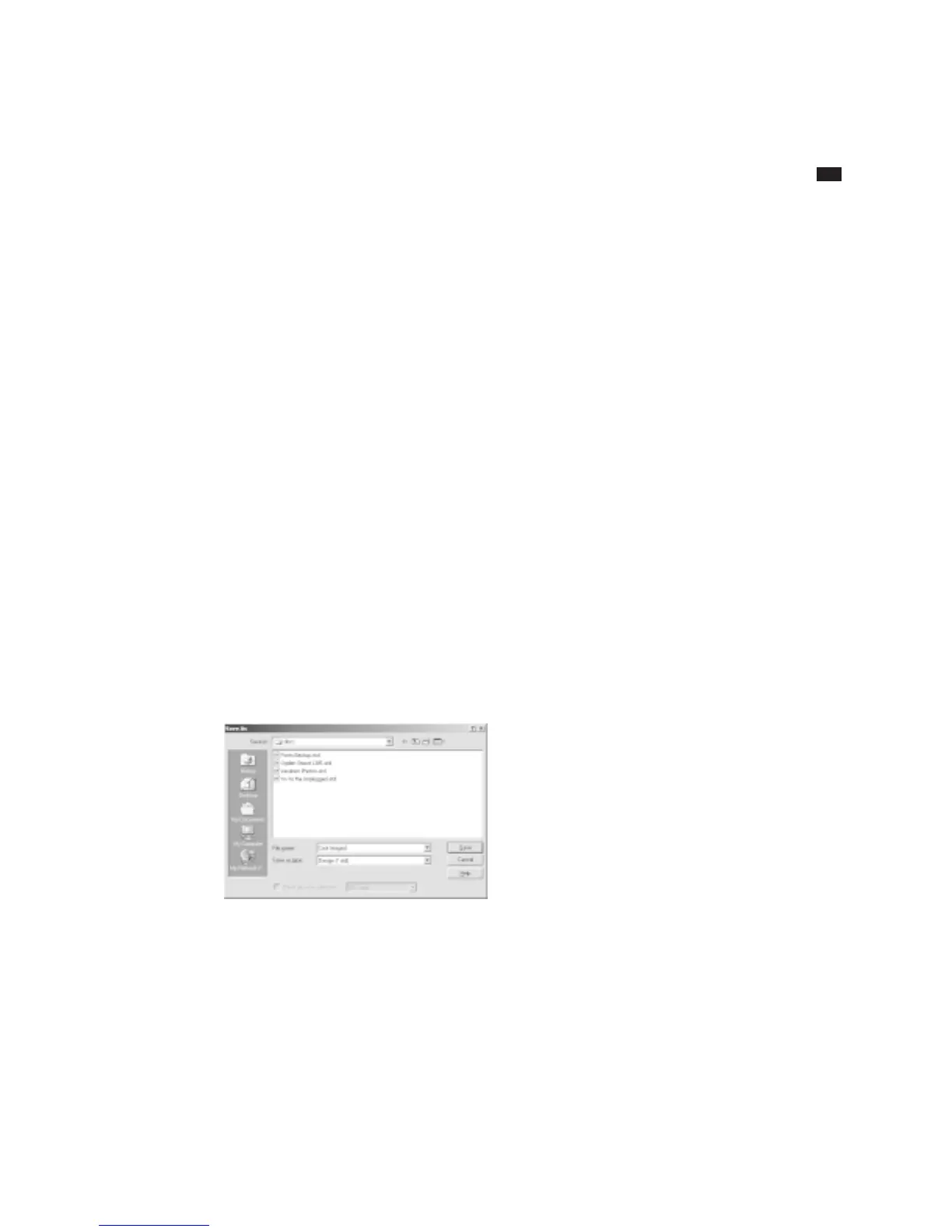
1 Choose the Save (or Save As) command
from the File menu. If it’s the first time
you’ve saved the label, the Save As dialog
box appears:
2 Select the drive and folder where you
want the label to be saved from the Save In
list. If you want to create a new folder, click
the new folder button and give it a name.
3 Type a name for your label in the File
name box.
You don’t have to type an extension
because SureThing automatically gives all
labels the extension std.
4 Click Save.
The design is saved to your hard disk with
the filename you typed, and you can
resume working with it.
After saving your design the first time, you
still need to save your work periodically.
Choose Save from the File menu, or press
Ctrl+S. The label is saved, with all of your
updates.
Saving a design with a new filename
There are times when you want to give a
SureThing label design a new name, such
as when you want to edit an existing
design, but keep an unchanged copy of the
original. If you were to open the label, edit
it, and use the Save command, the edited
version would replace the original. The
Save As command provides a way to save
your changes as well as retain a copy of
the original. After opening the original
label design, choose the Save As command
from the File menu and enter a different
filename, or the same filename but a
different location on your hard disk (or a
different disk).



 To Next Page