36 CHAPTER 3
Working with the Software
• height and width of each label
• starting position of the first label
(measured from the top and left edges
of the page)
• number of labels across and down the
page
• horizontal and vertical span (horizontal
span is the distance from the left edge
of the first label to the right edge of the
last label across the page or block;
vertical span is the distance from the
top edge of the first label to the bottom
edge of the last label down the page or
block)
To create a new layout template:
1 Choose Template Creation Wizard from
the File menu.
2 Click the Next button.
3 Enter the page dimensions and orienta-
tion of the label sheet and click Next when
you are ready to proceed.
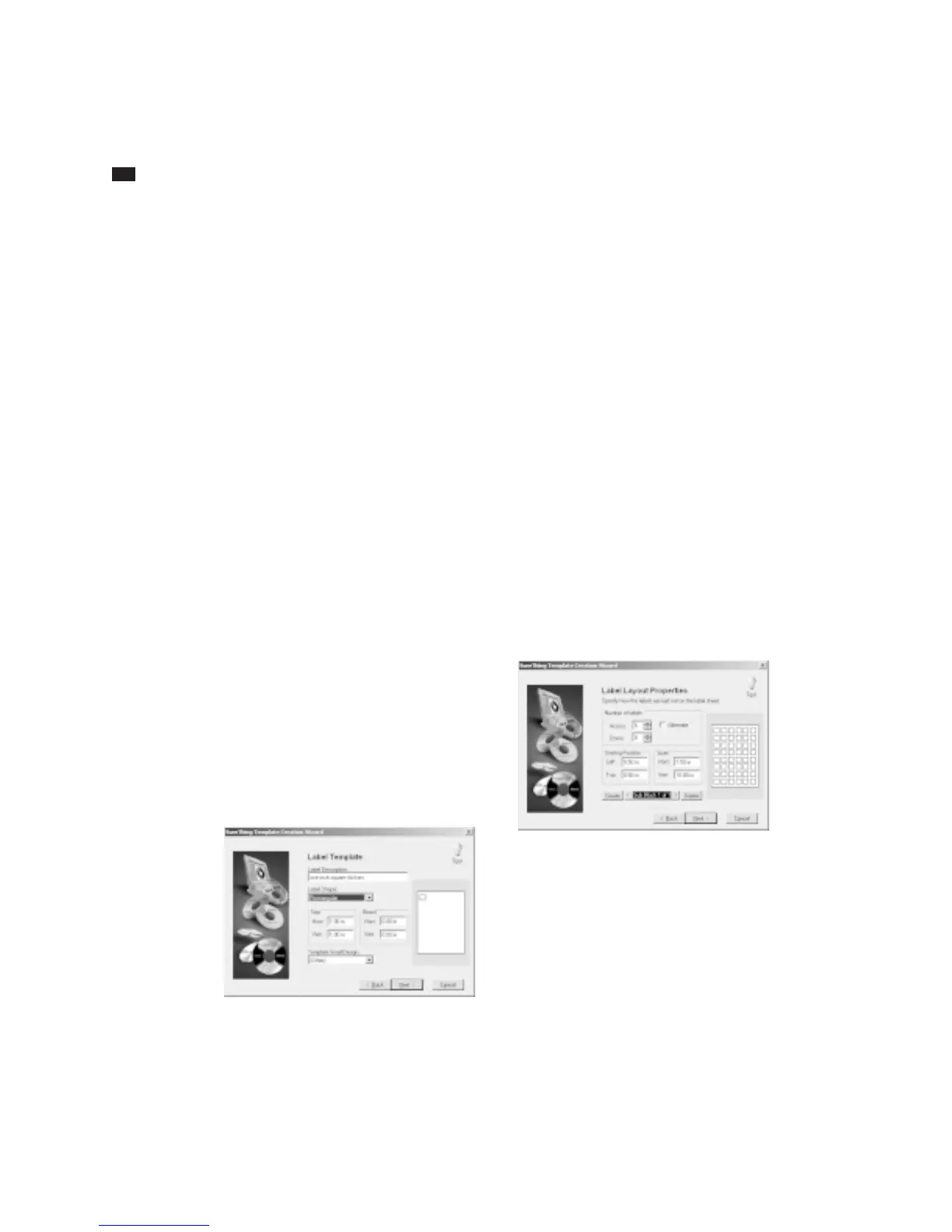
4 Enter a description for the layout, select
its shape (rectangular or circular), and the
size of individual labels on the sheet.
You can optionally specify bleed settings
(the amount of space outside the bounds
of the label into which SureThing will
print), and choose from a list of template
SmartDesigns. Selecting a SmartDesign
from the list will initially set the height and
width of the label size, but you can change
it. This is useful if the label template you
are creating is similar to one that already
exists in SureThing, but has slightly
different measurements. If you don’t wish
to use SmartDesigns, choose “(Other)”
from the list.
Click Next when you are ready to proceed.
5 Enter the number of labels across and
down the sheet, the position of the first
label, measured from the left and top of
the page, and the horizontal and vertical
span.
Why measure span instead of the space
between labels? This is done to minimize
rounding errors. If you measured the
space between individual labels, and were
off by one-tenth of an inch, for example,
this error would be applied to each label.
But by measuring the label span, i.e., the



 To Next Page