1.35
Operation Manual
© 2013 Prism Media Products Ltd
Revision 1.00Prism Sound Lyra
Lyra Control Panel app.
Accessing the Lyra Control Panel app
The Lyra Control Panel app can be run directly like any other Mac or Windows program, or it can be
accessed from the operating system itself, from the "Sound and Audio devices" dialogue in the
Windows' Control Panel (or from the Device Manager) or from the Audio MIDI Setup in Mac OS X.
Some audio applications also allow guided access to the Lyra Control Panel app.
Operating the Lyra Control Panel app
The Lyra Control Panel app is a variable-size dialogue box which can be activated and 'put away' like
any other Mac or Windows application. When active, it cannot be resized. The upper part of the
Control Panel contains Unit settings, and beneath are a stack of 'tabs' allowing context-switching of
the bulk of the user-interface area.
The Inputs tab contains everything to do with setting up analogue and digital inputs, the Outputs tab
similarly for outputs. A row of Mixer tabs provide access to the low-latency built-in mixers for each
output pair.
Where more than one Lyra unit is connected, a separate Lyra Control Panel controls each connected
unit (see the section on Operating multiple units). If no Lyra units are connected, the Control Panel
is replaced by a small dialogue box which reports this. Note that operation of more than one Lyra unit
on a single host computer is not currently supported.
6.1.1 Unit settings
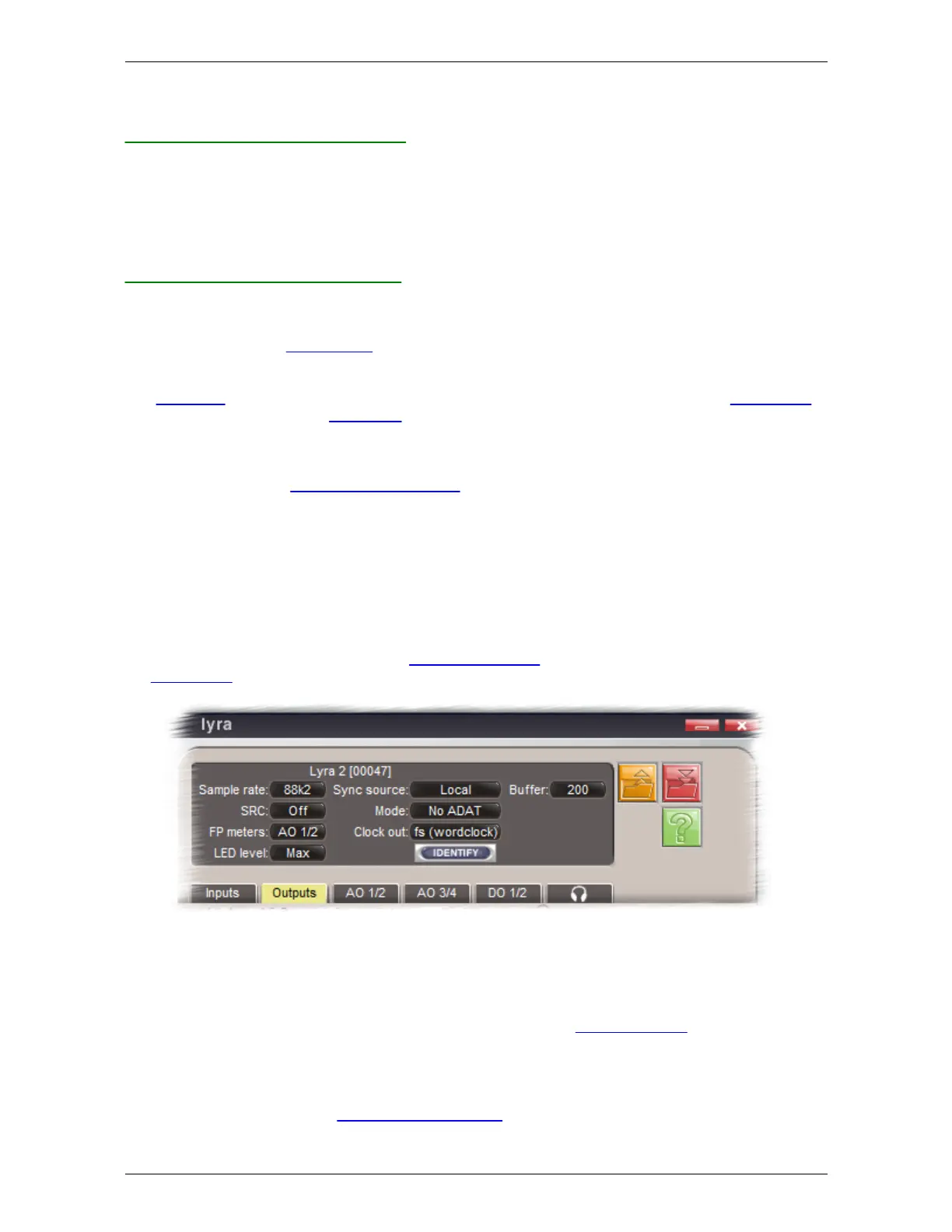
The upper area of the Lyra Control Panel contains the main settings for the Lyra unit.
The upper area also contains buttons for loading and saving Lyra configurations, and for accessing
the on-line help.
The Lyra model and serial number are displayed at the top of the Unit settings area. Note that the
currently-installed firmware version of the Lyra unit can be displayed by hovering the mouse cursor
over this text.
The Sample Rate and Sync Source controls allow the unit's reference sample rate and
synchronization source to be selected. For more details, see the Synchronization section.
NOTE: If an external sync source such as DI or Wordclock is selected, but is either absent or
at a different rate from the selected sample rate, the unit reverts to local (internal) sync at the
selected sample rate. If the reference is later applied at the appropriate rate, audio is
re-enabled. Note that during Stand-alone operation an external sync source is allowed to


 To Next Page