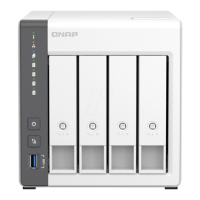
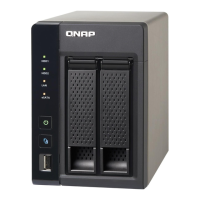
1. Power on the NAS.
2. Connect the NAS to the internet.
3. Go to the QNAP Cloud Installation page using one of the following methods:
• On your computer, go to your respective region's site to download QTS:
• China: https://install.qnap.com.cn
• Global: https://install.qnap.com
• Scan the QR code on the NAS using a mobile device.
The web page lists all the uninitialized QNAP NAS devices on the local network.
4. Find your NAS from the list and then click Initialize.
Note
If your NAS is not listed, follow the instructions on the web page to specify the Cloud Key
on the NAS.
The installation wizard opens in the default web browser
5. Create an account or sign in to myQNAPcloud.
Note
You must return to this page to complete the installation after creating an account.
6. Specify the myQNAPcloud device name for the NAS.
Note
• The myQNAPcloud device name is used when remotely accessing the NAS.
• For security purposes, the myQNAPcloud Link remote connection service will be
disabled on your NAS after initialization. You can enable it by connecting to QTS
through LAN and then installing myQNAPcloud Link.
7. Click Next.
The QNAP Warranty Service page opens in the default web browser.
8. Click Check warranty.
The QNAP Warranty Service window opens in a new web page.
Important
You can check your device warranty policy or purchase an extended warranty plan at QNAP
Warranty Service.
9. Close the warranty page.
The Smart Installation Guide opens in the default web browser.
TVS-x72XT User Guide
Installation and Conguration 47



 To Next Page