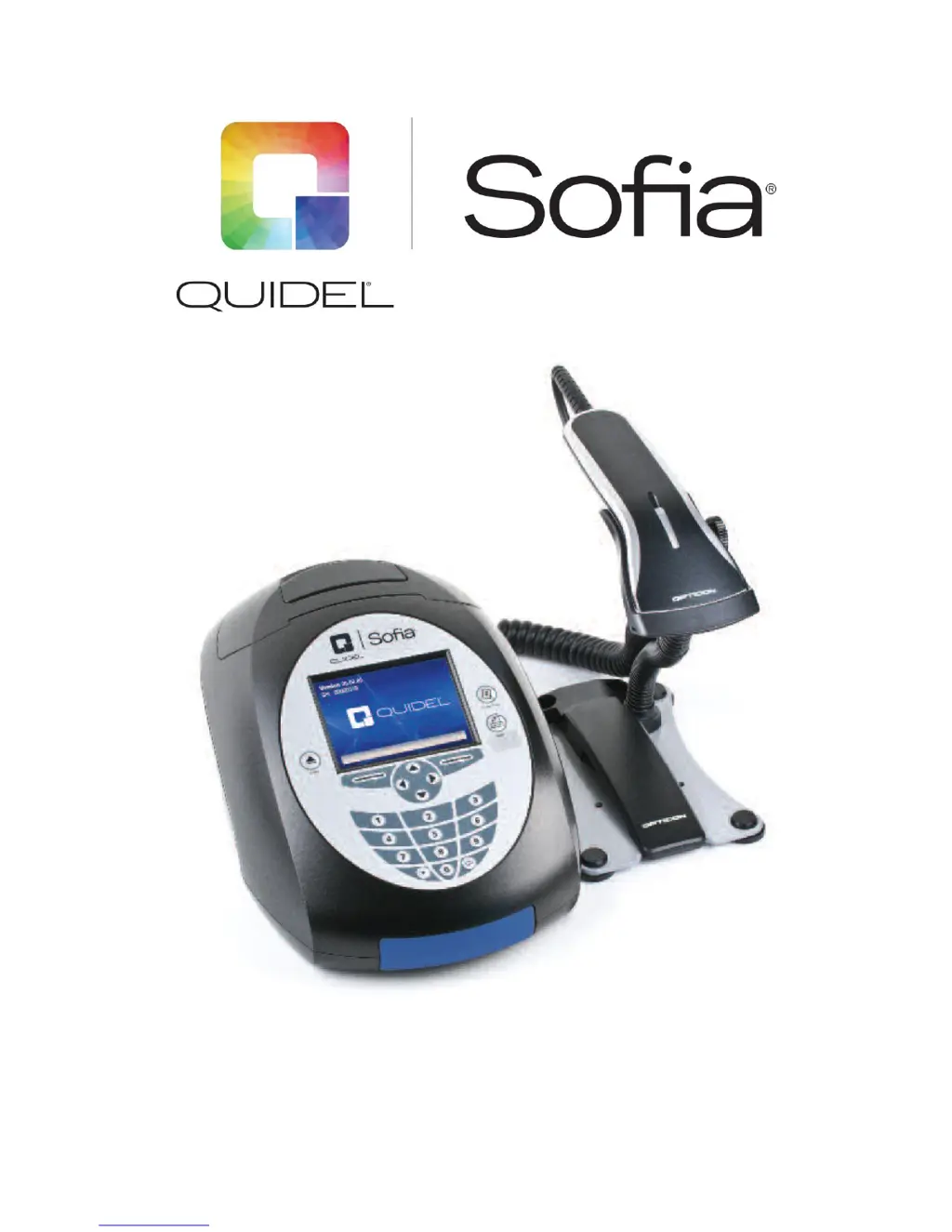
What to do if Quidel Sofia says Expired Cassette?
- EEmily CochranSep 1, 2025
If the Quidel Measuring Instruments displays 'Expired Cassette', it means the Cassette is past its expiration date. Retest with a non-expired Cassette.
What to do if Quidel Sofia says Expired Cassette?
If the Quidel Measuring Instruments displays 'Expired Cassette', it means the Cassette is past its expiration date. Retest with a non-expired Cassette.
What to do if Quidel Measuring Instruments says Expired QC Card?
If the Quidel Measuring Instruments displays 'Expired QC Card', it means the QC Card is past its expiration date. Retest with a non-expired QC Card.
How to fix ID Warning on Quidel Sofia Measuring Instruments?
If the Quidel Measuring Instruments displays an 'ID Warning', the entered ID is invalid. Type in a valid User ID to proceed.
How to resolve Invalid User Name error on Quidel Sofia Measuring Instruments?
If the Quidel Measuring Instruments displays 'Invalid User Name', the User Name contains invalid characters. Enter only letters and numbers.
How to resolve Missing User ID Error on Quidel Measuring Instruments?
If the Quidel Measuring Instruments displays a 'Missing User ID Error', it means the User ID is missing, which is mandatory for adding or editing a User. Type in a valid User ID to proceed.
How to fix Supervisor ID Error on Quidel Sofia Measuring Instruments?
If the Quidel Measuring Instruments displays the message 'Supervisor ID Error', it means that the supervisor ID should have between 4-12 characters. Please check the Supervisor ID and re-enter it.
What does Temperature Warning mean on Quidel Sofia Measuring Instruments?
If the Quidel Measuring Instruments shows a 'Temperature Warning', it means the temperature is out of the allowed range. The allowed temperature range is 15°C to 30°C/ 59°F to 86°F.
Why User Type Cannot Be Changed on Quidel Sofia?
If the Quidel Measuring Instruments displays 'User Type Cannot Be Changed', it means this is the last supervisor and its type cannot be changed. Create a replacement Supervisor or set a new default Supervisor before changing User status to Operator.
What to do if Quidel Sofia shows 'Paper out error'?
If your Quidel Measuring Instruments displays a 'Paper out error', it means Sofia detects a printer error or that the printer is out of paper. You should check the printer paper and install a new roll if needed.
What to do if Quidel Measuring Instruments says 'SD Card full'?
If your Quidel Measuring Instruments indicates that the SD Card is full, it means the system has detected that the SD Card has reached its storage capacity. The solution is to replace the SD Card located in the back of the unit.
Provides contact details for Quidel Technical Support, including phone, email, and website.
Explains the meaning of various labels and symbols used on the Sofia device and its packaging.
Outlines essential warnings, precautions, and limitations for safe and proper use of the Sofia device.
Details specific safety measures to reduce risks of electrical shock, UV exposure, and biohazards.
Describes the Sofia device's intended application as a benchtop analyzer for specific in vitro diagnostic assays.
Details the Sofia's use of fluorescent tags, internal procedural controls, and result display capabilities.
Explains the necessity and frequency of Calibration Checks and external Quality Control tests.
Discusses different development modes (WALK AWAY, READ NOW) for processing patient samples.
Differentiates between User/Operator and Supervisor roles and their respective access levels.
Details the Sofia's 3.5-inch diagonal color LCD display for user interaction.
Explains the numeric keypad and function buttons, including their icons, names, and uses.
Provides instructions for placing Sofia, ensuring adequate space, and connecting power and peripherals.
Details the steps for loading paper into the integrated printer of the Sofia device.
Guides the user on how to turn on the Sofia unit using the power switch and what to expect.
Describes the three types of cassette drawers available for Sofia and their compatibility with different assays.
Explains how to use the Up/Down arrows and other keys to navigate menu options on the Sofia.
Configures default modes, entry requirements, calibration/QC, and user access rights.
Configures system-wide settings like location, language, sound, date, and time.
Loads new Sofia test type files from an SD Card for assay recognition.
Loads new Sofia test type files from the Cloud, requiring Firmware 2.0 or higher.
Adds new users to the Sofia system, specifying ID, type (Operator/Supervisor), and name.
Allows editing of existing user names and details within the Sofia system.
Removes users from the Sofia system, highlighting ID requirements.
Accesses and filters records of previously run patient tests.
Accesses and reviews records of previously run Quality Control tests.
Accesses and reviews records of previously performed Calibration Checks.
Displays QC Kit/Lot status and expiration dates for assays.
Lists installed Test Types and their corresponding version numbers.
Displays firmware, bootware, hardware versions, scan count, and serial number.
Allows supervisors to view user details, including test types and result counts.
Displays system messages with corresponding codes, dates, and times.
Clones Sofia settings to an SD Card for duplication onto other Sofia units.
Loads settings from an SD Card onto another Sofia unit.
Exports test records (patient, QC, calibration) to an SD Card for backup or analysis.
Installs firmware updates from an SD Card or the Cloud to improve Sofia functionality.
Installs new Sofia firmware by loading it from an SD Card.
Installs new Sofia firmware by loading it from the Cloud.
Verifies the router connection to the Cloud for downloading firmware and other updates.
Installs language files from an SD Card or Cloud for display on the Sofia.
Loads a new language file onto the Sofia system using an SD Card.
Loads a new language file onto the Sofia system from the Cloud.
Verifies the router connection to the Cloud for downloading language files.
Details the process of using the Calibration Cassette to check Sofia's optics and functions.
Explains how calibration results are displayed ('Passed' or 'Failed') and stored.
Accesses and reviews records of Quality Control tests performed on the Sofia.
Choose between WALK AWAY or READ NOW modes for running patient tests.
Allows the user to select or change the development mode for running tests.
Instructions for entering or scanning the User ID for test initiation.
Instructions for entering or scanning the Patient ID for test initiation.
Instructions for entering or scanning the Order Number for test initiation.
Guides the user through the process of inserting the test cassette in WALK AWAY and READ NOW modes.
Describes the action of pressing START Test and inserting the cassette.
Explains how test results are displayed, printed, and how to handle invalid controls.
Configures IP address, network address, subnet mask, gateway, and port number.
Sets IP Address and Port Number for downloading Test Type Files, Language Files, or Firmware via Cloud.
Configures LIS address, port number, auto send, and queue results options.
Sends all results that have not yet been transmitted to the LIS.
Sends only the most recent result to the LIS.
Sends all available results to the LIS.
Sends all patient test results to the LIS.
Sends all Quality Control results to the LIS.
Verifies the connection to the Laboratory Information System.
Refer to separate instructions for setting up the Sofia with the Virena Router.
Configures IP address and network settings for the Sofia device.
Configures parameters for Surveillance Mode, including age, patient ID, order number, and auto send settings.
Verifies the connection to the SURV receiver for data transmission.
Screen for entering patient demographic data like age, status, and study codes.
Options for sending results (unsent, last, all) to the SURV receiver.
Notes that maintenance, except for basic tasks, must be performed by Quidel.
Details battery intended use, installation, and changing procedures.
Provides instructions to reduce risk of electrical shock during cleaning and cleaning solutions.
Step-by-step guide on how to remove the cassette drawer for cleaning.
Provides detailed technical specifications for the Sofia device and barcode scanner.
Lists common symptoms, causes, and actions for troubleshooting Sofia device issues.
Lists potential error codes, their descriptions, actions, and codes for troubleshooting.
Provides contact details for Quidel Technical Support, including phone, email, and website.
Explains the meaning of various labels and symbols used on the Sofia device and its packaging.
Outlines essential warnings, precautions, and limitations for safe and proper use of the Sofia device.
Details specific safety measures to reduce risks of electrical shock, UV exposure, and biohazards.
Describes the Sofia device's intended application as a benchtop analyzer for specific in vitro diagnostic assays.
Details the Sofia's use of fluorescent tags, internal procedural controls, and result display capabilities.
Explains the necessity and frequency of Calibration Checks and external Quality Control tests.
Discusses different development modes (WALK AWAY, READ NOW) for processing patient samples.
Differentiates between User/Operator and Supervisor roles and their respective access levels.
Details the Sofia's 3.5-inch diagonal color LCD display for user interaction.
Explains the numeric keypad and function buttons, including their icons, names, and uses.
Provides instructions for placing Sofia, ensuring adequate space, and connecting power and peripherals.
Details the steps for loading paper into the integrated printer of the Sofia device.
Guides the user on how to turn on the Sofia unit using the power switch and what to expect.
Describes the three types of cassette drawers available for Sofia and their compatibility with different assays.
Explains how to use the Up/Down arrows and other keys to navigate menu options on the Sofia.
Configures default modes, entry requirements, calibration/QC, and user access rights.
Configures system-wide settings like location, language, sound, date, and time.
Loads new Sofia test type files from an SD Card for assay recognition.
Loads new Sofia test type files from the Cloud, requiring Firmware 2.0 or higher.
Adds new users to the Sofia system, specifying ID, type (Operator/Supervisor), and name.
Allows editing of existing user names and details within the Sofia system.
Removes users from the Sofia system, highlighting ID requirements.
Accesses and filters records of previously run patient tests.
Accesses and reviews records of previously run Quality Control tests.
Accesses and reviews records of previously performed Calibration Checks.
Displays QC Kit/Lot status and expiration dates for assays.
Lists installed Test Types and their corresponding version numbers.
Displays firmware, bootware, hardware versions, scan count, and serial number.
Allows supervisors to view user details, including test types and result counts.
Displays system messages with corresponding codes, dates, and times.
Clones Sofia settings to an SD Card for duplication onto other Sofia units.
Loads settings from an SD Card onto another Sofia unit.
Exports test records (patient, QC, calibration) to an SD Card for backup or analysis.
Installs firmware updates from an SD Card or the Cloud to improve Sofia functionality.
Installs new Sofia firmware by loading it from an SD Card.
Installs new Sofia firmware by loading it from the Cloud.
Verifies the router connection to the Cloud for downloading firmware and other updates.
Installs language files from an SD Card or Cloud for display on the Sofia.
Loads a new language file onto the Sofia system using an SD Card.
Loads a new language file onto the Sofia system from the Cloud.
Verifies the router connection to the Cloud for downloading language files.
Details the process of using the Calibration Cassette to check Sofia's optics and functions.
Explains how calibration results are displayed ('Passed' or 'Failed') and stored.
Accesses and reviews records of Quality Control tests performed on the Sofia.
Choose between WALK AWAY or READ NOW modes for running patient tests.
Allows the user to select or change the development mode for running tests.
Instructions for entering or scanning the User ID for test initiation.
Instructions for entering or scanning the Patient ID for test initiation.
Instructions for entering or scanning the Order Number for test initiation.
Guides the user through the process of inserting the test cassette in WALK AWAY and READ NOW modes.
Describes the action of pressing START Test and inserting the cassette.
Explains how test results are displayed, printed, and how to handle invalid controls.
Configures IP address, network address, subnet mask, gateway, and port number.
Sets IP Address and Port Number for downloading Test Type Files, Language Files, or Firmware via Cloud.
Configures LIS address, port number, auto send, and queue results options.
Sends all results that have not yet been transmitted to the LIS.
Sends only the most recent result to the LIS.
Sends all available results to the LIS.
Sends all patient test results to the LIS.
Sends all Quality Control results to the LIS.
Verifies the connection to the Laboratory Information System.
Refer to separate instructions for setting up the Sofia with the Virena Router.
Configures IP address and network settings for the Sofia device.
Configures parameters for Surveillance Mode, including age, patient ID, order number, and auto send settings.
Verifies the connection to the SURV receiver for data transmission.
Screen for entering patient demographic data like age, status, and study codes.
Options for sending results (unsent, last, all) to the SURV receiver.
Notes that maintenance, except for basic tasks, must be performed by Quidel.
Details battery intended use, installation, and changing procedures.
Provides instructions to reduce risk of electrical shock during cleaning and cleaning solutions.
Step-by-step guide on how to remove the cassette drawer for cleaning.
Provides detailed technical specifications for the Sofia device and barcode scanner.
Lists common symptoms, causes, and actions for troubleshooting Sofia device issues.
Lists potential error codes, their descriptions, actions, and codes for troubleshooting.
| Detection Method | Fluorescence |
|---|---|
| Result Time | 15 minutes |
| Humidity | 10-90% non-condensing |
| Assay Type | Immunoassay |
| Storage Temperature | 2°C to 30°C |
| Product Type | Point-of-Care Diagnostic |
| Technology | Fluorescence Immunoassay |
| Connectivity | USB |
| Operating Temperature | 15-30°C |
| Reportable Range | Qualitative (Positive/Negative) |