EasyManua.ls Logo

Radio Shack PRO-93 - User Manual

Radio Shack PRO-93
84 pages
Print Icon
To Next Page IconTo Next Page
Loading...
Owner’s Manual
Please read before using this equipment.
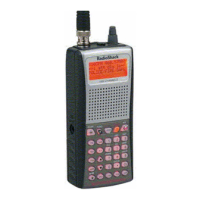
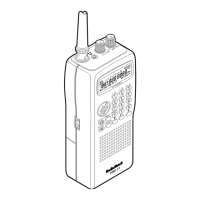
PRO-93
300 Channel Dual Track-Trunking
Handheld Scanner

Table of Contents

Questions and Answers

  • R
    Rachel BrownJul 29, 2025
    What to do if my Radio Shack PRO-93 has no power?
    • A
      Andrea HuntJul 30, 2025
      If your Radio Shack Scanner is totally inoperative with no power, there might be several reasons: * The batteries may have failed. Recharge the rechargeable batteries or replace the standard batteries. * The batteries may be installed improperly. Install the batteries according to the polarity markings. * The AC or DC adapter may not be connected properly. Ensure the adapter’s barrel plug is properly connected to the PWR DC 9V jack.
  • E
    Erika DonaldsonAug 3, 2025
    What to do if the keypad on my Radio Shack Scanner does not work?
    • S
      Steven RamosAug 3, 2025
      If the keypad on your Radio Shack Scanner isn't working, it might be because the keylock is on. Turn the keylock off.
  • E
    Eric HerreraAug 9, 2025
    How to fix a Radio Shack PRO-93 that is on but will not scan?
    • K
      Kimberly SmithAug 9, 2025
      If your Radio Shack Scanner is on but will not scan, the SQUELCH might not be adjusted correctly. Turn the SQUELCH clockwise.
  • A
    Andre WuAug 13, 2025
    What to do if keys do not work or display changes on Radio Shack Scanner?
    • M
      Michelle SullivanAug 14, 2025
      If the keys on your Radio Shack Scanner do not work or the display changes, turn the scanner off then on again, or reset the scanner.
  • K
    Kelly CopelandAug 19, 2025
    Why does my Radio Shack PRO-93 have poor reception?
    • O
      olivia41Sep 12, 2025
      There are a couple of reasons why your Radio Shack Scanner might have poor or no reception: * An antenna might not be connected or is connected incorrectly. Make sure an antenna is connected to the scanner. * Programmed frequencies might be the same as birdie frequencies. Avoid programming birdies or only select them manually.
  • J
    jbrownAug 23, 2025
    What to do if Radio Shack Scanner locks on frequencies with unclear transmission in scan mode?
    • R
      robertpinedaAug 23, 2025
      If, in scan mode, the Radio Shack Scanner locks on frequencies with an unclear transmission, the stored frequencies might be the same as birdie frequencies. Avoid programming birdies or only select them manually.

Summary

Scanner Features Overview

Scanning Legally

Explains legal aspects of radio scanning and prohibited transmissions.

Preparation and Setup

Power Sources Overview

Outlines the three ways to power the scanner: batteries, AC, or vehicle.

Using Batteries

Details how to install and use AA batteries.

Charging Rechargeable Batteries

Details the process for charging Ni-MH or Ni-Cd batteries.

AC and Vehicle Power

Instructions for connecting to AC power and vehicle battery power.

Antenna Connections

Guide to attaching the supplied and optional antennas.

Audio Output and Safety

Connecting headphones and guidelines for safe listening.

Additional Preparation Steps

Traffic safety, extension speaker, belt clip, and data transfer.

About Your Scanner

A Look at the Keypad

Overview of the scanner's keys and their functions.

Quick Start Guide

Guides for initial scanner familiarization before programming.

Understanding Scanner Banks and Modes

Channel Storage Banks

How channels are organized into banks for easier listening.

Search Banks

Details the five preprogrammed and one limit search bank.

Scanner Receive Modes Overview

Explanation of different receive modes (AM, FM, MOT, ED).

AM Mode Details

Describes the AM receive mode for specific transmissions.

FM Mode Details

Describes the FM receive mode for general transmissions.

Motorola Trunking Mode

Details how the scanner decodes Motorola trunking system IDs.

EDACS Trunking Mode

Details how the scanner decodes EDACS trunking system IDs.

Open and Closed Modes

Explains how open/closed modes affect trunked signal reception.

Scanner Operation Procedures

Turning On and Setting Squelch

Step-by-step guide to powering on and adjusting squelch.

Storing Known Frequencies

How to input specific frequencies into memory channels.

Storing Trunking Frequencies

How to program frequencies for trunking systems.

Storing Text Tags

How to add text labels to channels, IDs, or banks.

Assigning Tags to Group IDs and Banks

Steps to label trunking group IDs and banks with text.

Text Input Chart

Reference for entering characters using the keypad.

Finding and Storing Active Frequencies

Procedures for searching and saving active transmissions.

Searching Preprogrammed Frequency Ranges

How to use pre-set search bands for finding frequencies.

Searching Custom Frequency Ranges

How to set custom frequency ranges for searching.

Manual Tuning and Weather Band Access

How to manually tune frequencies and listen to weather broadcasts.

Listening to a Weather Channel

How to tune into a specific weather channel.

Weather Message Display and Alerts

How the scanner displays weather alerts and SAME messages.

Frequency Copy Functions

How to copy found frequencies to memory.

Copying Frequencies to Memory

Steps to copy a frequency to a specific memory channel.

Copying to Vacant;Priority Channels

Steps to copy frequencies to vacant or priority channels.

Scanning Channels

How to start or resume scanning through programmed channels.

Bank Management and Deleting Frequencies

How to manage banks and delete stored frequencies.

Special Features and Settings

Delay and Lock-Out Functions

How to use delay and lock out channels/frequencies.

Locking Out Channels

How to prevent scanning of specific channels.

Managing Lock-Outs

How to review and manage locked-out channels and frequencies.

Clearing Lockouts and Priority Setup

How to clear lockouts and set up the priority channel feature.

Changing Receive Mode

How to select AM, FM, MOT, or ED receive modes.

Using the Attenuator

How to reduce sensitivity to strong signals to prevent interference.

Key Tone, Backlight, and Keylock

How to manage key tones, display backlight, and keypad lock.

Display Contrast and Data Cloning

How to adjust display contrast and clone scanner data.

Trunking Operation

Understanding Trunking Systems

Explanation of how trunked radio systems work.

Squelch and Programming Trunking Frequencies

Setting squelch for trunking and programming trunking frequencies.

Programming Motorola Trunking Systems

How to program Motorola UHF-Lo trunking frequencies.

Programming Motorola 800 MHz Trunking

How to program Motorola 800 MHz trunking frequencies.

Programming Fleet Maps

How to set fleet maps for Motorola Type I systems.

Talk Group IDs Overview

Overview of talk group IDs in trunking systems.

Storing Talk Group IDs

How to manually store talk group IDs.

Talk Group ID Hold Function

How to lock onto a specific talk group during scanning.

ID Sub-Bank and Talk Group ID Lockouts

How to manage ID sub-banks and lock out talk group IDs.

ID Delay, Reviewing Lockouts, and Clearing IDs

Setting ID delay, reviewing, and clearing talk group IDs.

Clearing All IDs and Open;Closed Modes

Clearing all IDs in a bank and understanding open/closed modes.

Changing Open;Closed Mode

How to switch between open and closed modes for banks.

Frequency Guide

A General Guide to Frequencies

General information about radio frequencies and reception.

Weather and Ham Radio Frequencies

Lists frequencies for weather and ham radio bands.

Birdie Frequencies

Scanner's internal frequencies that might cause interference.

Guide to Action Bands

Typical band usage for various radio services.

Primary Usage Frequencies

Key frequencies for common radio activities.

Band Allocation Overview

General allocation of frequencies to different services.

Service Abbreviations

List of common abbreviations for radio services.

Frequency Conversion

Troubleshooting

Resetting;Initializing the Scanner

Procedures for resetting or initializing the scanner.

Resetting the Scanner

How to reset the scanner while retaining memory.

Initializing the Scanner

How to initialize the scanner, clearing all stored data.

Scanner Care Instructions

Instructions for maintaining and cleaning the scanner.

Scanner Specifications

Limited One-Year Warranty

Radio Shack PRO-93 Specifications

General IconGeneral
TypeHandheld Scanner
Channel Memory200
Banks10
Modulation TypesAM, FM, WFM
DisplayLCD
Priority ChannelsYes
Frequency Range108-174 MHz
Dimensions2.5 x 6.3 x 1.5 inches
Step Size5, 12.5 kHz
Battery LifeApproximately 10 hours

Related product manuals