22
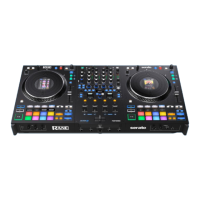
Front Panel
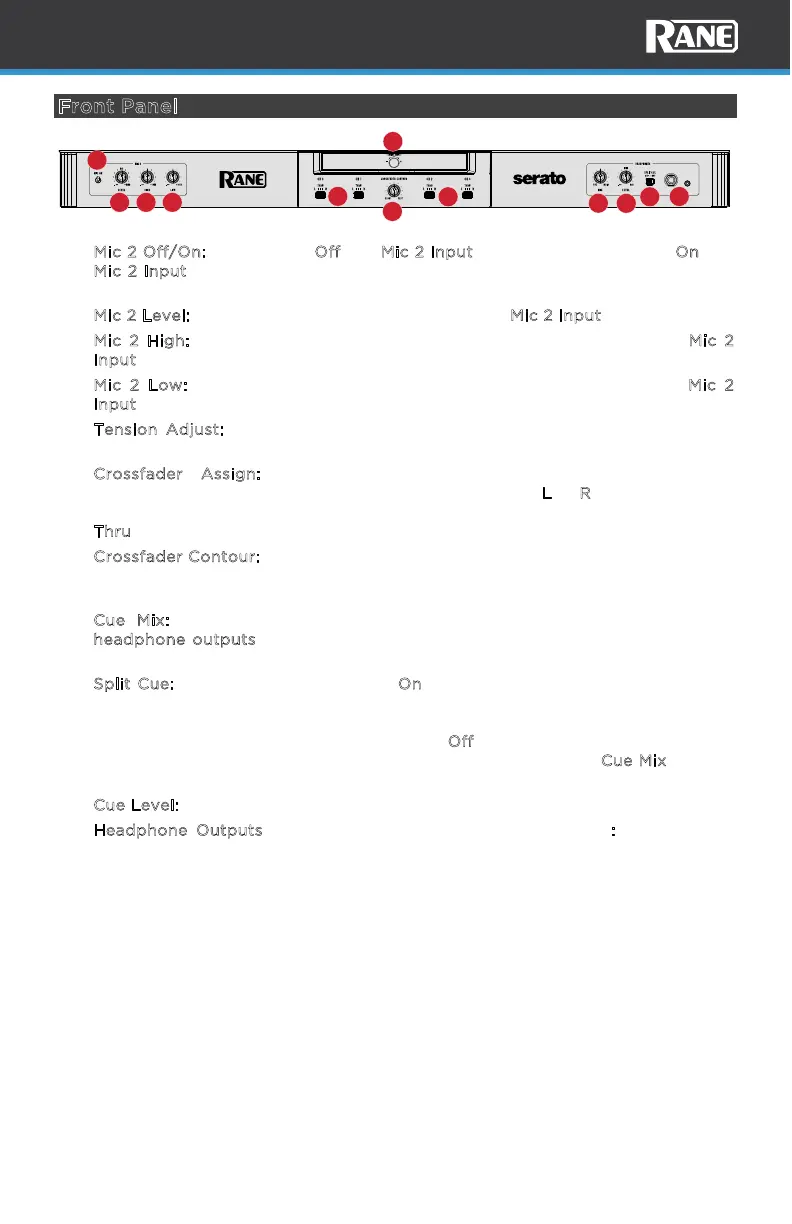
1. Mic 2 Off/On: When set to Off, the Mic 2 Input is disabled. When set to On, the
M
ic 2 Input on the rear panel is active, and its audio signal is routed directly to
the program mix.
2. M
ic 2 Level: Turn this knob to adjust the gain of the Mic 2 Input.
3. M
ic 2 High: Turn this knob to boost or cut the high frequencies of the Mic 2
I
nput.
4. M
ic 2 Low: Turn this knob to boost or cut the low frequencies of the Mic 2
I
nput.
5. T
ension Adjust: Set the crossfader tension to your personal preference. Turn
right to tighten and turn left to loosen the tension.
6. C
rossfader Assign: These switches route the audio playing on the
corresponding channel to either side of the crossfader (L
or R), or bypasses the
crossfader and sends the audio directly to the program mix (center position =
T
hru).
7. C
rossfader Contour: Adjusts the slope of the crossfader curve. Turn the knob to
the left for a slow fade (mixing) or to the right for a fast cut (scratching). The
center position is a typical setting for club performances.
8. C
ue Mix: Turn to mix between the cue channel and program mix in the
h
eadphone outputs. When all the way to the left, only the cue channel will be
heard. When all the way to the right, only the program mix will be heard.
9. S
plit Cue: When this switch is in the On position, the headphone audio will be
“split” such that the cue channel is summed to mono and sent to the left
headphone channel while the program mix is summed to mono and sent to the
right channel. When the switch is in the O
ff position, the cue channel and
program mix will be “blended” together. In both cases, use the C
ue Mix knob to
control the blend of the two signals.
10. C
ue Level: Turn this knob to adjust the volume level of the cue channel.
11. H
eadphone Outputs (1/4" or 1/8" [6.35 mm or 3.5 mm], TRS): Connect your
headphones to these outputs for cueing and mix monitoring.
2
1
3 4
5
6
6
7
8
9
10
11


 To Next Page