IMPORTANT
The SDK builds binaries for the Raspberry Pi Pico by default. To build a binary for a different board, pass the
-DPICO_BOARD=<board> option to CMake, replacing the <board> placeholder with the name of the board you’d like to
target. To build a binary for Pico 2, pass -DPICO_BOARD=pico2. To build a binary for Pico W, pass -DPICO_BOARD=pico_w. To
specify a Wi-Fi network and password that your Pico W should connect to, pass -DWIFI_SSID="Your Network"
-DWIFI_PASSWORD="Your Password".
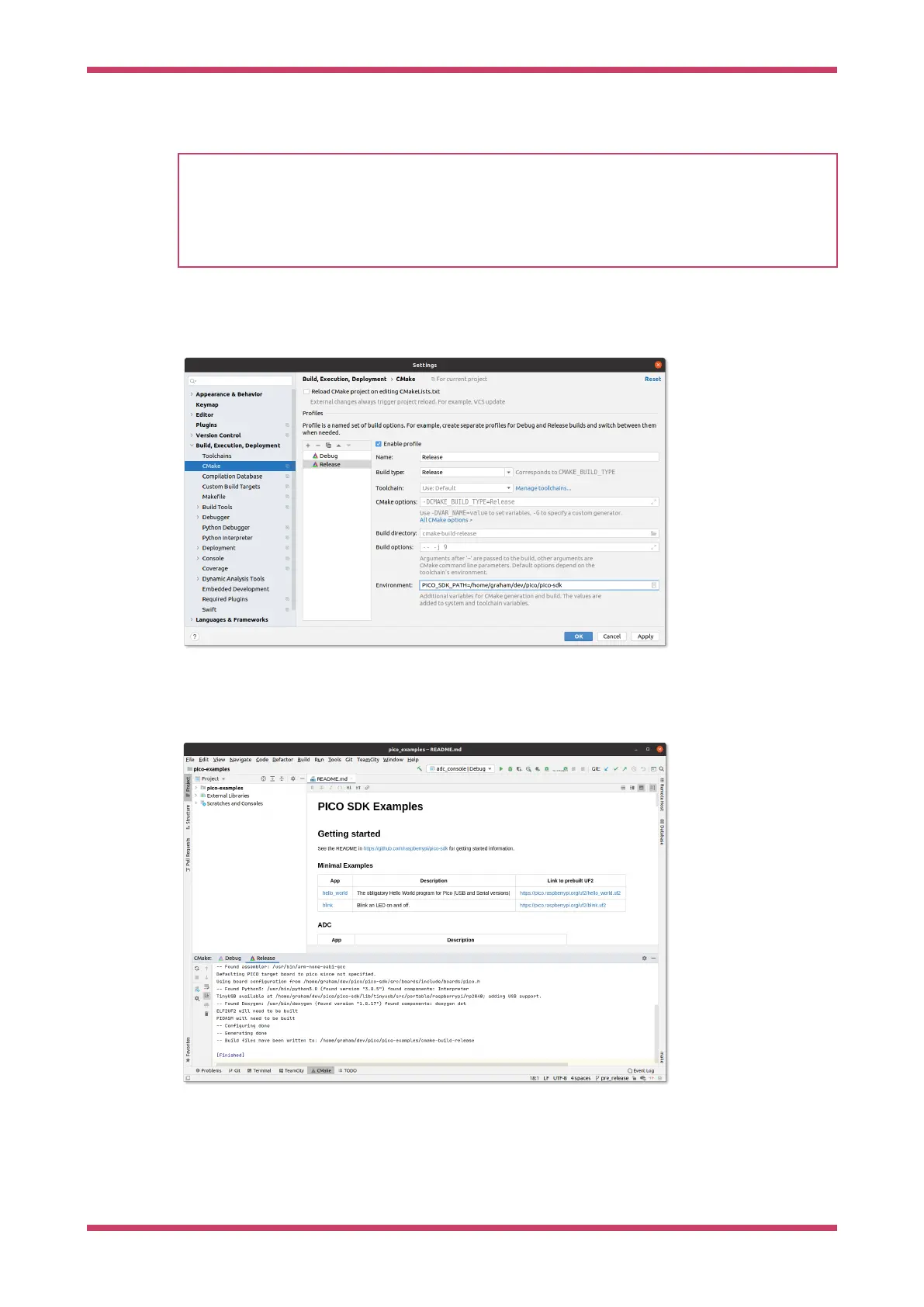
You can have as many CMake profiles as you like with different settings. You probably want to add a Release build by
hitting the + button, and then filling in the PICO_SDK_PATH again, or by hitting the copy button two to the right, and
fixing the name and settings (see Figure 22)
Figure 22. Configuring
a second CMake
Profile in CLion.
After pressing OK, you’ll see something like Figure 23. Note that there are two tabs for the two profiles (Debug and
Release) at the bottom of the window. In this case Release is selected, and you can see that the CMake setup was
successful.
Figure 23. Configuring
a second CMake
profile in CLion.
Running a build
Now we can choose to build one or more targets. For example you can navigate to the drop down selector in the middle
of the toolbar, and select or starting typing hello_usb; then press the tool icon to its left to build (see Figure 24).
Getting started with Raspberry Pi Pico-series
Use CLion 49


 To Next Page