User Manual
19
Chapter 6: Record
6.1 Start Recording
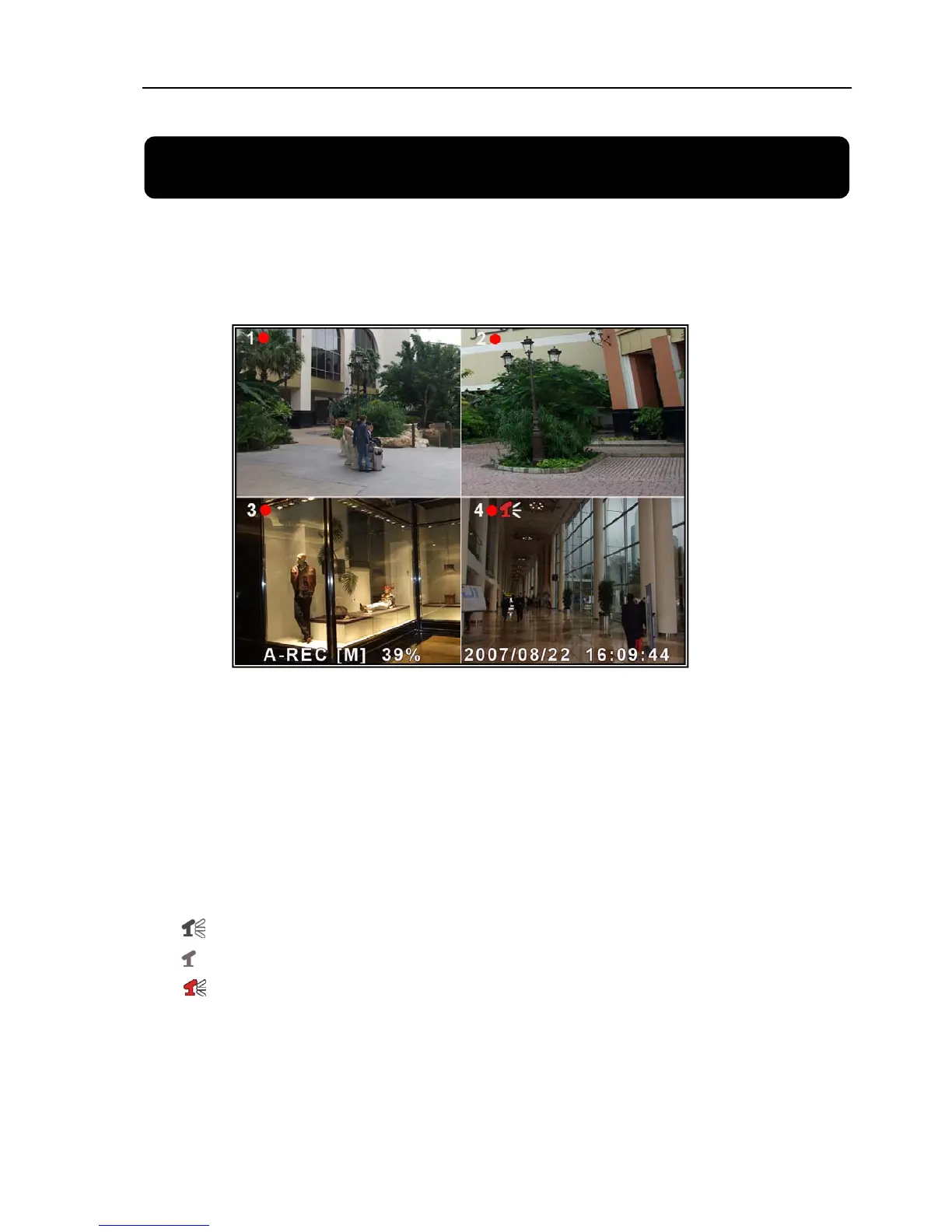
Press [●] record button to start recording according to the record schedule you have set.
System will display some information on screen.
[
●]: the red pot next to the channel name indicates that the channel is being recorded.
[A-REC]: indicates the current record schedule is set to NORMAL-RECORD mode.
[S-REC]: indicates the current record schedule is set to SENSOR-RECORD mode.
[N-REC]:
indicates the current record schedule is set to NO-RECORD mode.
[39%]:
indicates the percentage of hard disk space used.
[M]: HDD info ([M] Master Hard Disk)
6.2 Audio Recording
[ ]: indicates this video channel is bundled with an audio port, and the audio output is on.
[ ]: indicates the audio output is off.
[ ]: indicates the audio is being recorded and the audio output is on.
For 9-channel, you could press [MUTE] button on front panel to be mute mode for audio
output. The audio input can be still recorded while the output is mute.
For 4-channel, you could press [DOWN] button on front panel to be mute mode for audio
output. The audio input can be still recorded while the output is mute. And you could press [UP]



 To Next Page