SAM 400 SPEED-AREA-DISTANCE METER
11
Metric/Imperial Selection
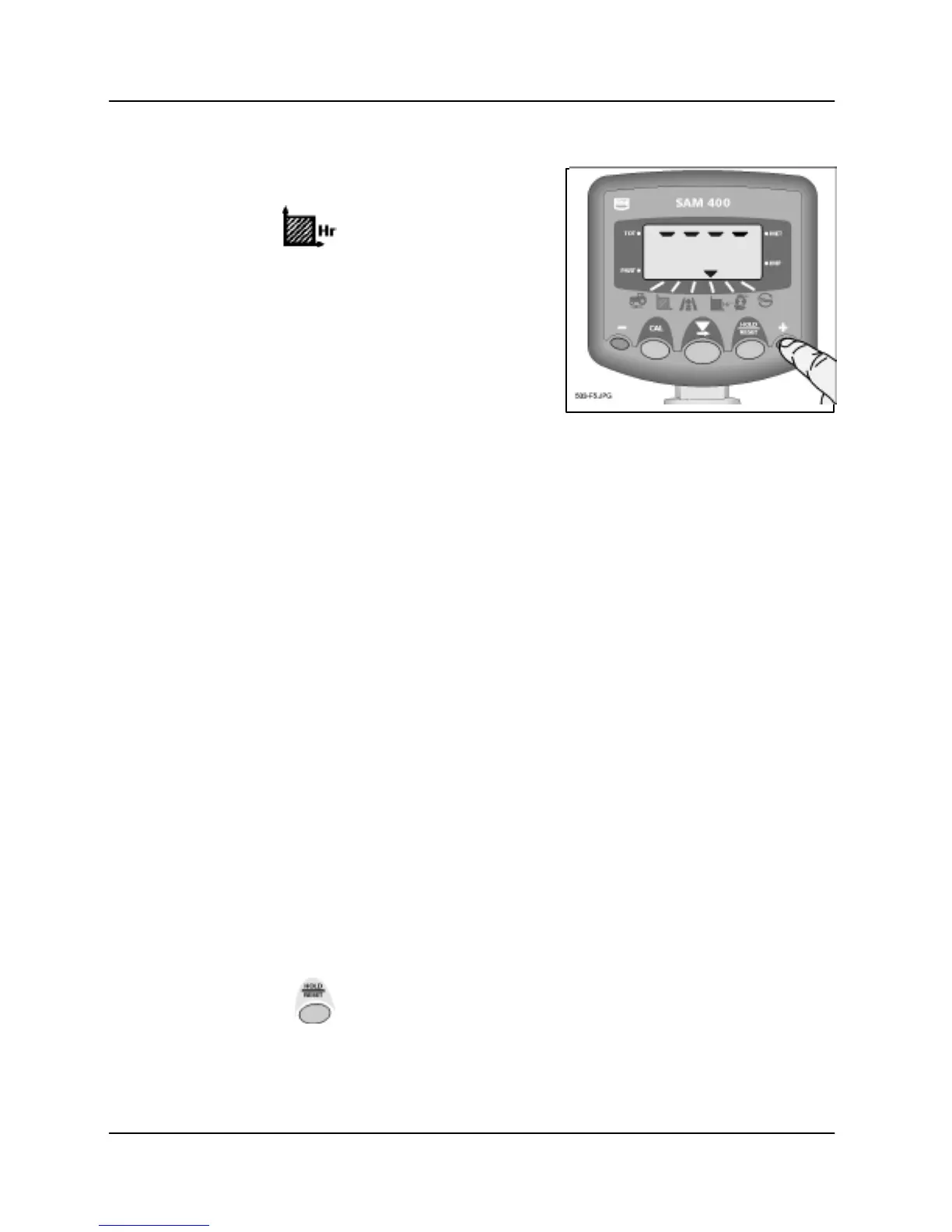
1. Press and hold the CAL button while
switching the instrument on.
2. Select the channel.
4 indicator bars will appear showing the
units currently selected (fig. 5).
3. Use the small left and right buttons to
select the units.
The indicator will switch between "MET"
for metric units and "IMP" for Imperial
units.
Imperial Metric
Miles/hr Km/hr
Acres hectares
Inches Metres (Speed Sensor Factor)
Speed Sensor Setup
In order to display the correct speed and accumulate distance correctly, the
instrument must be programmed with the correct Speed Sensor Factor
(SSF). This is the distance travelled between pulses received from the
sensor.
The factory default setting is 2.000 m (78.78").
The S.S.F. can be calculated theoretically and then manually programmed,
or the instrument can automatically calculate it via the “Autocal” function.
Carry out the calibration whenever soil conditions or wheel sizes change.
NOTE: An ‘Autocal’ is simpler to perform and is more accurate in field conditions
'AutoCal'
For maximum accuracy, perform an auto-calibration in field conditions.
1. Set two markers at 100 metres apart (328 feet). Choose a convenient
reference point on the tractor/implement and position this point opposite the
first marker.
2. Press and hold the CAL button while switching the instrument on.
3. Pressing the key will toggle the display between "AUTO" and "SSF" .
NOTE: Selecting "SSF", enables you to adjust the speed sensor factor manually using
the two outer keys.
.



 To Next Page