RAMP® System Operation
Operator’s Manual, RAMP
®
Reader 10
2.0 RAMP
®
SYSTEM OPERATION
2.1 Keypad Function and Use
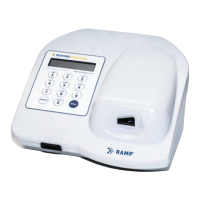
To interface with the RAMP
®
System, use the keypad (Figure 2-1) when prompted by the Reader
display.
The keypad consists of ten alphanumeric character keys and two function keys, [Options] and [Enter].
To input a specific letter or number, press the key to scroll through the choices until the desired
character is displayed. For example, to input the letter R, press the key marked [PQR 6] four times,
until the letter R is displayed. When the character of choice has been selected, press a different key
(other than the key initially pressed) to enter the character. The blank cursor will then move one
character position to the right and display the new character. Press [Enter] to accept the displayed
character string and proceed to the next step. Alternatively, a two-second pause after the desired
character is selected will automatically enter the character and move the blank cursor one space to
the right. This provides a means of entering multiple characters on the same key.
NOTE: When keying in a P.I.N., only the numerical character for each key (0-9) can be
selected.
Press [Options] to erase and move the cursor one step to the left. This provides a backspace or
correction function. Press [Options] again to erase the displayed character and move the cursor one
more step to the left. Pressing a new character key will overwrite the displayed character above the
cursor. If either [Options] or [Enter] key is pressed when no characters are shown on the display, this
step is aborted and the operator is returned to the RUN/OPTIONS Menu.
The character keys [ABC 1] and [GHI 3] also function as the up [▲] and down [▼] keys respectively,
allowing the operator to scroll through the OPTIONS menu or move the displayed “>” cursor to select
specific options. Holding down the [▲] or [▼] key causes the display to scroll through the available
choices. The “>” cursor points to the currently selected option. Whenever the OPTIONS Menu and
associated functions are used, the keypad is limited to using the [▲], [▼], [Options], and [Enter] keys.
All other character keys are inactive except when required for Editing User ID, User P.I.N., Master
P.I.N. and adding printout information.


 To Next Page