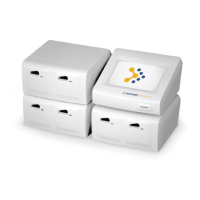
RAMP® System Operation
Operator’s Manual, RAMP
®
Reader 25
2.5.4 Run Liquid Quality Control (LQC)
External liquid quality control reagents are available for clinical RAMP
®
Assays. To conduct an LQC
test, perform the following steps.
From the RUN/OPTIONS Menu, select Options and press [▲] or [▼] until 4. RUN LIQUID QC is
displayed. Press [Enter]. The following screen is displayed:
Press [Enter] to select Run LQC feature. If User ID or P.I.N. is enabled, the test will progress as
described in Section 2.4.2. Then the display will prompt for a Sample ID.
Enter a sample ID and press [Enter], the following screen is shown:
Perform the LQC test following LQC and Assay package insert instructions. After completion of a
successful LQC assay, relevant print messages are displayed (Section 2.6.6) and the screen returns
to the RUN/OPTIONS prompt.
2.5.5 System Settings
The Reader provides built-in User Lock-out capability, such that Systems Settings require a Master
P.I.N. The default setting is Master P.I.N. disabled.
To access the SYSTEM SETTINGS Menu from the RUN/OPTIONS Menu, select Options and press
[▲] or [▼] until 5. SYSTEM SETTINGS is displayed.
See Section 2.6 for details on using the SYSTEMS SETTINGS Menu.
2.5.6 Exiting OPTIONS Menu
To exit from the OPTIONS Menu, press [Options], [▲], or [▼] until 6. EXIT OPTIONS is displayed.
Press [Enter] to select this option or press [Options] to return to the RUN/OPTIONS Menu.
ADD SAMPLE, THEN
INSERT CARTRIDGE
RUN LQC: <ENTER>
EXIT: <OPTIONS>


 To Next Page