Using the Network Delivery Scanner Function
92
7
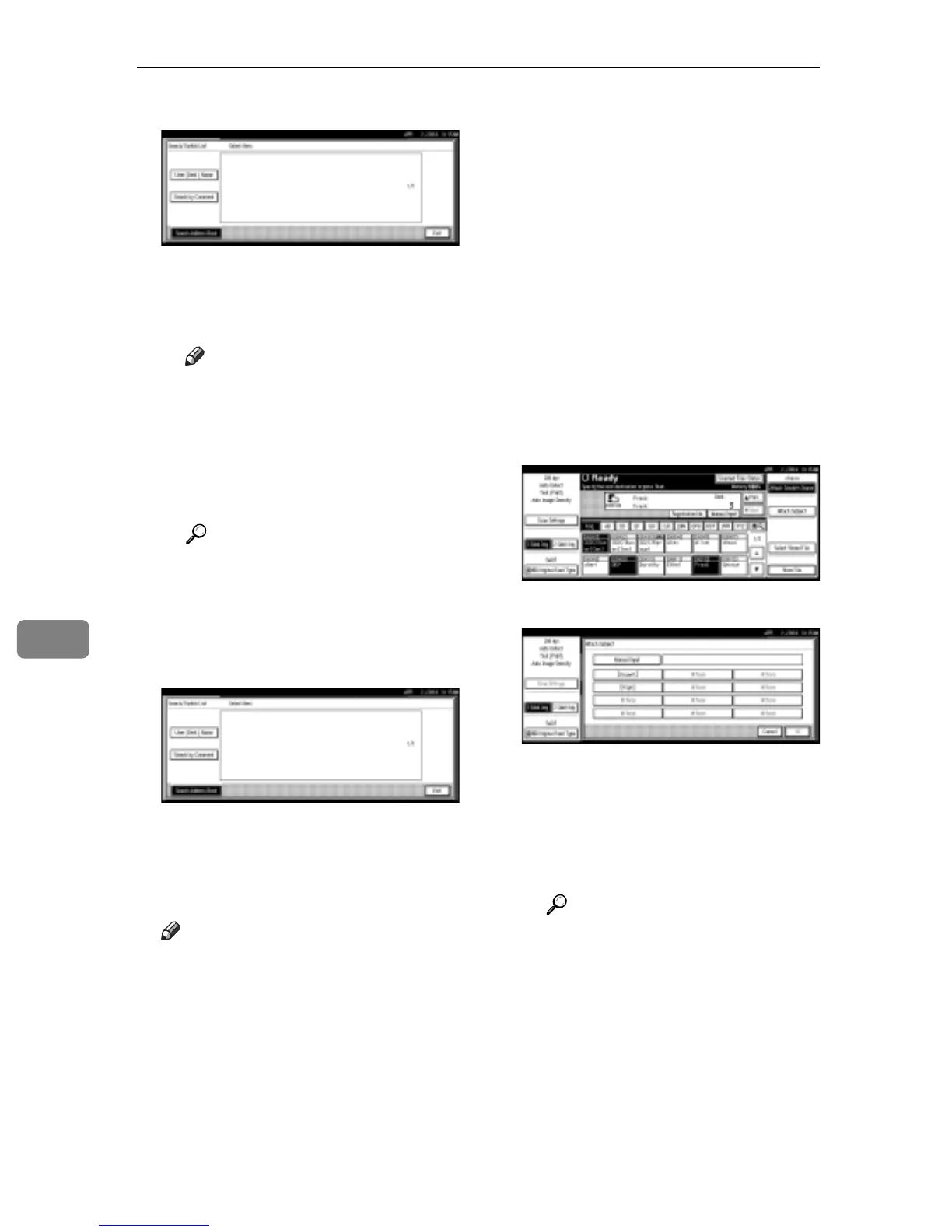
C Press [User (Dest.) Name].
The soft keyboard is displayed
for entering a sender name.
D Enter part of the sender name.
Note
r Enter the first character or
characters of the sender
name.
r It is necessary to differentiate
between capital and small
letters.
Reference
For information about how
to enter characters, see Gener-
al Settings Guide.
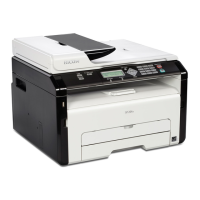
E Press [OK].
F Select a sender.
G Press [Exit].
H Press [OK].
H Specify a subject if necessary.
Note
r When a subject has been speci-
fied, this information is added
to the scan file.
r When ScanRouter V2 Profes-
sional is used to send docu-
ments using e-mail, the subject
is automatically entered as the
message subject.
r To specify a subject name, you
can select it from the list, enter it
directly, or combine selecting
and entering it.
r Subject name to select from the
list must be registered in System
Settings in advance. See Network
Guide.
r Subject name can be entered up
to 64 characters.
The operation to specify a subject
name “[Urgent] New product ap-
pearance” is explained as an exam-
ple here.
A Press [Attach Subject].
B Press a subject [Urgent].
C Press [Manual Input].
The soft keyboard is displayed
for entering a subject.
D Enter the subject “New prod-
uct appearance”.
Reference
For information about how
to enter characters, see Gener-
al Settings Guide.
E Press [OK] twice.



 To Next Page