Sending Scan File by E-mail
55
4
Note
r
When
[
Return Receipt
]
is select-
ed, an e-mail notifying that
the e-mail has been read by
the destination party is sent to
the sender selected here.
However, if the mailing soft-
ware used by the destination
party does not support MDN
(Message Disposition Notifi-
cation), the setting in
[
Return
Receipt
]
becomes invalid.
I Press [OK].
J Specify a subject if necessary.
Note
r When a subject has been set, this
information is added to the scan
file. The subject name is auto-
matically placed in the Subject
field of the e-mail.
r To specify a subject name, you
can select it from the list, enter it
directly, or combine selecting
and entering it.
r Subject name to select from the
list must be registered in System
Settings in advance. See Network
Guide.
r Subject name can be entered up
to 64 characters including char-
acters of the name selected from
the list.
The operation to specify a subject
name “[Urgent] New product ap-
pearance” is explained as an exam-
ple here.
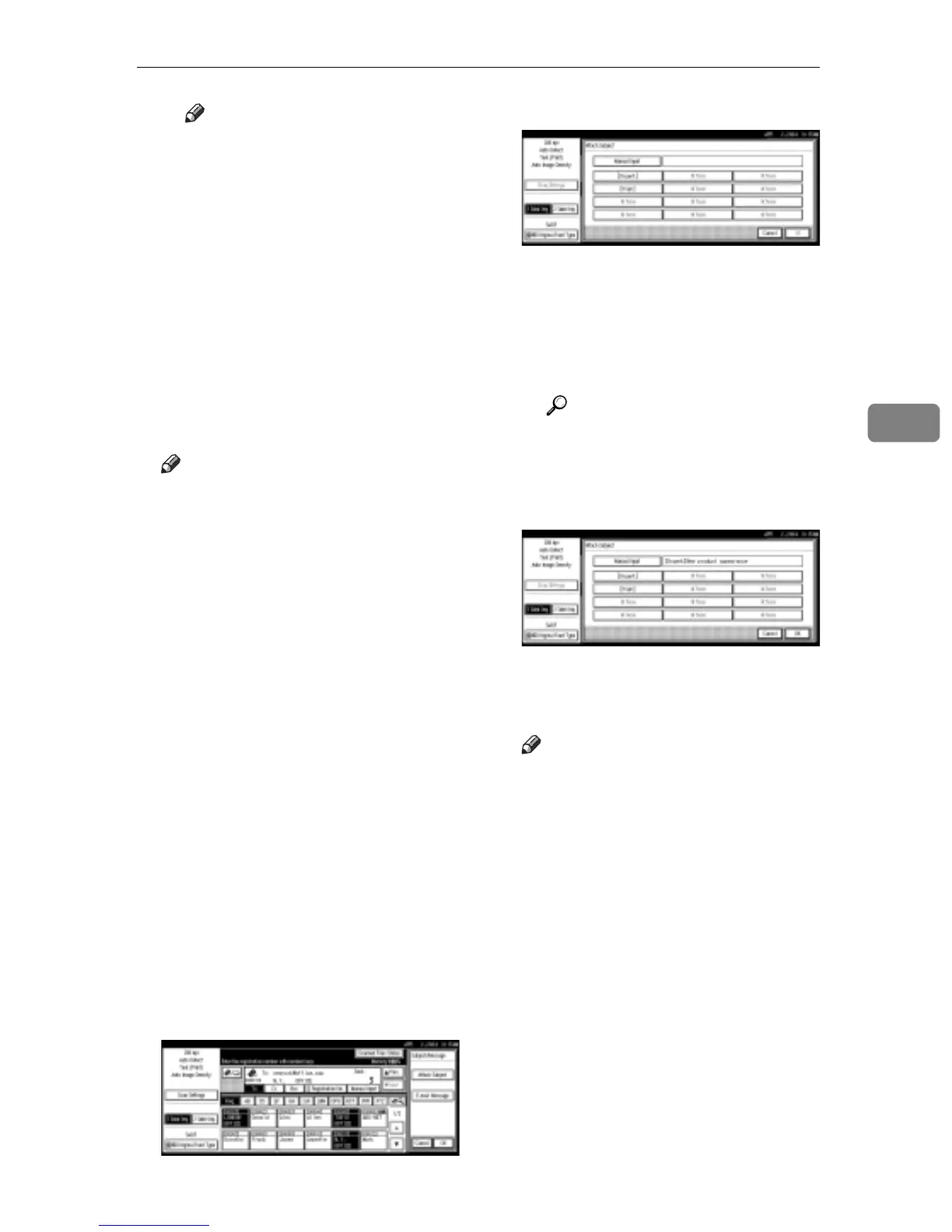
A Press [Subject/Message].
B Press [Attach Subject].
C Select a subject [Urgent].
D Press [Manual Input].
The soft keyboard is displayed
for entering a subject.
E Enter the subject “New prod-
uct appearance”.
Reference
For information about how
to enter characters, see Gener-
al Settings Guide.
F Press [OK].
G Press [OK].
K Enter a messsage if necessary.
Note
r When a message has been en-
tered, this information is added
to the scan file.
r Message to select from the list
must be registered in System
Settings in advance. See Network
Guide.
r Message can be entered to up to
80 characters.
r To specify a message, you can
select it from the list, or enter it
directly.



 To Next Page