Sending Scan File by Scan to Folder
62
5
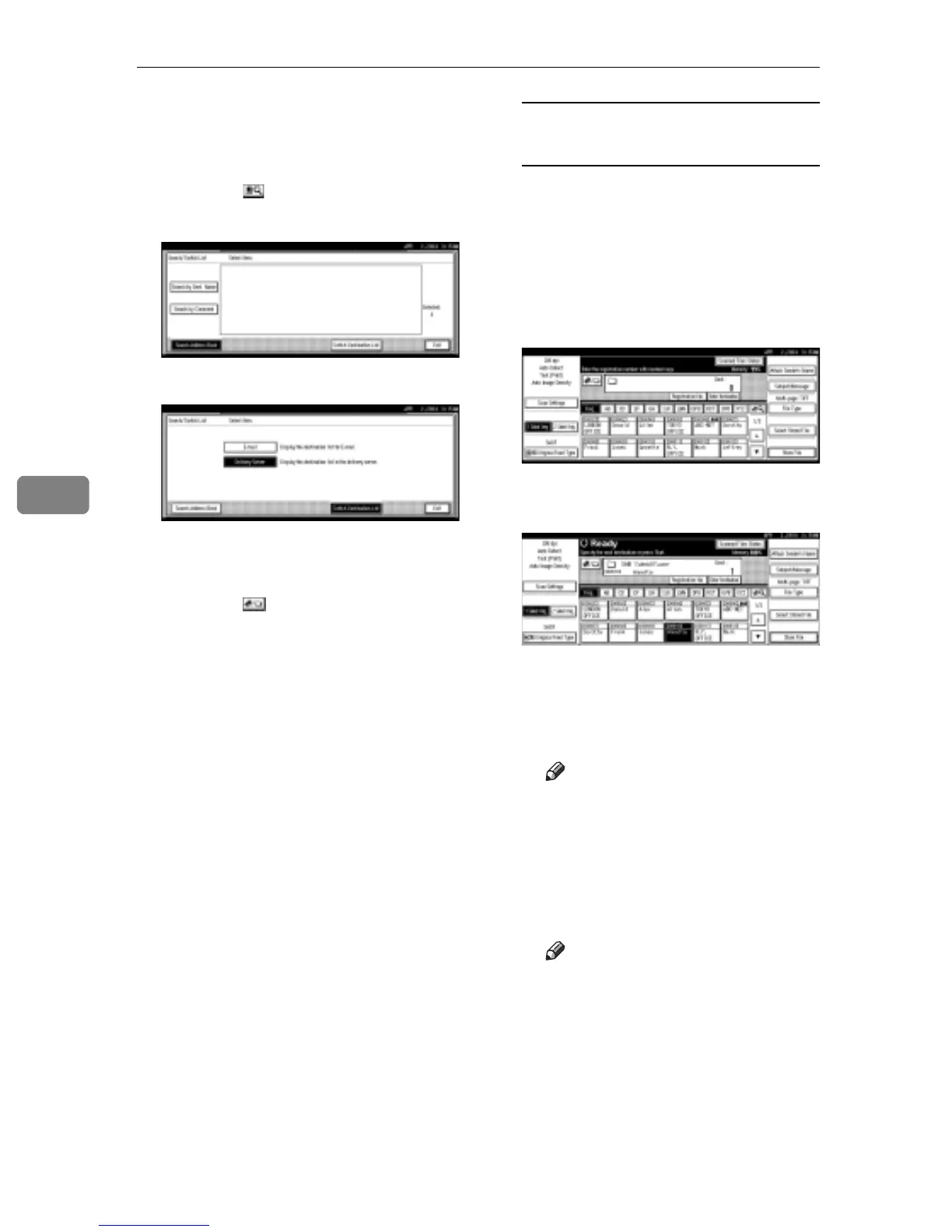
E If the network delivery scanner
screen appears, switch to the
screen for Scan to Folder.
A Press [].
B Press [Switch Destination List].
C Press [E-mail].
D Press [Exit].
The E-mail screen appears.
E Press [].
The Scan to Folder screen ap-
pears.
F Specify the destination folder.
To specify the destination folder,
you can select it from the list, select
it by specifying a registration
number, enter the path for the
folder of the client computers on
the same network directly, specify
the folder in the FTP server, or se-
lect the destination from the client
computers on the same network.
When selecting a destination
folder from the list
A Press the title for the destina-
tion folder. The destination
folders for that title are dis-
played.
If the folder is not displayed,
press [U] or [T] to display the
other folders.
B Select the destination folder to
which the scan file is to be sent.
The selected folder is highlight-
ed and also is displayed in the
destination field at the top of the
screen.
Note
r If a protection code has been
set for the folder, a screen for
entering the protection code
appears.
C To select more destination
folders, repeat step B.
Note
r To deselect a destination,
press the destination once
more, or press [U Prev.] or
[T Next] to display the desti-
nation in the destination
field, and then press the
{Clear/Stop} key.



 To Next Page