Sending Scan File by Scan to Folder
66
5
Searching to select a destination
folder from the network
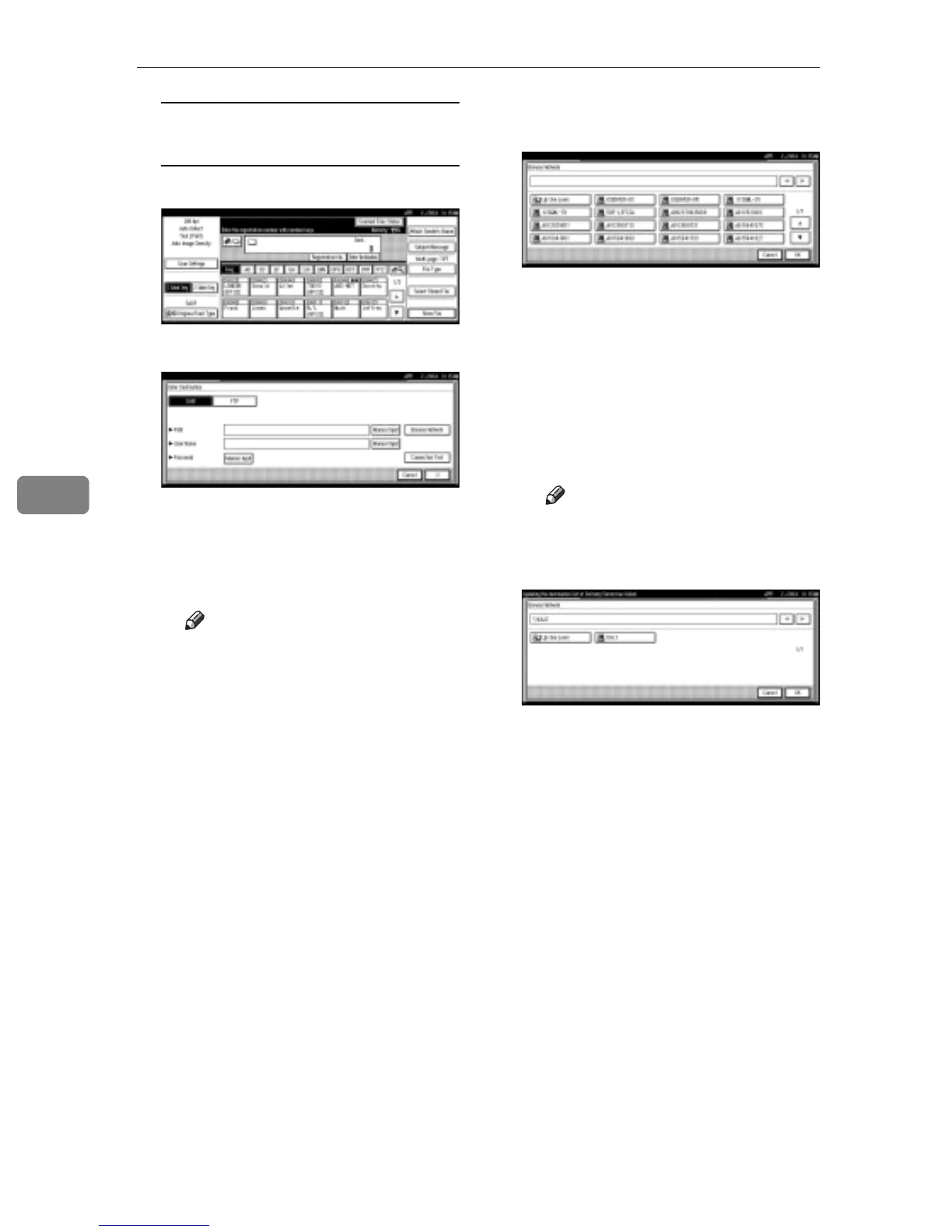
A Press [Enter Destination].
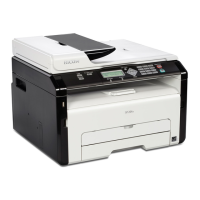
B Press [SMB].
C Press [Browse Network] on the
right side of the path field.
The client computers list on the
same network appears.
Note
r Workgroup names or do-
main names must be set
properly to browse the net-
work.
r If the client computer you
want to select is not dis-
played, press [Up One Level]
to select other workgroups,
and then you can search for
the client computer.
r The maximum number of cli-
ent computers and shared
folders displayed is 100.
D Select the client computer that
has the destination folder.
The log on screen is displayed
when the machine is required to
authenticate the selected com-
puter. Enter the user name and
password correctly.
The folders list of the selected
computer appears.
E Select the destination folder.
Note
r When the selected folder has
sub-folders, the sub-folders
list appears.
F Press [OK].
G If entering a user name to log
on is required, press [Manual In-
put] on the right side of the user
name field.
The soft keyboard is displayed
for entering a user name.
H Enter a user name.
I Press [OK].
J If entering a password to log
on is required, press [Manual In-
put] on the right side of the
password field.
The soft keyboard is displayed
for entering a password.
K Enter a password.
L Press [OK] twice.



 To Next Page