139
7. Sending Scan File by Scan
to Folder
This chapter explains how to send a scan file to a Windows shared folder. In this
chapter, the following two types of Scan to Folder procedures are explained sep-
arately:
• Procedures to send a scanned file to a registered shared folder.
• Procedures to send a scanned file to a shared folder that is not registered to
this machine. This function is called “Enter Custom Send File”.
Sending a Scanned File to a Registered
Shared Folder
By using the control panel of this machine, you can send a scanned file to a Win-
dows shared folder that is registered to this machine.
Procedure Breakdown
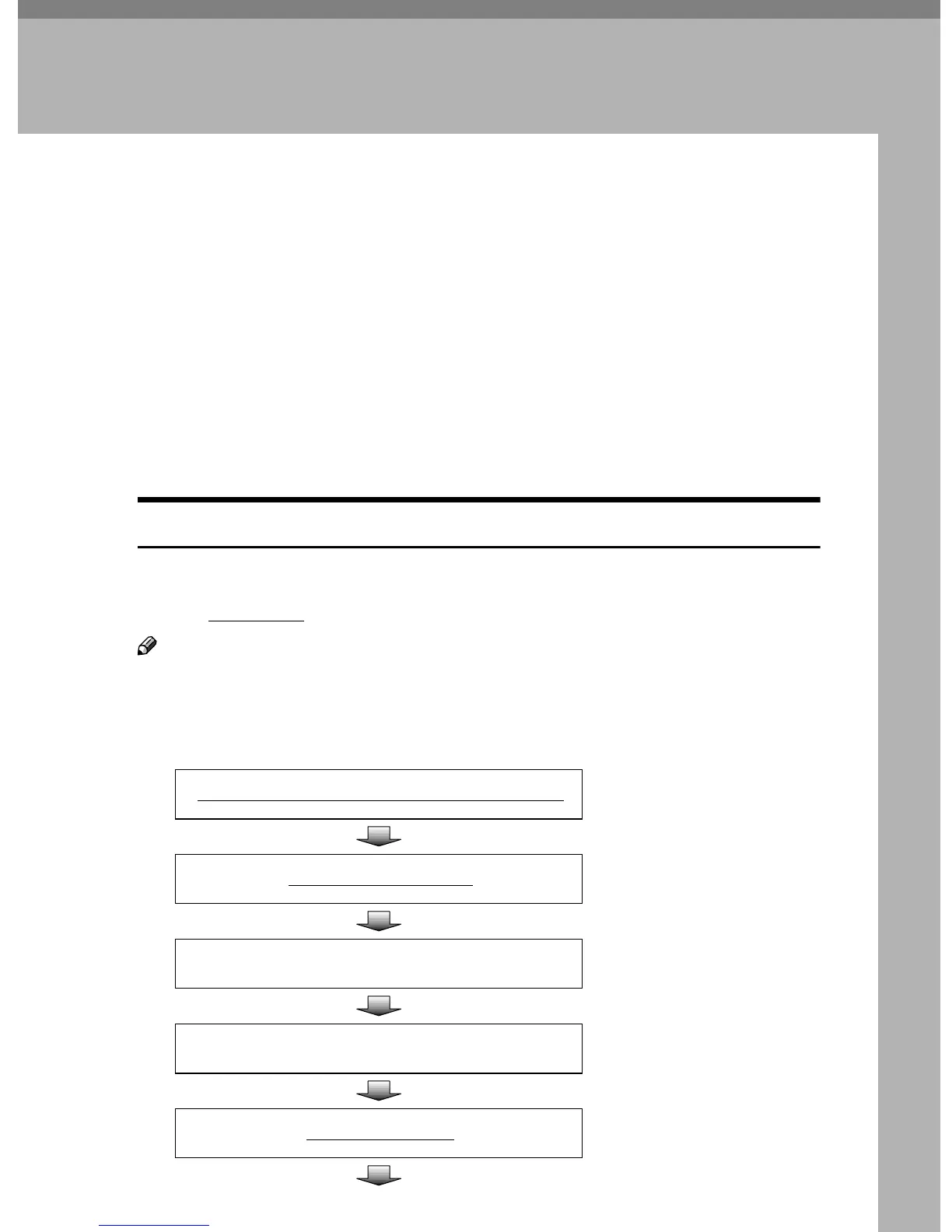
The following overview diagram shows the flow of the steps for sending a
scanned file to a Windows shared folder that is registered to this machine. Note
that the underlined
steps are essential.
Note
❒ Some of the steps such as making scan settings are identical to those ex-
plained under “Sending Scan Files by E-mail”. See the relevant pages shown
to the right of the following overview diagram.
Place originals in the ADF or on the exposure glass.
⇒ p.126 “Before Sending Scan
Data”
Select a distination folder.
⇒ p.140 “Selecting a Shared
Folder”
Select a file name.
⇒ p.142 “Selecting a File
Name”
Make scan settings.
⇒ p.132 “Making Scan Set-
tings”
Press the
{
{{
{
Start
}
}}
}
key.
⇒ p.135 “Performing Scan Op-
eration”


 To Next Page