Print Scan Settings
67
3
Print Scan Settings
This section describes all the setup
items included in Print Scan Settings
menu, and shows you how to config-
ure these settings using the control
panel of this machine.
Information to Set in [Print
Scan Settings]
❖
❖❖
❖ Max. Number of Copies
This item lets you set an upper lim-
it for the number of copies that you
can specify when you perform a
Print Scan operation, within the
range of 1 to 999.
Note
❒ You can also configure this set-
ting by selecting [Configuration]
→ [Print Scan Settings] → [Print
Scan] on the Web Status Moni-
tor.
❖
❖❖
❖ Colour/Black and White
This item lets you select default
scan setting for Print Scan, be-
tween " Colour " and " Black and
White ".
• Colour
The original is scanned with full
colour. With this option, you
will have copies in colour when
you use a colour printer, or cop-
ies in black and white when you
use a monochrome printer.
• Black and White
The original is scanned with
black and white or with gray
scale.
Note
❒ Scan is performed with black
and white or in gray scale, de-
pending on the setting you have
configured in the Print Settings
menu. If you select " Text " as
[Scan Type] in the Print Settings
menu, scan is performed with
black and white. If you select "
Text/Photo " or " Photo ", scan is
performed with gray scale.
Configuring
[
Print Scan
Settings]
Follow the steps below to configure
Print Scan Settings using the control
panel of this machine.
Note
❒ You can also configure these set-
tings using the Web Status Moni-
tor.
Reference
See p.15 “Using Keys Displayed on
the Screen” for information about
how to select items displayed on
the screen.
A
AA
A
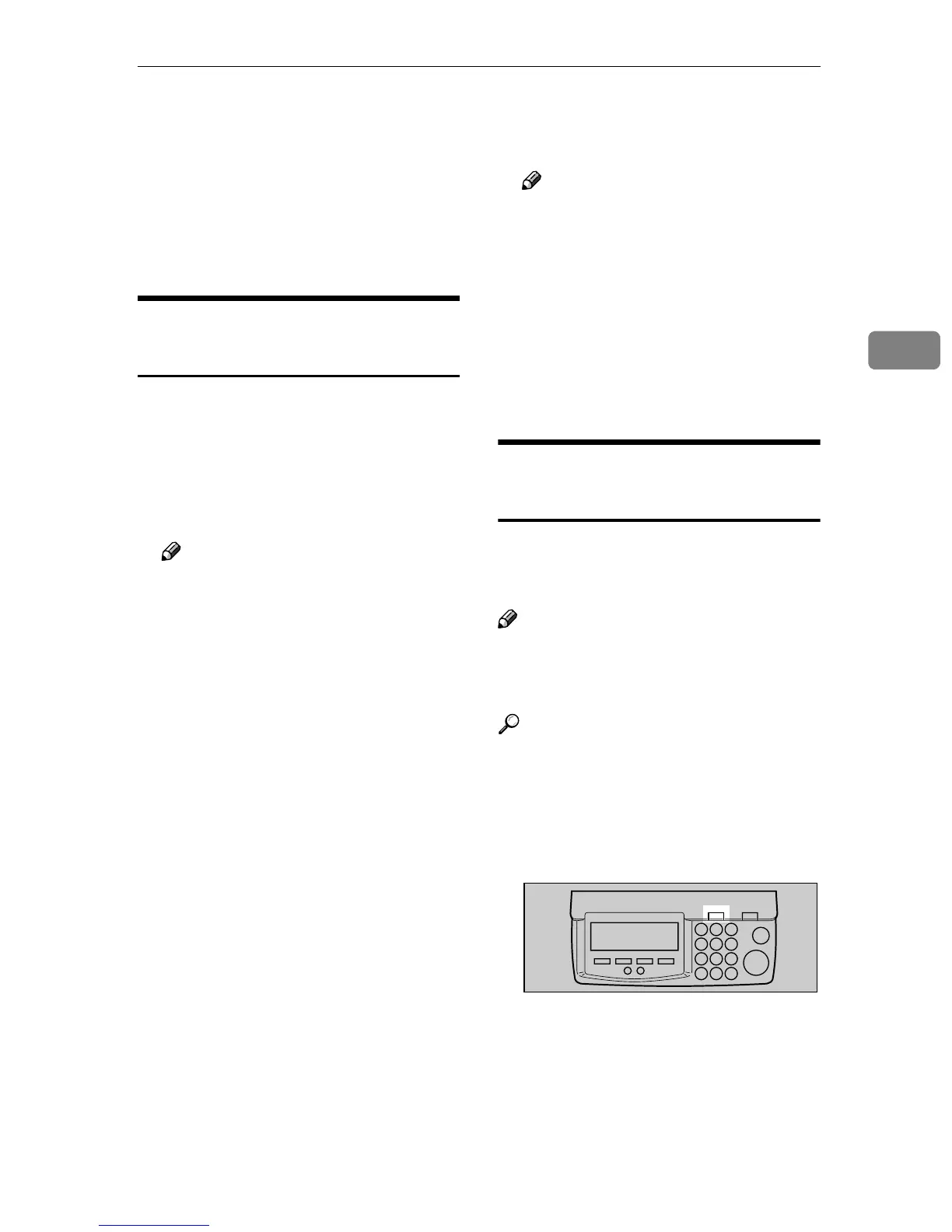
Press the {
{{
{User Tools}
}}
} key.
The Scanner Features menu is dis-
played.
ABK006S



 To Next Page