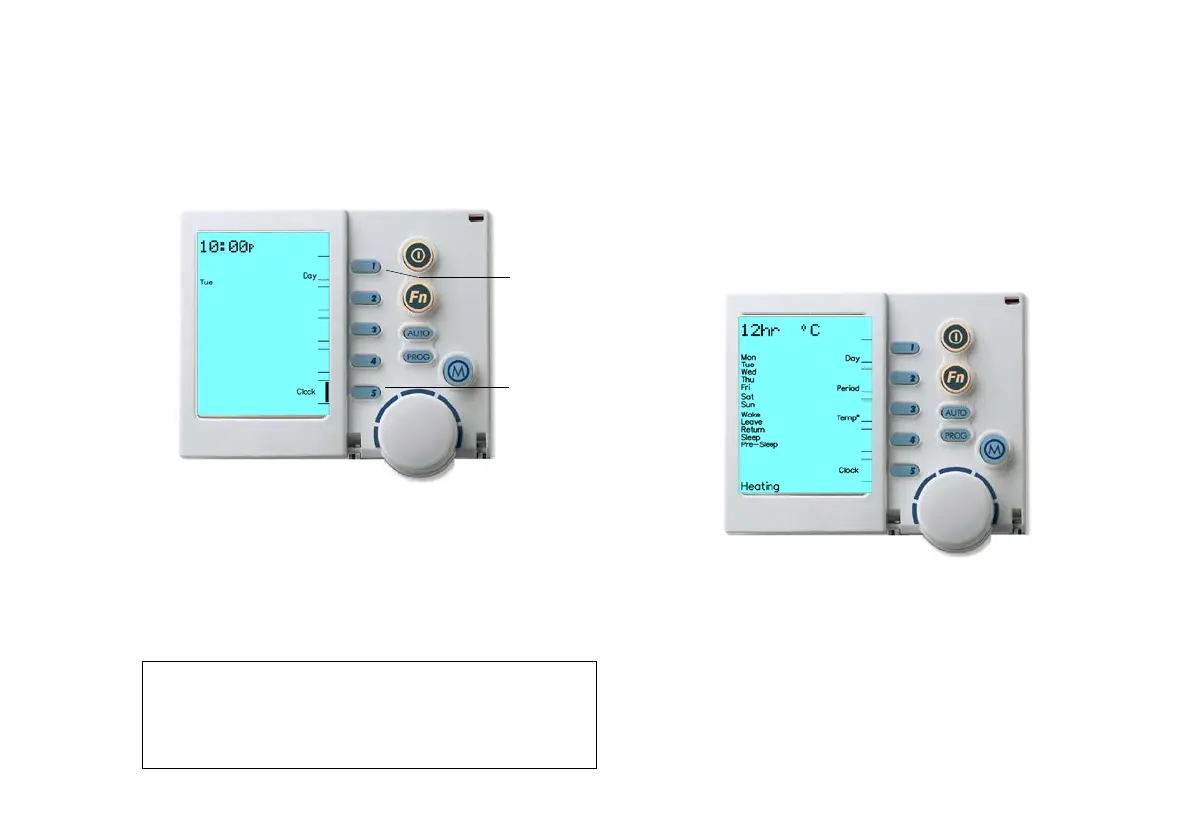
2.2 Setting the Time & Day
This is to be done at the NC-6 Master Controller, identified by
the word “Clock” opposite Key “5” or the Clock Key.
Diagram 4: NC-6 Setting the Time & Day Display
1. Press the On/Off button to turn the system OFF
2. Press Key “5”, Clock Key, and the screen will display the
message "Clock setting mode", then the Digital Clock will flash
3. Use the Rotary Dial to set the correct time
4. To set the day, press Key “1”, the Day Key until the correct day of
the week appears on the left of the screen, e.g. "Tue"
5. Press Key “5” the Clock Key again to save your new settings
2.3 User Settings
Accessing the user settings allows you to customise certain
features on the NC-6 display and modify “Auto Program”
functions; these include:
• Clock displayed in either 12hr or 24hr time
• Temperature displayed in either °C or °F
• Day grouping (3 options) when in “AUTO” mode
• Enable or disable the “Pre Sleep” option
Diagram 5: NC-6 User Settings in Heating Operation Display
To access and change the user settings at the NC-6 Master
Controller:
1. Press Key “5” and release
2. Press and hold Key “4” until the following message begins
to scroll across the top of the screen. “User setting mode”
3. You now have access to the user settings. Please refer to
Table 6 for user setting options and change as required
4. Press the On/Off button to save and exit user setting
Note: If multiple NC-6 Networker Controllers are installed, only
the Master NC-6 Controller has the ability to set the Clock Ti
and Day. The Master NC-6 Controller
word "Clock" beside Key “5”, when the ZonePlus system is


 To Next Page