3.6.1 Programming Your Comfort Schedule
You may alter the default “Auto Program” to suit your
requirements. This will require you to enter the Period start time,
desired Heating (and Cooling) temperatures for each “Period” and
“Day” Block. An example of this can be found in Table 5.
Take a few moments to complete the STSP Comfort Schedule
template in the Appendix prior to accessing the “Auto Program”.
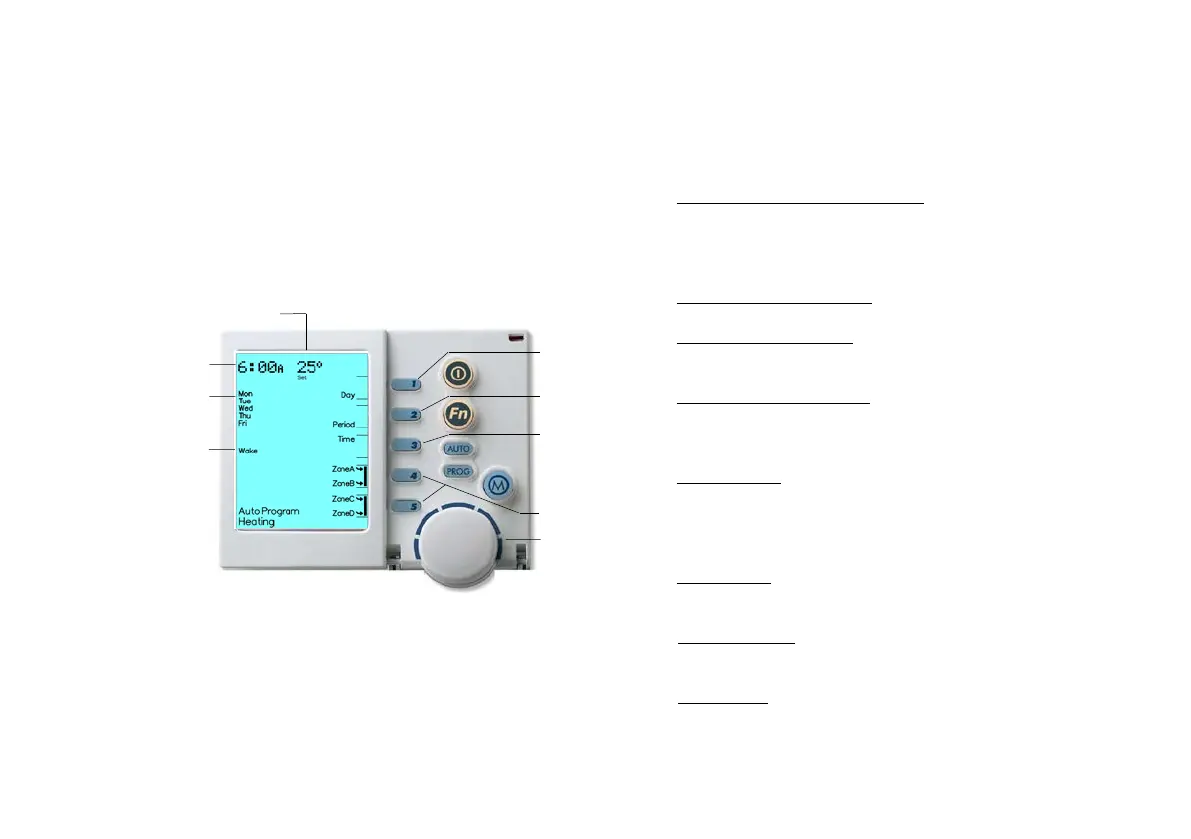
Diagram 15: NC-6 Programming Display
Programming the “Auto Program”:
1. Turn the Networker OFF and confirm you are in your desired
conditioning mode, either Heating or Cooling. If you are not, press the
mode Key “M” until the word “Heating” or “Cooling” appears at the
bottom of the screen
2. Please note Heating and Cooling program changes must be
completed independently. Also when changing Mode from
“Heating” to “Cooling” and vice-versa, this must be conducted prior
to entering the programming screen
3. Press the “PROG” Key and you will notice the word “Auto
Program” appear at the bottom of the screen and the Digital Clock
(e.g. “6:00
A”, Diagram 15) at the top of the screen will begin to flash
4. Select the Day Block (e.g. “Mon to Fri”)
Press Key “1” to select the Block you want to change settings to.
This selects either the Weekday Block or the Weekend Block. To
change your day options from the Weekdays Block to Individual Days
or an All Week Days Block please refer to Section 1.3 User Settings
5. Select the Period (e.g. “Wake”)
Press Key “2” (Period) until the required Period is displayed
6. Setting the Period Start Time
Press Key “3” until the time begins to flash. Rotate the dial to set the
desired start Time for the selected “Period” and “Day” Block
7. Setting the Period Temperature
Press Key “3” to change from Time to Temperature. Rotate the dial
to set the desired Temperature for the selected “Period”, “Day”
Block and “Time”
8. Select the Zones
Press Key “4” to enable and disable zones “A” & “B” for the
selected Period
Press Key “5” to enable and disable zones “C” & “D” (if installed) for
the selected Period
9. Change Period
Press Key “2” (Period) until the next Period is displayed. Repeat
steps 6 to 8 until all Periods are complete for the selected Day Block
10.Change Day Block
If there is more that one day Block (e.g. Mon-Fri & Sat-Sun) Press
Key “1” to select the next Block. Repeat steps 5 to 9
11. Save and Exit
Press the “PROG” Key to save and exit


 To Next Page