Basic Operations
Printing from a Paper Document
23
Printing from a Paper Document
1
Turn the power switch to (ON).
The power switch is located on the far right side of
the machine.
2
Check the display.
Check that any Check & Error Display is not lit up
or blinking.
)p.64
3
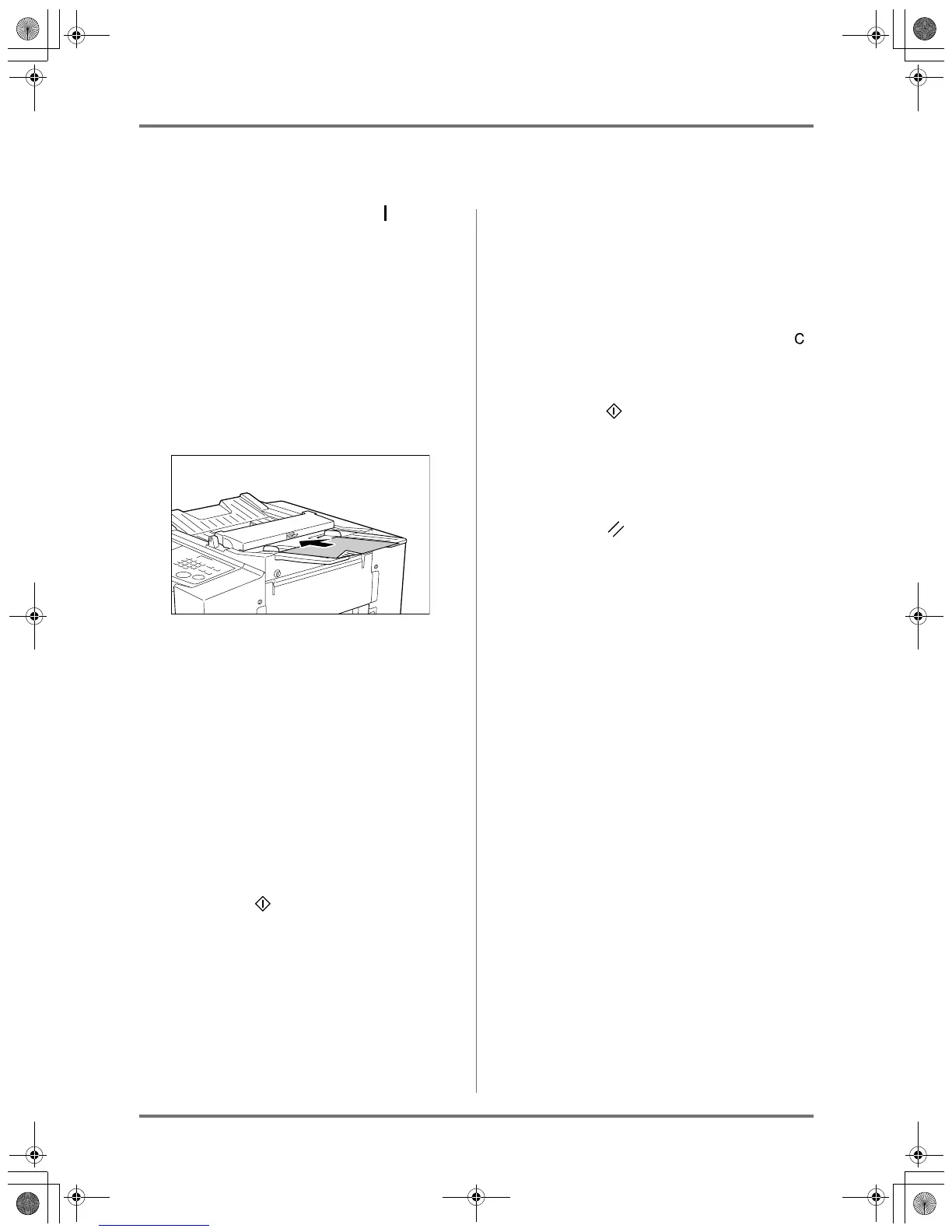
Place an original face down.
Adjust the Original Guide to the width of originals,
and place the originals face down.
Note:
• You can place one sheet of original on the DF
Unit.
4
Press the Master-Making / Print
Change over key.
The machine switches into the master-making
mode.
5
Make necessary settings.
Make various settings including image processing
mode selection.
)p.26~)p.33
6
Press the key.
The original is scanned, and a master is made.
A proof copy is printed.
Check the proof copy; e.g., print position and den-
sity.
7
Enter the number of pages to be
printed, using the Print Quantity
keys.
The specified number is shown on the Print Quan-
tity Display.
Note:
• If you enter an incorrect number, press the
key to cancel it and reenter the number of
pages.
8
Press the key.
The specified number of pages is printed.
Note:
• If printing is stopped halfway, check the display.
)p.64~)p.72
9
Press the key.
After printing has finished, return the settings to
the initial settings.
Note:
• After printing is completed, the master remains
on the Print Drum (Cylinder). To protect confi-
dential documents from unauthorized duplica-
tion, use the Confidential feature to discard the
master after printing. ()p.45)
10
Remove the printed paper.
KZ30_UG.book Page 23 Monday, December 21, 2009 11:11 AM









 To Next Page