24
Playing a fi le on your iPod or iPhone
1. Use the touch screen on your iPod to select the content to be played.
2. Adjust the volume to the required setting using the Volume control on your
clock radio.
3. To pause playback press the Play / Pause button. To resume playback press
the Play / Pause button again.
4. iPod does not have a Stop button (it uses the Pause function). To play an
alternative selection, use the iPod menus to make the selection using the Play
/ Pause button to stop playing the current item if needed.
3,4
iPod
®
and iPhone
®
docking
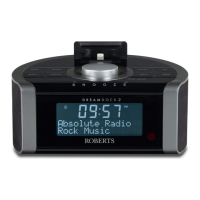
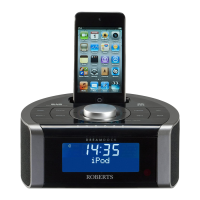
Your clock radio has an iPod dock facility which allows you to play digital audio
fi les and video soundtracks held on your iPod or iPhone using the clock radio's
loudspeakers.
Your clock radio uses the Apple Lightning
®
connector introduced by Apple in 2012.
Throughout this section of this book, iPod means iPod or iPhone.
Docking your iPod or iPhone
1. Carefully place your iPod onto the Lightning connector.
Note: If you dock your iPod whilst the radio is playing it will automatically change
to the iPod mode. If you dock your iPod whilst the radio is in Standby mode you
will need to press the Mode button as described below.
2. To select the iPod mode press the Mode button until 'iPod' shows on the display.
If it was previously playing, your iPod will switch on and continue playing from
where it was previously stopped.
Note: Your clock radio is able to recharge your iPod internal battery. Your iPod will
use its backlight settings as confi gured. If these need changing, use the Settings
menu on your iPod.
2
Apple Lightning connector


 To Next Page