Robustel M1200 User Guide
RT_UG_M1200_v.1.0.2 9 Apr., 2018 67/78
Select from “Debug”, “Info”, “Notice”, “Warn”, “Error” which from low to high.
The lower level will output more syslog in detail.
Enter the filtering message based on the keywords. Use “&” to separate more
than one filter message, such as “keyword1&keyword2”.
Select from “Manual Refresh”, “5 Seconds”, “10 Seconds”, “20 Seconds” or “30
Seconds”. You can select these intervals to refresh the log information displayed
in the follow box. If selecting “manual refresh”, you should click the refresh
button to refresh the syslog.
Click the button to clear the syslog.
Click the button to refresh the syslog.
It can show at most 5 syslog files in the list, the files’ name range from message0
to message 4. And the newest syslog file will be placed on the top of the list.
Click to generate the syslog diagnosing file.
Click to download system diagnosing file.
3.21 System > Update
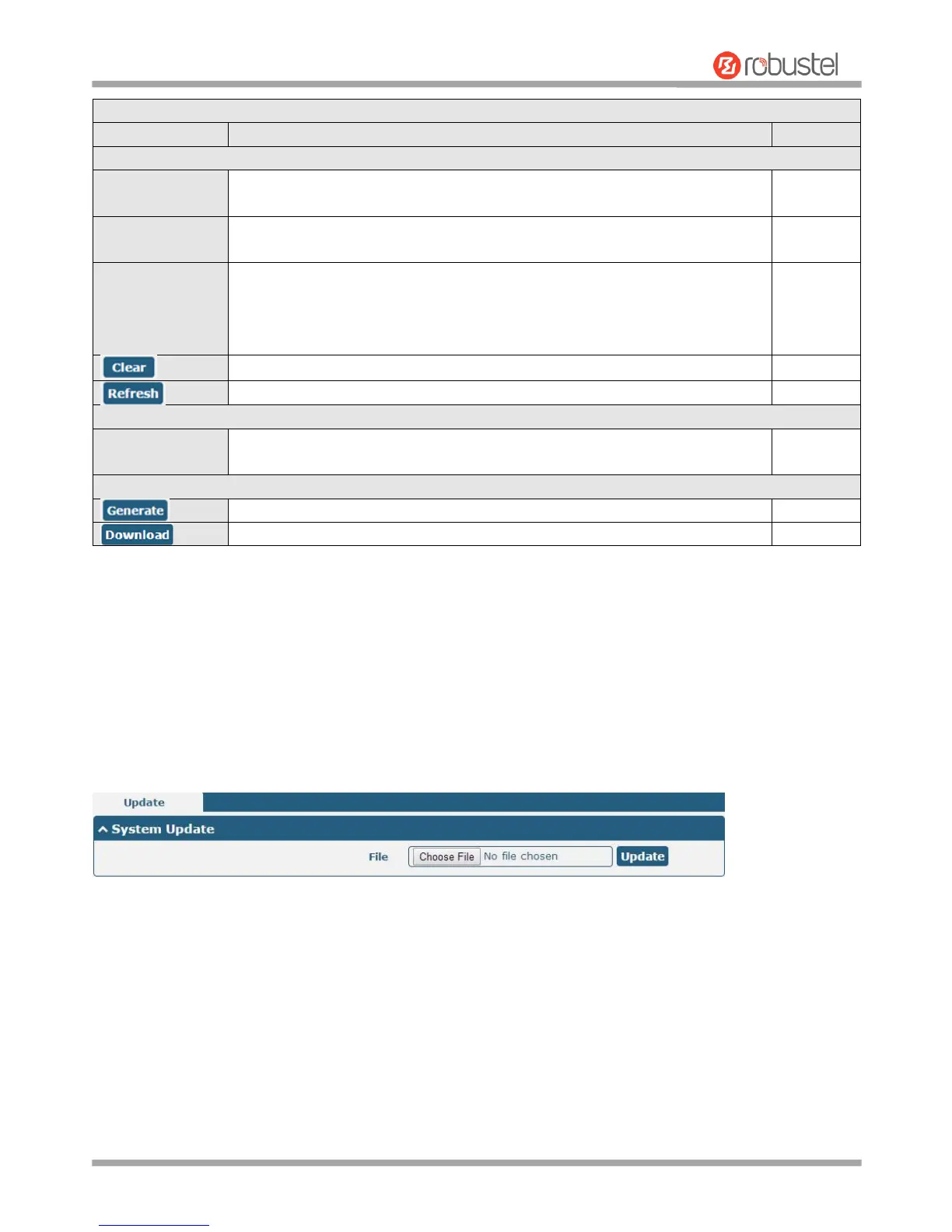
This section allows you to upgrade the firmware of your gateway. Click System > Update > System Update, and click
on “Choose File” to locate the firmware file to be used for the upgrade. Once the latest firmware has been chosen,
click “Update” to start the upgrade process. The upgrade process may take several minutes. Do not turn off your
gateway during the firmware upgrade process.
Note: To access the latest firmware file, please contact your technical support engineer.
3.22 System > App Center
This section allows you to add some required or customized applications to the gateway. Import and install your
applications to the App Center, and reboot the device according to the system prompts. Each installed application will
be displayed under the “Services” menu.
Note: After importing the applications to the gateway, the page display may have a slight delay due to the browser
cache. It is recommended that you clear the browser cache first and log in the gateway again.


 To Next Page