EditingMasteringUsing USBConvenient
Functions
Appendixes Quick StartGetting Ready
to Record
Recording/
Playback
Using
Effects
Using
Rhythm
55
Using Insert Effects
1
Press the [EFFECTS] button.
The [EFFECTS] button will light, and the insert effect
will turn on.
fig.effect_on_off.eps
Press the [EFFECTS] button once again to turn the
insert effect off. The [EFFECTS] button will go out.
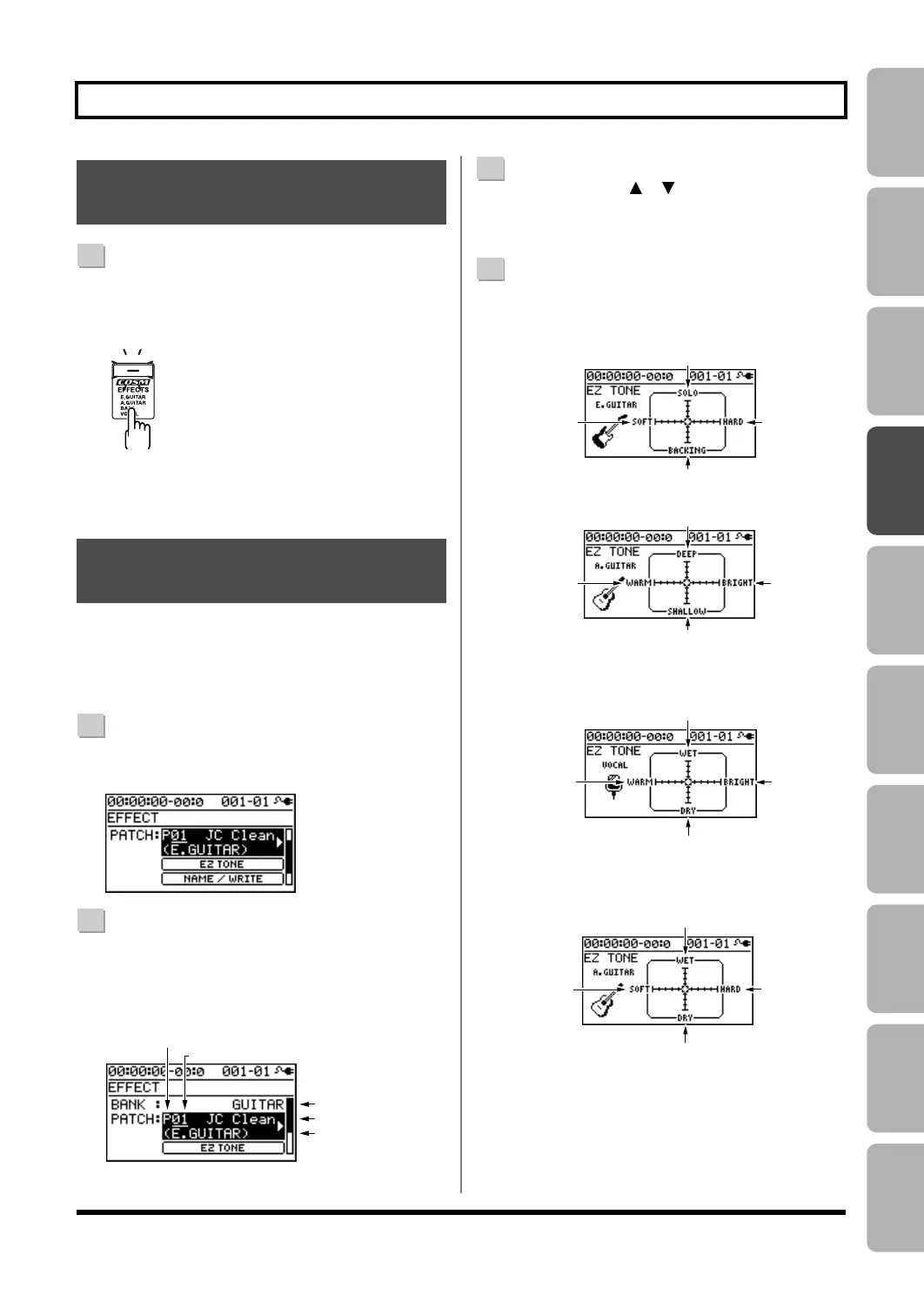
EZ Tone makes it easy to create your sound without having
to edit parameters in detail.
* EZ Tone is not available if 4INPUT or 8TRACK COMP is
selected as the effect bank (p. 54).
1
Press the [EFFECTS] button.
The EFFECT screen will appear.
2
Select the effect patch that’s closest to the sound you
have in mind.
Use the [CURSOR] buttons and dial to select the bank,
preset/song/user, and number.
3
Use the CURSOR [ ] [ ] buttons to move the
cursor to “EZ TONE,” and press the [ENTER] button.
The EZ TONE screen will appear.
4
Use the [CURSOR] buttons to operate the tone grid to
get the desired sound.
For the GUITAR bank
EZ-Tone_Guitar1-e.eps
or
EZ-Tone_Guitar2-e.eps
For the MICROPHONE or LINE banks
EZ-Tone_Mic-e.eps
For the SIMUL bank
EZ-Tone_Sim-e.eps
Turning the Insert Effect On/
Off
Easily Creating an Insert
Effect (EZ TONE)
P: preset / S: song / U: user
Number
Bank
Patch name
Algorithm name
Suitable for soloing
Suitable for backing
Hard soundSoft sound
Warm sound Bright sound
More body-resonance
Less body-resonance
Delay sound: loud
Delay sound: soft
Warm sound Bright sound
Delay sound: loud
Delay sound: soft
Hard sound
Soft sound
BR800_e.book 55 ページ 2010年3月2日 火曜日 午後6時40分


 To Next Page
 Loading...