38
Using the E-A7 as a Song Player
Here we explain how to play back songs in the SMF, WAV, or MP3
formats supported by the E-A7.
Preparing to Use the E-A7 as a Song Player
When shipped from the factory, the E-A7 does not contain songs.
You’ll need to copy songs from your computer or other source.
1. Using your computer, copy the songs to a USB ash
drive (sold separately).
NOTE
Use a USB ash drive sold by Roland. Operation is not guaranteed
if any other USB ash drive is used.
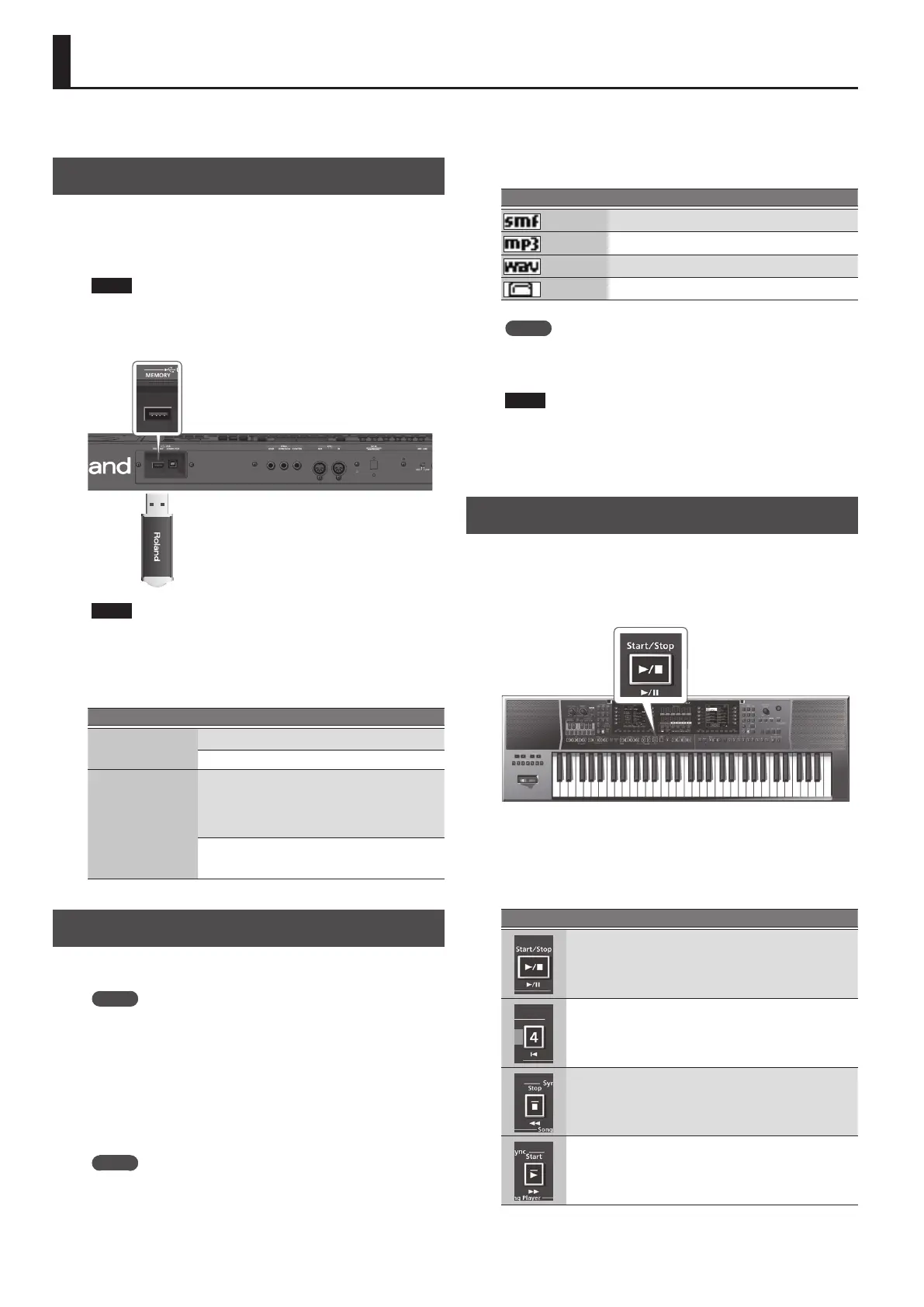
2. Connect the USB ash drive to the E-A7.
NOTE
Carefully insert the USB ash drives all the way in—until it is
rmly in place.
File types supported by the E-A7
File type Extension Format
SMF
.mid 0 or 1
.kar
Audio le
.mp3
MPEG-1 Audio Layer 3
Sampling rate 44.1kHz
Bit rate 32/40/48/56/64/80/96/112/128
/160/192/224/256/320 kbps
VBR (Variable Bit Rate)
.wav
16-bit linear
Sampling frequency 44.1 kHz
Stereo/mono
Selecting a Song
Here we explain how to select a song that’s saved on a USB ash
drive.
MEMO
By using the File Utility function Copy (p. 43), SMF les from a USB
ash drive can be copied to internal storage.
1. Connect your USB ash drive (sold separately) to the
E-A7.
After several seconds, the contents of the USB ash drive are
recognized in the screen as external storage.
2. Press the Mode [Song] button.
The Song List screen appears.
MEMO
Each time you press the Mode [Song] button, the contents of the
list switch between Internal Storage and External Storage.
For this example, make the display show External Storage.
3. Use the direct buttons to select the song that you want
to play back.
As necessary, use the function buttons to switch pages.
The icon at the left of the name indicates the le type.
Icon Explanation
SMF
Audio (mp3)
Audio (WAV)
Folder
MEMO
When you use a direct button to select a folder, you’ll enter that
folder.
To exit a folder, press “Up” folder ([L1] button).
NOTE
If the le name uses double-byte characters, the name might be
displayed incorrectly or the le might not be recognized. In this
case, rename the le using single-byte alphanumeric characters.
4. Press the [Exit] button to return to the main screen.
Playing Back a Song
1. Select a song (p. 38).
2. Press the [Start/Stop] (
s
) button to start playback.
The [Start/Stop] (
s
) button indicator blinks, and the song starts
playing.
3. Press the [Start/Stop] (
s
) button once again to pause
song playback.
The [Start/Stop] (
s
) button goes dark.
To resume playback, press the [Start/Stop] (
s
) button once again.
You can use the following buttons to control the playback.
Button Explanation
Starts/pauses song playback.
Stops song playback and returns to the beginning of the song.
Rewinds the song.
Fast-forwards the song.



 To Next Page