3-1
S ECTION
3
C
HAPTER
3
K
EYPANEL
S
ETUP
ASSIGNING INTERCOM KEYS
You can assign keypanel intercom keys using ZEUSedit or ADAMedit. For help with key
assignment in ZEUSedit or ADAMedit, click the KP button on the program's toolbar, then press
the F1 key on the computer keyboard for help.
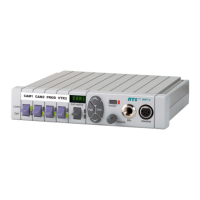
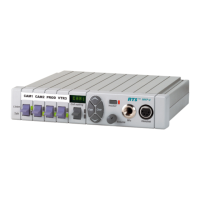
If your keypanel has Copy, Clear, and Scroll buttons, you can also assign keys at the keypanel,
with the following exceptions:
1 Special functions (auto follow, auto listen, etc.) cannot be assigned.
2 You can only assign one destination to each talk key (talk level 1). If you need to assign special
functions, or activate two destinations with a single talk key (talk level 1and talk level 2) you
must assign the key using ZEUSedit or ADAMedit.
NOTE
If you assign talk level 1 from the keypanel, it will erase any talk level 2 assignment that you
previously assigned using ZEUSedit or ADAMedit.
Assign intercom keys at the keypanel as follows:
1 Make sure the key that you want to assign is off.
2 Press the Scroll Up or Scroll Down key to view the list of intercom names in the call waiting
window.
Figure 3.1
Scroll, Copy and Clear Buttons
1
If you start by pressing Scroll Up, the list will start with all point-to-point names. On power
up the keypanel only displays the point-to-point names. Examine or assign a name from a
different scroll list as follows:
2 Make sure that the CWW (call waiting window) is clear. (Dashes should display.)
3 Hold the call waiting window key down and tap the Scroll Up button. The CWW displays
PL for party lines. Click on the Scroll Up or Scroll Down button to go through the different
scroll lists available.


 To Next Page