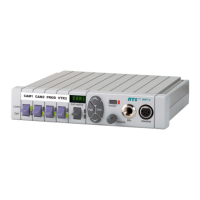
4-4 User Instructions MKP-4, BKP-4, WKP-4, TKP-4, and MKP12 Keypanels
DISPLAYING KEY ASSIGNMENTS
You can use this feature to check key assignments after making changes. You can also use it if
you think the key assignments have been changed but the designation strip has not been updated.
1 Press up and release the call waiting key to clear the call waiting window. (Dashes should
display when the window is clear.)
2 Press down and hold the call waiting key. Then tap an intercom key down or up to display the
talk or listen assignment. You may press several keys in succession to check their assignments.
3 Release the call waiting key when finished.
DISPLAYING THE PORT NUMBER
Occasionally, you may need to know which intercom port your keypanel is connected to. Identify
the port number as follows:
1 Make sure the Call Waiting window is clear. (Dashes should display. If not, press upward on
the Call Waiting key.)
2 Hold down the Call Waiting key.
3 While holding down the Call Waiting key, tap the Clear key. The port number will appear in
the Call Waiting display. This is the port that the keypanel is connected to. N001 indicates
port 1, N002 indicates port 2 and so forth.
SIDETONE ADJUSTMENT
When you use the MKP-4, MKP-12, BKP-4, TKP-4 or WKP-4 with a headset, your own voice
audio can be heard in the headphones. This is especially helpful when using headphones that
completely cover the ears, because it eliminates the muffled sensation when talking. You can
adjust the level of your own voice in the headphones as follows:
1 Make Sure the Call Waiting window is clear. (Dashes should display. If not, momentarily press
upward on the Call Waiting key.)
2 Hold down the Call Waiting key.
3 While holding down the call Waiting key, tap the Copy key. Then, release both keys. The
sidetone level should now be displayed in the Call Waiting window.
4 Tap Scroll Up or Scroll Down to increase or decrease the sidetone level.
5 Press upward on the Call Waiting key to exit when finished.


 To Previous Page