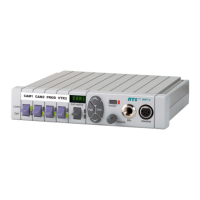
3-2 User Instructions MKP-4, BKP-4, WKP-4, TKP-4, and MKP12 Keypanels
4 To select a particular scroll list, tap the Copy button.
5 You can go through the names in the selected scroll lists by tapping the Scroll Up or Scroll
Down button.
6 Tap the CWW key up to return to normal operation.
NOTES
• You can scroll one name at a time by clicking and immediately releasing the Scroll Up or
Scroll Down button. If you press and hold the button it will start scrolling slowly through the
names. After a few seconds the scroll speed will increase. This is useful when you need to
scroll through a long list.
• The following types of names may not appear in the scroll list: UPL Resources, IFB's, Relays
(GPI outputs), and ISO's. This is because the scroll enable check boxes for these items may not
be checked in ADAMedit or ZEUSedit. If you don't know how to activate these check boxes,
proceed as follows: Run ADAMedit (or ZEUSedit). Then, press the F1 key on your computer
for help. Click the Search button in help, and type “UPL Resources” or “IFB”, etc. (without the
quote marks). From the list of available help topics, select any topic that tells you how to
access or set up the item that you typed. For example, there is a topic that tells you how to
access UPL Resources. Once you access UPL Resources, again press the F1 key for help.
Within the new help screen, you should find help with the scroll enable feature.
3 When the name you want to assign is displayed in the call waiting window, release the Scroll
button.
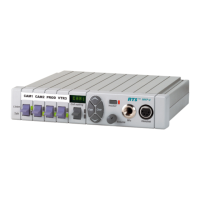
4 Press and hold the Copy button, then tap down on an intercom key to assign talk, or tap up to
assign listen. The talk or listen LED will blink once to confirm the assignment.
NOTE
To assign both talk and listen, continue holding the Copy button while tapping the intercom key
both up and down.
5 Press the Clear button to return to normal operation after assigning keys. Otherwise, if you do
nothing, the keypanel will automatically return to normal operation after about 30 seconds.
CLEARING KEY ASSIGNMENTS
1 Make sure that the key or keys that you want to clear are turned off.
2 Press up and release the call waiting key. This clears the call waiting display. (Dashes should
display.)
3 Press and hold the Copy button, then tap the intercom key that you want to clear. Tap up to
clear the listen assignment. Tap down to clear the talk assignment. The talk or listen LED will
flash to confirm that the key assignment is cleared. You can tap several keys in succession to
clear them while continuing to hold down the Copy button.
CHANGING SETUP PAGES
There are four setup pages available. Each setup page can contain a complete set of key
assignments. By changing the setup page you can therefore quickly change all of the keys
assignments. Change the setup page as follows:
1 Make sure all intercom keys are off.
2 Press and hold the Clear button.
3 While holding the Clear button, press and hold the Copy button. The currently assigned setup
page will display in the call waiting window. PG 1 means Page 1; PG 2 means Page 2 and so
forth.
4 Release both buttons.


 To Next Page