36
Configuring the Access Point
Configuring Device Settings
Configuring Device Settings
Device settings refer to the device name, temperature update, location and service
provider login settings. (Temperature update is only available on certain ZoneFlex
models.)
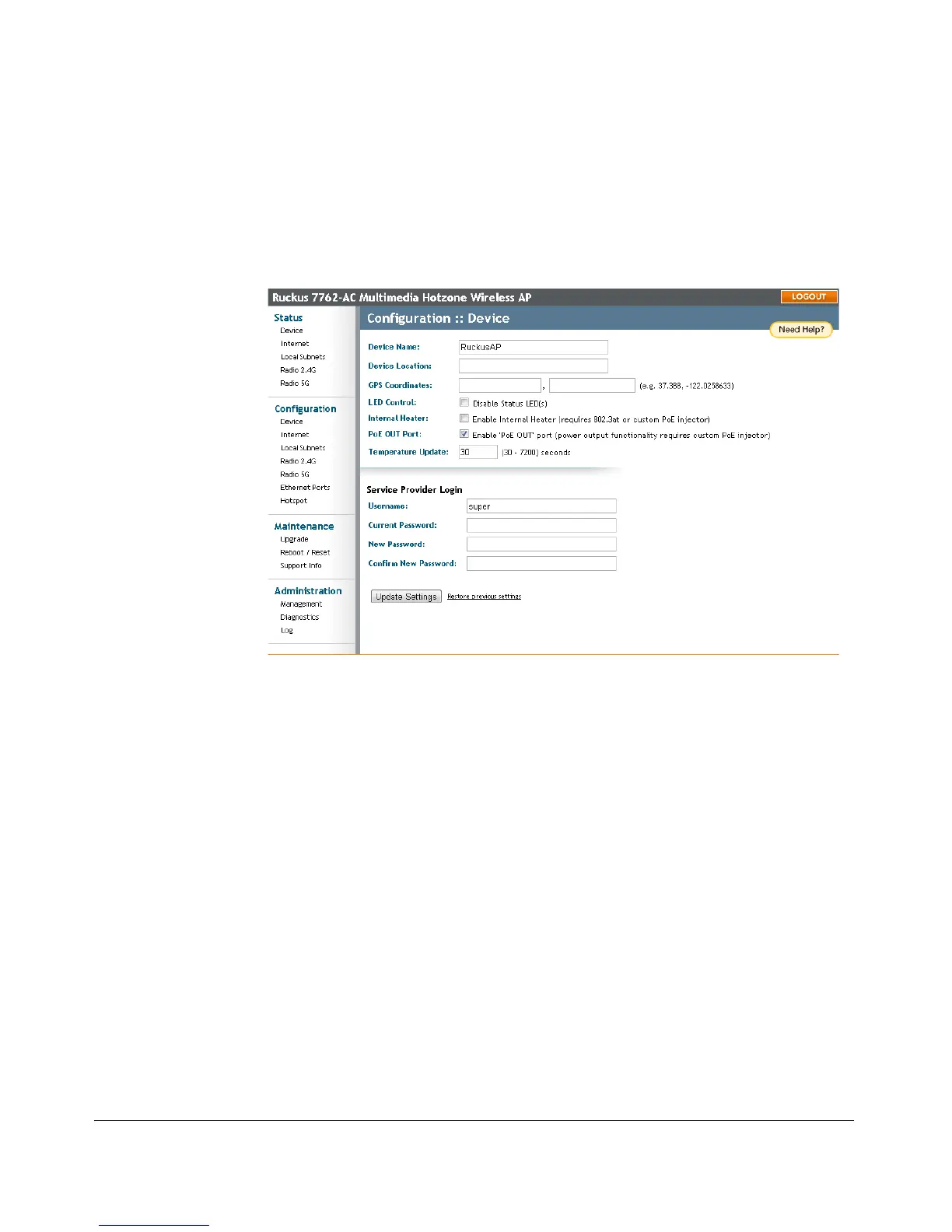
Figure 18. The Configuration > Device page
To configure the device settings
1. Go to Configuration > Device. The Configuration > Device page appears.
2. In Device Name, type a new name for the AP or leave as is to accept the default
AP name (RuckusAP). The device name identifies the Access Point among other
devices on the network.
3. Configure the following optional settings as desired:
• Enter Device Location and GPS Coordinates to keep track of the physical
location of the AP.
• Check the box next to Disable status LEDs under LED Control (specific
models only) to disable the status LEDs. This can be useful if the AP is installed
in a public location to avoid drawing attention to the AP.
• Enable Internal Heater and PoE OUT Port (specific models only) if needed.
•In Temperature Update (specific models only), enter the interval (in seconds)
to record the internal temperature of the AP.
4. Under Service Provider Login, change the login information as required:
• Username: Type the name that you want to use for logging in to the Web
interface. The default user name is super.







 To Next Page