10
4) Open the Ryze Fit App.
If you already have a Ryze Fit account, log in to
your account. If you do not have a Ryze Fit account,
tap the Login button. Register a new account using
your email address, tap Get Code and enter the
verification code sent to the email to login to the
App. Grant permissions and set up your profile when
prompted.
5) Complete the two-step pairing with the App and the
phone audio.
A complete pairing is a fully guided two-step
process, in which the smartwatch is paired with the
App and then with the phone audio via Bluetooth.
Step 1: Go to the Device menu in the App and tap
the + sign. The App will then automatically search for
devices to connect. Tap and select “Ryze Wave” and
wait to complete connection with the App.
Step 2: When the screen prompts a Bluetooth pairing
request, tap the screen option to complete pairing
with the phone audio. Grant permissions when
prompted.
6) Once the setup is completed, read through the user
manual to learn more about the smartwatch and
how to manage its functions and features with the
App.
NOTE
If your Ryze Wave smartwatch is currently connected to a
smartphone and you would like to pair it to a new smartphone,
first turn o the Bluetooth of your connected smartphone.
For iPhones, you will need to delete the smartwatch from the
Bluetooth device list after your smartwatch is unpaired from
the App. To do this, touch the
icon next to the smartwatch
name and tap Forget this Device.
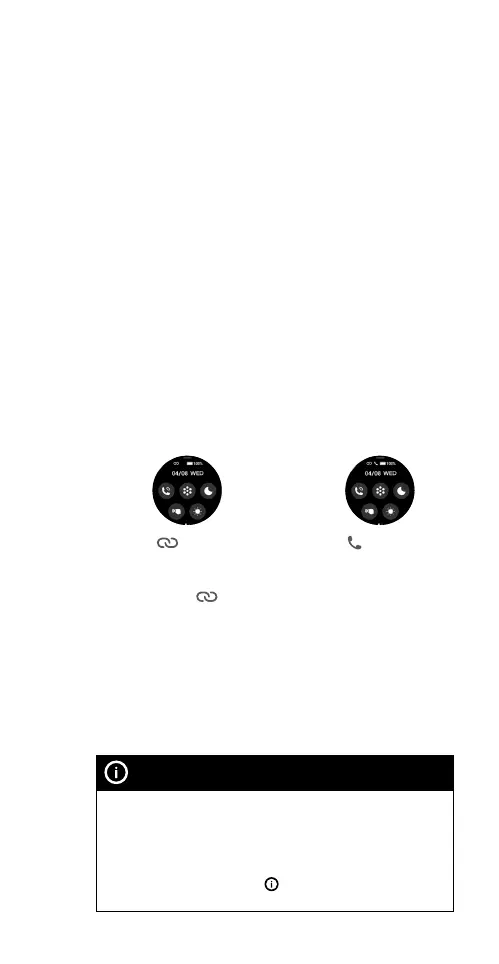
A grey icon means
the smartwatch is not
connected with the
App. A white
icon
means the smartwatch
is currently connected
with the App.
A white
icon appears
when the smartwatch
is connected to the
smartphone’s Bluetooth
for audio functions such
as Bluetooth calling.



 To Next Page